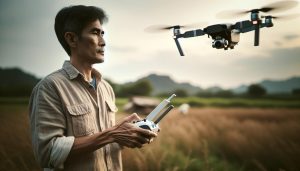
Unbinding a DJI drone is a crucial skill for enthusiasts looking to transfer ownership or reset their devices. Whether you’re upgrading to a new model or preparing to sell your current drone, understanding how to unbind it from your account ensures a smooth transition and protects your personal data. Many users find themselves confused about the technicalities of this process, which can lead to frustration and risk of error. By mastering the steps for unbinding your drone and effectively managing your DJI account, you not only gain peace of mind but also empower yourself to make the most of your aerial adventures. Dive into our comprehensive guide to discover detailed instructions, common pitfalls, and essential tips for resetting your drone with confidence.
Can You Unbind a DJI Drone? Understanding the Basics
Understanding the intricacies of unbinding a DJI drone is essential for both novice and seasoned pilots alike. When a drone is bound to a specific remote control or DJI account, it establishes a unique link that secures its operation. This binding process ensures that only authorized devices can control the drone, enhancing its security and functionality. However, circumstances may arise where unbinding is necessary-such as transferring ownership, resolving connectivity issues, or resetting to factory settings. In such cases, it’s crucial to understand what it means to unbind a drone and how it affects your flying experience.
Unbinding a DJI drone is a straightforward process but requires attention to detail. When you unbind, the drone essentially disconnects from the linked remote or account, freeing it to be paired with a different controller or user account. This is particularly important during the sale or donation of a drone, as unbinding ensures the new owner can use it without complication. Conversely, unbinding can sometimes lead to confusion if not done correctly, potentially resulting in a drone that feels unresponsive or difficult to access. Pilots must be aware that once unbound, the drone might require re-setup for flying, including syncing with the new controller and possibly reconfiguring settings.
Additionally, prior to performing an unbinding, make sure to back up any important data or flight logs stored on the DJI account. This way, you can easily transfer necessary information to the new user or simply keep your own records intact. With the right approach and understanding of the unbinding process, you can maintain your drone’s efficiency and ensure a smooth experience whether you are transferring ownership or troubleshooting.
Importance of DJI Drone Binding and Unbinding
Understanding the importance of binding and unbinding your DJI drone can greatly enhance your flying experience and ensure that you manage your device properly. When a drone is bound to a remote control or a DJI account, it creates a secure link that grants exclusive control to the registered user. This process is critical for ensuring safety, preventing unauthorized access, and maintaining the overall integrity of the drone’s functionalities. Binding helps facilitate seamless communication between the drone and its controller, enabling essential features like GPS tracking, telemetry data transfer, and firmware updates.
There are several scenarios where unbinding becomes important. One of the most common situations is transferring ownership of the drone. If you’re selling or gifting your drone, unbinding it from your account ensures that the new owner can register it with their own DJI account without encountering any access issues. Additionally, unbinding can troubleshoot connectivity problems that may arise. If your drone is acting erratically or experiencing connection delays, a fresh binding can often resolve these issues, allowing the drone to sync correctly with the remote.
It’s also crucial to understand that unbinding has implications for the drone’s configuration. After unbinding, the drone might lose customized settings, which means it may require re-calibration and setup to ensure optimal performance. Therefore, it’s advised to document any settings you want to retain before unbinding. Keeping the user experience smooth requires a careful approach to these operations, particularly for those who may be less familiar with the technical aspects of DJI drones.
In conclusion, taking a proactive approach to binding and unbinding is essential for any drone pilot. Understanding how these processes work not only increases the longevity of your aircraft but also enhances your overall piloting experience. Whether you’re a hobbyist or a professional, mastering the nuances of drone management can lead to greater enjoyment and fewer complications when flying.
Step-by-Step Guide to Unbinding Your DJI Drone
To successfully unbind your DJI drone, follow this straightforward guide that ensures a smooth transition for both the current user and any new owner. Unbinding allows you to disconnect your drone from your DJI account or its controller, making it essential when selling or transferring your device.
Start by gathering all necessary equipment: your drone, remote controller, and a charged smartphone or tablet with the DJI app installed. Next, power on both your drone and the remote controller. Once they are paired and operational, launch the DJI app and connect it to your drone.
Now, navigate through the app to access the settings menu. This is often found under the device management section. Within the settings, locate the option for “Account Management” or “Device Binding.” Here, you will find the unbinding option. Click on “Unbind” and confirm the action when prompted. This step is crucial as it ensures your drone is officially removed from your account.
Once the unbinding process is complete, it’s wise to restart both the drone and the remote controller. After they have rebooted, verify the drone’s status within the app to ensure the binding has been successfully removed. If you plan to sell or give away your drone, resetting to factory settings can also help clear any personal data. Follow up by navigating to the device settings, finding the “Reset” option, and confirming the factory reset.
Performing these steps carefully will guarantee that your DJI drone is unbound correctly, allowing new users to set it up without any glitches while protecting your personal information. Always remember to check the DJI user manual for model-specific instructions, as slight variations can exist between different DJI drone models.
How to Transfer Your DJI Account Successfully
Transferring your DJI account to a new user can seem daunting, but it’s a straightforward process that ensures seamless access and control over the drone, whether you’re selling, gifting, or upgrading your device. Understanding the nuances of account transfer is crucial for both the current owner and the recipient to avoid any complications later on.
To initiate the transfer, start by unbinding your drone from your account, as detailed in previous steps. Once this has been completed, it opens the door for the new user to bind the drone to their own DJI account. The new owner should already have the DJI App installed and a verified account ready. They can proceed by powering on the drone and the remote controller, and ensuring they establish a connection to the app.
After launching the app, the new user needs to follow these simple steps to complete the binding process:
- Access Device Management: Inside the app, navigate to the device management section, where the option to add a new drone will be available.
- Select ‘Bind Device’: The app will prompt the new user to bind their device. They should select this option and follow the on-screen instructions.
- Verify Connection: Once the binding process is initiated, the app will instruct the user to ensure the drone is powered on and within range. This typically requires confirmation on the app interface.
- Confirmation of Binding: After successful binding, a confirmation message will appear within the app, indicating that the drone is now linked to the new user’s account.
It’s vital to note that all data from the previous user, including flight logs and personalized settings, will be removed during this process. This not only aids in safeguarding personal information but also allows the new user to start fresh, tailoring the settings to their preferences.
The transfer process often raises questions regarding legal considerations and safeguarding personal data. It’s advisable for users to familiarize themselves with DJI’s policies regarding account transfers to ensure compliance. Additionally, maintaining open communication with the new owner about any specific quirks or features of the drone can lead to a smoother transition and enhance the flying experience.
By prioritizing these steps, both parties can ensure a successful transition, allowing the new user to fully enjoy their drone without issues related to previous account bindings.
Resetting Your DJI Drone to Factory Settings
can be a crucial step in preparing for a new user or troubleshooting persistent issues. This process ensures that the drone and its associated data are returned to their original state, eliminating any custom settings, flight logs, or saved preferences that might hinder performance. Understanding how to correctly reset your drone can enhance user experience and facilitate a smoother transition for new owners.
To initiate the factory reset, first ensure that your drone is fully charged and connected to a stable Wi-Fi network. Navigate to the DJI Fly or DJI GO app, depending on your drone model. Open the app and connect to your drone. Once connected, follow these steps:
- Access Settings: Tap on the menu icon in the upper right corner, then select the settings tab.
- Go to ‘General’ Settings: Scroll down to the general settings option. Here, you’ll find various drone configuration settings.
- Find ‘Restore Factory Settings’: Look for the option labeled “Restore Factory Settings” or similar wording, and select it.
- Confirm the Reset: The app will ask for confirmation. Review any warnings regarding lost data and, if you’re sure about the reset, confirm your choice.
After initiating the reset, your drone will restart, and all personal data will be erased, bringing it back to a like-new state. It’s important to note that this action cannot be undone, so ensure any critical data is backed up before proceeding.
While this reset process generally applies to most DJI models, always check your specific drone’s user manual for model-specific instructions, as the interface and feature names can differ slightly across the DJI lineup. Understanding how to reset your drone not only prepares it for a new owner when transferring accounts but also serves as a method for troubleshooting stubborn issues, ensuring optimal performance down the line.
Troubleshooting Common Issues During Unbinding
Unbinding a DJI drone can be complex, particularly if you’re encountering issues during the process. Many users face challenges due to insufficient app updates, connectivity problems, or lack of familiarity with the account settings. Ensuring all necessary components are updated and functioning correctly before starting the unbinding process can significantly alleviate these frustrations.
One common issue is connectivity. The DJI app requires a stable internet connection to process account changes. If you’re experiencing lag or disconnection, try restarting your device and the drone, and ensure you’re in an area with strong Wi-Fi. Additionally, confirm that the DJI app is updated to the latest version, as bugs in older releases can hinder functionality. If the app fails to connect to your drone, navigating to the app’s settings and clearing cache data can also help refresh the connection.
Another frequent hurdle is the drone not showing the unbinding option within the app. Make sure your drone is powered on and properly linked to the app. If you still don’t see the option, check your account settings to confirm you’re logged in correctly. Sometimes, signing out and back into your account can reset any temporary glitches. If issues persist, consider factory resetting the drone, but remember that this will erase all custom settings and flight logs.
It’s also essential to review the specific procedures for your DJI model, as unbinding steps can vary. For instance, certain models may require additional verification steps or a different app interface. Consulting the user manual or online resources can provide the guidance needed to successfully unbind your drone without complications. Keeping these troubleshooting tips in mind will facilitate a smoother transition during the unbinding process, empowering you to manage your drone with confidence and ease.
Understanding the Implications of Unbinding Your Drone
Unbinding a DJI drone carries several important implications that are critical for any pilot to understand. When a drone is unbound from a DJI account, it is effectively dissociated from its previous owner, which can impact various functionalities including the ability to receive firmware updates or access certain app features. This means that any custom settings and flight logs tied to that account will be lost as well. For those transferring ownership, this can be an essential step to ensure the new user fully controls the drone without interference from prior configurations or settings.
One significant concern relates to the transfer of ownership. If you’re selling or giving away your drone, unbinding it ensures you maintain privacy and prevent any unwanted access to your flight data. However, it’s crucial that the new owner knows how to bind the drone to their own account post-transfer. Failure to do so might result in the drone being rendered unusable or facing limitations in functionality, as many features are account-dependent. Proper communication with the new owner about how to bind the drone is essential for a smooth transition.
Another aspect to consider is the impact on warranty and service. Some warranties may require the drone to be bound to a specific account for support and service eligibility. Unbinding could complicate matters if repairs or customer support are needed later. Therefore, it’s wise to check the warranty terms and consult DJI’s customer support before proceeding with an unbinding action to avoid future issues.
Lastly, pilots should be aware that unbinding can affect access to specific features like geofencing, which helps keep users safe by restricting flight in high-risk areas. Once unbound, the drone may revert to factory settings, which could disable previously enabled features. It’s advisable to familiarize oneself with the drone’s settings and features post-unbinding to ensure that all functionalities are operational before flying.
By understanding these implications, pilots can navigate the unbinding process with confidence, ensuring that they are setting themselves and the new user up for success while keeping essential safety protocols in mind.
Tips for Maintaining Your DJI Drone After Unbinding
Maintaining your DJI drone after unbinding it from an account is crucial for ensuring that it continues to operate optimally and remains ready for your next flight. With new ownership or a reset, there are specific steps you can take to keep your drone in prime condition, enabling you to maximize its performance and longevity.
First and foremost, perform a thorough inspection of your drone post-unbinding. Check for any visible damage, loose connections, or debris lodged in rotors and sensors. Regular cleaning, especially of the camera and gimbal, will prevent dust buildup that can affect image quality. Beyond aesthetics, maintaining a clean drone contributes to effective aerodynamics and battery efficiency.
Regular Firmware Updates
One of the essential aspects of drone maintenance is keeping the firmware up to date. Unbinding your drone can sometimes reset it to factory settings, which includes its firmware version. Always check for the latest updates through the DJI app or the official DJI website. These updates not only enhance functionality but also address any critical fixes that could affect performance or new features that enrich your flying experience.
Battery Care
After unbinding, it’s important to reevaluate your battery management practices. DJI batteries have specific storage requirements, especially if they are not used frequently. Store batteries in a cool, dry place and ensure they are charged to about 50% if you plan on not using them for an extended period. Regularly inspect the battery for swelling, dents, or any signs of wear. If a battery exhibits these signs, it should be replaced promptly to ensure safety and optimal performance.
Calibration and Settings
Once you’ve set everything up for the new usage, recalibrating your drone’s sensors is necessary for accurate performance. The IMU (Inertial Measurement Unit) and compass settings should be recalibrated to ensure safe flight operations. Additionally, take time to familiarize yourself with the available settings within the DJI app, which may differ from previous configurations. This will help you to re-enable safety features such as geofencing or return-to-home settings, which are vital for safe flying.
By establishing a regular maintenance routine, staying informed about updates, and ensuring proper care for your equipment, you can enjoy a seamless flying experience with your DJI drone, no matter its binding status. Prioritizing these practices not only enhances your safety but also maximizes the operational lifespan of your device.
Legal Considerations for DJI Drone Account Transfers
Transferring ownership of a DJI drone can be a straightforward process, but navigating the legal considerations is essential to ensure compliance and the continued functionality of the device. The binding of a DJI drone to an account helps to maintain a secure connection between the user and the drone, which is critical when transferring ownership or resetting the device. Understanding the implications of this binding can prevent various issues, from access restrictions to potential legal liabilities regarding the drone’s operation.
When a drone is unbound from a previous account, it is crucial to properly manage the transfer of that account. Legally, the previous owner must initiate this unbinding process to ensure that the new user can fully access the device without any complications. This may involve releasing the drone from their DJI account through the DJI Fly app or the DJI Assistant 2 software. Failing to do so could leave the drone still linked to the original owner’s account, preventing the new owner from using key features or accessing necessary updates and support.
Documentation and Communication
It’s advisable for both parties to maintain thorough documentation of the transfer, including purchase receipts and written confirmation of the account unbinding. This is particularly vital for compliance with local regulations, which often require clear ownership records. Discussing responsibilities and expectations regarding the drone’s operation-especially if the new owner plans to use it for commercial purposes-is equally important.
Finally, regarding liability, once the transfer is complete, the new owner assumes all responsibilities for compliance with local laws and regulations governing drone usage. They must ensure that they understand the regulatory environment, including registration, insurance, and airspace restrictions, to operate their DJI drone legally. Moreover, considering that laws can vary significantly by region, seeking legal advice or reviewing local drone regulations is recommended to avoid potential fines or issues related to unauthorized flights. By following these guidelines, drone transfers can be executed smoothly and legally, paving the way for responsible and safe drone ownership.
Comparing DJI Models: Unbinding Procedures for Each
Understanding the unbinding procedures of different DJI models is crucial not only for facilitating account transfers but also for ensuring the seamless operation of your drone post-transfer. Each DJI model has its unique features and associated procedures that owners need to follow for unbinding. This ensures that new users can access all functionalities, including firmware updates, maps, and supported accessories without complications.
Mavic Series
The process for unbinding Mavic series drones, such as the Mavic Air and Mavic Pro, involves using the DJI Fly app or DJI Assistant 2 software. Users must log into the original account linked to the drone and select the device from the app. From there, access the settings to find the option to unbind the drone. Once this is completed, ensure the new owner logs into their DJI account and connects their device to claim ownership. Note that unbinding the Mavic series is generally straightforward but requires a stable internet connection.
Phantom Series
For the Phantom series, such as the Phantom 4 and Phantom 3, the unbinding process is slightly different due to their more advanced functionalities. Users need to connect their aircraft to the DJI Assistant 2 software on their PC or Mac. Within the software, select “Account” and follow the on-screen prompts to disconnect the drone from the original account. Make sure to perform a firmware update afterward, as this can resolve potential issues that might arise from the transfer.
Mini Series
The DJI Mini series drones (Mini 1 and Mini 2) offer a simplified unbinding process through the DJI Fly app. Owners can navigate to the settings menu, where they will find the “Unbind” option. However, it’s essential to ensure that all flight logs are backed up since these may be lost once the drone is unbound. Once unbound, the new owner can link the drone to their own account easily, enjoying a user-friendly experience without prior technical hurdles.
Air and Avata Series
For both the Air and Avata series, the unbinding process requires the use of the DJI Fly app as well. Users should hold the unbinding procedure in high regard since both series are often used for complex aerial tasks. By selecting the drone from the app and using the unbind settings, users can effectively transfer ownership. As an additional precaution, reboot the drone after unbinding to ensure a fresh start for the new owner.
General Tips
Regardless of the model, a few general tips apply across the board:
- Always back up important data before unbinding.
- Run a firmware update post-unbinding to prevent software inconsistencies.
- Keep a copy of the original purchase receipt and any communication during the transfer for future reference.
- Ensure both parties understand their responsibilities post-transaction.
By following the specific unbinding procedures for each DJI model, owners can facilitate a smooth transition, safeguarding their investment while empowering new users to take advantage of DJI’s innovative technologies.
Exploring Advanced Features Post-Unbinding
Unlocking the full potential of your DJI drone after unbinding is an exciting journey that can enhance your flying experience, whether you’re a casual hobbyist or a professional operator. Once the unbinding process is complete and the drone is linked to a new account, it’s essential to explore its advanced features fully. Each DJI model offers a range of technologies that can tremendously expand your aerial capabilities, enabling you to capture stunning footage and perform complex maneuvers with ease.
Accessing Firmware Updates
After unbinding, one of the first steps is to check for firmware updates. Keeping your drone’s firmware current is crucial for optimal performance and access to the latest features. Utilizing the DJI Fly app, navigate to the “Settings” menu and select “Firmware Update.” Regular updates may include enhancements to obstacle avoidance systems, improved battery management, and even new flight modes that can significantly impact your flying experience.
Utilizing Intelligent Flight Modes
DJI drones come equipped with various intelligent flight modes that enable effortless photography and stunning aerial maneuvers. Features like QuickShots allow you to execute predefined flight paths for complex shots with a single tap. Post-unbinding, ensure that you familiarize yourself with these modes by referring to the user manual or online tutorials. For instance, the Mavic series includes modes such as Follow Me, which tracks your movements, and Point of Interest, which circles around a specific target. Learning how to leverage these can elevate the quality of your aerial footage.
Customizing Settings for Advanced Operation
Post-unbinding, take the time to customize your drone’s settings, including gain settings for responsiveness, return-to-home altitude, and battery warnings. Adjusting these parameters can significantly enhance control and safety. For instance, increasing the return-to-home altitude can prevent collisions with obstacles during the drone’s ascent. Additionally, consider calibrating your gimbal and setting up custom functions for the buttons on your remote controller to ensure a more tailored flying experience.
Exploring New Accessories and Map Integration
The unbinding process also opens the door to utilizing compatible accessories that can enrich your flying experience. For example, lens filters can improve image quality, while intelligent batteries provide extended flight times. Moreover, integrating your drone with map applications can allow for detailed planning of flight paths, which is particularly beneficial for surveying or filmmaking. Techniques such as waypoint flying can automate complex missions, enabling you to focus on capturing the perfect shot without constantly managing the controls.
By actively exploring these advanced features, you not only maximize the capabilities of your DJI drone but also empower yourself with the knowledge to take your aerial photography and videography to new heights. Whether it’s mastering intelligent flight modes, customizing your settings, or leveraging new accessories, there is a wealth of potential awaiting you in the sky after unbinding.
Safety Guidelines for Flying After Unbinding
Flying a DJI drone after unbinding can be an exhilarating experience, but it also requires a heightened sense of responsibility and safety awareness. Ensuring that you are informed of the nuances involved with your newly unbound device is crucial in minimizing risks. From understanding your surroundings to adhering to legal regulations, there are several safety guidelines to keep in mind that will make your flying experience not just enjoyable but also safe for both you and those around you.
One of the first steps you should take is to conduct a thorough pre-flight check. This includes ensuring that your drone has a full battery and that all parts are functioning properly, like the propellers, camera, and sensors. Before each flight, it’s wise to check for any firmware updates, as these often include crucial safety improvements and flight enhancements that can help prevent accidents. Utilize the DJI Fly app to confirm that your drone’s settings are optimal for your intended flight conditions.
Understanding the airspace in which you will be flying is vital. Consult local regulations regarding drone operation, as laws can vary significantly by location. It’s essential to avoid restricted areas, such as airports, schools, and government buildings. Furthermore, always respect privacy laws and seek permission if you intend to capture images or videos of private property. Using apps that show no-fly zones can significantly help you plan your flights more effectively.
When you’re ready to take to the skies, maintain visual line-of-sight with your drone at all times. This helps in avoiding obstacles and other aircraft, ensuring a safer flight. Additionally, consider environmental factors; for instance, strong winds or inclement weather can risk the drone’s stability and performance. Finally, abide by the established altitude limits to prevent encounters with manned aircraft. Implementing these precautions not only enhances your flying experience but also contributes to a safe environment for everyone involved.
Following these safety guidelines will empower you to enjoy the full potential of your DJI drone post-unbinding while protecting your investment and adhering to responsible flying practices. Each flight can lead to enhanced skills, stunning footage, and more memorable experiences when approached with care and consideration for safety protocols.
Faq
Q: How do I unbind my DJI drone from my account?
A: To unbind your DJI drone, navigate to the DJI Fly app, log into your account, go to the device settings, and select the unbind option. Ensure your drone is connected before proceeding. For detailed steps, refer to the “Step-by-Step Guide to Unbinding Your DJI Drone” in your article.
Q: Can I use my DJI drone without an account?
A: No, a DJI account is necessary for initial setup and operation of your drone. It facilitates firmware updates, flight data management, and customer support. Check the section on “Importance of DJI Drone Binding and Unbinding” for more insights.
Q: What happens to my drone after unbinding?
A: Once unbound, you will need to link the drone to another account for future use. The drone’s functionality remains intact, but its data will no longer be accessible under the previous account. See “Understanding the Implications of Unbinding Your Drone” for further details.
Q: How can I transfer my DJI account to someone else?
A: To transfer your DJI account, first unbind your drone from your account, then provide the new user with your account details. They can create a new account to link the drone. Refer to the section on “How to Transfer Your DJI Account Successfully” for the complete process.
Q: Is it safe to reset my DJI drone to factory settings?
A: Yes, resetting your DJI drone to factory settings is safe and can resolve issues or prepare it for a new owner. This process will erase all previous settings and data. For steps, see the “Resetting Your DJI Drone to Factory Settings” section.
Q: Can I rebind my DJI drone after unbinding it?
A: Yes, you can rebind your DJI drone to the same or a new account after unbinding. Simply connect through the DJI Fly app and follow the prompts to link your drone. For instructions, check “Step-by-Step Guide to Unbinding Your DJI Drone.”
Q: What should I do if I have issues unbinding my drone?
A: If you encounter issues while unbinding, ensure you are connected to the internet and the drone is powered on. Restart the app if necessary and consult the “Troubleshooting Common Issues During Unbinding” section for more solutions.
Q: Are there any legal considerations when transferring my DJI account?
A: Yes, transferring your DJI account can involve legal considerations, such as adhering to local regulations regarding drone ownership. Refer to “Legal Considerations for DJI Drone Account Transfers” for vital information before proceeding.
Insights and Conclusions
Now that you’re equipped with the essential steps to unbind your DJI drone, account transfer, and reset procedures, don’t hesitate to take action! Ensuring your drone is properly reset will enhance your flying experience and provide peace of mind. If you have any lingering questions or specific scenarios in mind, check out our detailed guides on troubleshooting common issues and advanced drone setup tips.
Join our community discussions to share your experiences and learn from fellow drone enthusiasts. For more expert insights and the latest updates, consider subscribing to our newsletter. Remember, the sky is no limit when you’re well-informed-keep exploring and flying confidently!