

Connecting your DJI controller to your drone can be a crucial step in ensuring a seamless flying experience. Did you know that improper pairing can lead to frustrating delays or even flight failures? Many drone enthusiasts grapple with this issue, whether they’re beginners eager to capture stunning aerial shots or seasoned pilots looking to enhance their skills. This guide offers a no-fail method to connect your DJI controller swiftly and efficiently, ensuring you’re ready to take to the skies without complications. By following these simple steps, you’ll avoid common pitfalls and start your flying adventure with confidence. Keep reading to unlock the key to a hassle-free setup and maximize your drone’s potential!
How to Identify Your DJI Controller Model
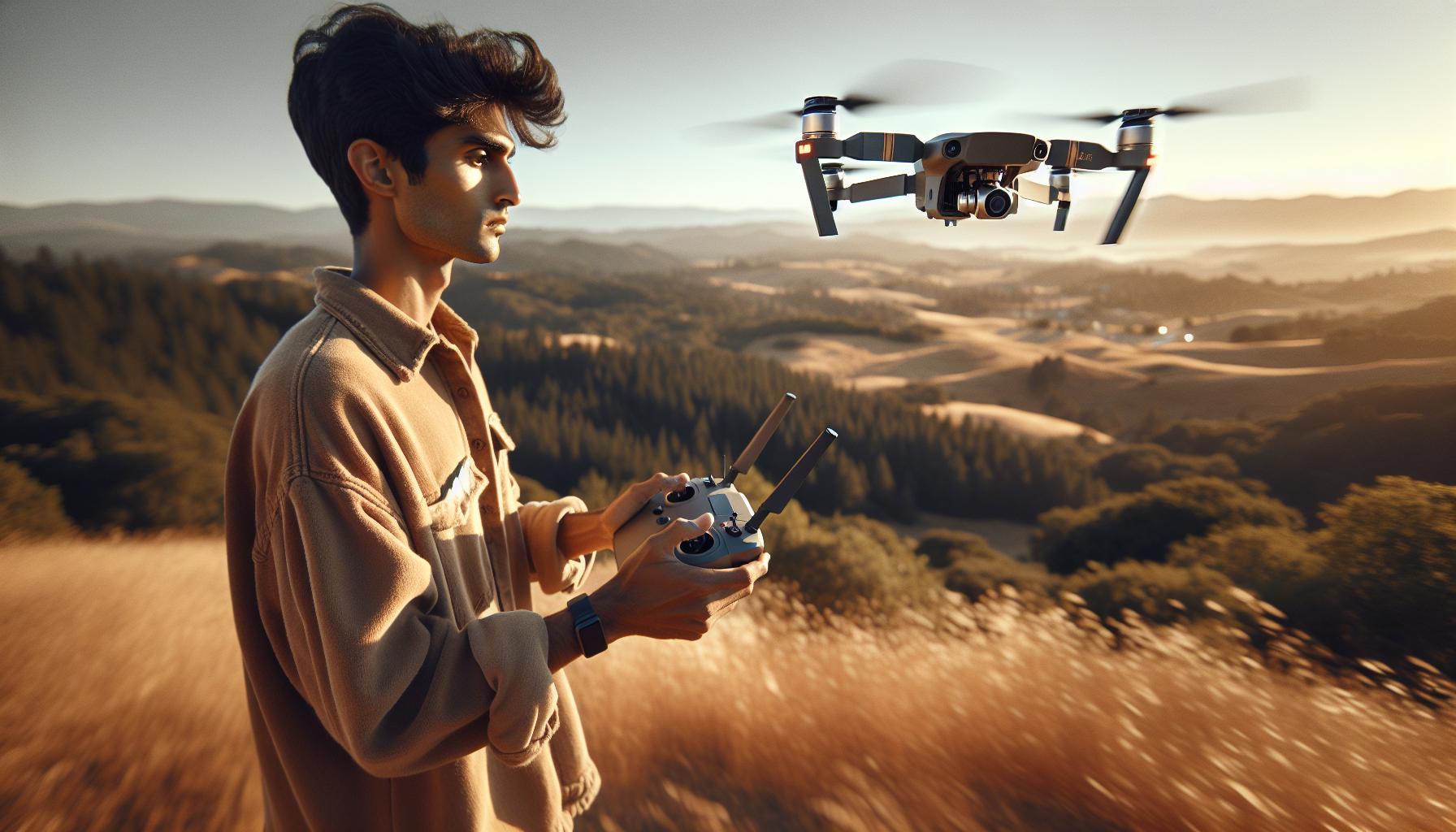
Identifying your DJI controller model is the first step in establishing a strong connection with your drone, ensuring that you leverage its full potential. With various models in the DJI lineup-including the DJI RC, RC-N1, and Smart Controller-each is tailored to different drone series, including the Mavic, Air, and Mini. Understanding which controller you have is crucial for compatibility with specific drones, software updates, and accessing necessary support resources.
To determine your DJI controller model, start by examining the physical design and features of the controller:
- DJI RC and RC-N1: The DJI RC features an integrated touchscreen and enhanced buttons for quick access to settings. In contrast, the RC-N1 has a simpler design without a built-in display and relies on a mobile device for flight data.
- Smart Controller: Notable for its robust architecture and built-in screen, the Smart Controller allows for direct connection to supported drones without the need for a smartphone.
- Phantom Series Controllers: These often have a distinctive, larger footprint and come equipped with more advanced controls tailored for professional users.
Next, check the model number, usually found on the back of the controller or within the settings menu of the related DJI Fly or Go app. This alphanumeric code identifies the model and provides essential warranty and support information.
Recognizing your controller model not only aids in pairing with your drone but also ensures you can effectively manage firmware updates, access unique flight modes, and utilize any advanced features that present with specific models. For best practices, always refer to the user’s manual or DJI’s official website for the most accurate insights related to your specific controller. This proactive approach to identification will enhance your flying experience and ensure optimal drone performance.
Essential Equipment for Connecting Your Drone

To establish a reliable connection between your DJI controller and drone, understanding the essential equipment required for this process is paramount. Generally, the equipment you’ll need includes the controller itself, the drone, and an appropriate mobile device (if required), along with any accessories necessary for optimal operation. Each piece of equipment plays a significant role in ensuring a seamless flying experience and maximizing the drone’s capabilities.
The primary tool in your setup is, of course, the DJI controller. Models like the DJI RC, RC-N1, and Smart Controller cater to various drone types, such as the Mavic and Air series, each offering unique functionalities and user interfaces. If you have a model that requires a mobile device, such as the RC-N1, ensure that your smartphone or tablet is compatible with the DJI Fly or Go app, which provides crucial flight information and settings adjustments.
In addition to the basic equipment, certain accessories can enhance your setup. A charged battery is essential for both the drone and the controller to avoid unexpected shutdowns during flight. A reliable carrying case helps protect your equipment during transport, ensuring everything arrives at the flight location intact. For those venturing into various environments, consider additional accessories like propeller guards, landing pads, or extra propellers to ensure operational flexibility while minimizing damage.
Lastly, staying updated on the latest firmware for both the drone and controller is crucial for compatibility and performance. Regularly checking for updates through the DJI app will ensure you have access to new features and improvements, enhancing your overall flying experience. Remember, the right equipment paired with proper maintenance leads to successful and enjoyable flights.
Step-by-Step Guide to Pair Your DJI Controller
To successfully pair your DJI controller with its corresponding drone, it’s essential to follow a methodical approach that ensures a robust connection right from the outset. The pairing process can vary slightly depending on the controller model you own, but the fundamental steps remain consistent and straightforward.
Step 1: Prepare Your Equipment
Ensure that both your drone and controller are fully charged and that any required mobile device is prepared with the appropriate DJI app installed (e.g., DJI Fly or DJI Go). Place the drone on a flat, open surface to facilitate an optimal connection.
Step 2: Turn On the Devices
Begin by powering on your drone, followed by your controller. Most DJI controllers will have a prominent power button-press it until the device powers up. For mobile-device-dependent controllers like the RC-N1, connect your smartphone using the designated cable before powering on.
Step 3: Activate Pairing Mode
Once both devices are powered up, locate the pairing button on your drone. This button can be found in different locations depending on the drone model-typically near the battery compartment. Press this button until you see the indicator lights start to flash, signaling that the drone is in pairing mode.
Next, initiate pairing on your controller. This may involve pressing the appropriate settings or pairing button, which could be indicated by a specific icon on the controller interface. Wait for the controller to search for the drone’s signal.
Step 4: Confirm the Connection
After a brief moment, the controller should successfully connect to the drone, evidenced by a confirmation message on the screen or steady lights on both devices. Should you encounter any issues, it may be necessary to repeat the process, making sure all devices are sufficiently charged and apps updated.
Once successfully connected, take a moment to revise the app’s interface and access any settings that may enhance your flying experience. This setup lays the foundation for a seamless and dependable flight operation, maximizing your drone’s capabilities and your control over it.
Troubleshooting Pairing Issues with DJI Drones
Pairing issues between DJI controllers and drones can be frustrating, but understanding common problems and their solutions can ensure a smoother connection process. As any seasoned drone pilot knows, a solid connection is vital for both safety and performance in the air. When you experience difficulties, there are several troubleshooting steps you can take to resolve pairing issues effectively.
First, ensure that both the drone and controller are powered up fully and in good working order. The battery levels can sometimes be overlooked, and low power can hinder functionality. Keep the drone and controller as close as possible during the pairing process to ensure optimal signal strength. If you’ve ensured power levels are adequate and still face issues, try resetting the connection. This can often resolve minor glitches. To do this, turn off both the drone and the controller, then turn them back on again, following the pairing procedure afresh.
Confirming Correct Pairing Mode
Another common cause of pairing issues is the improper activation of pairing mode. Each drone model may have a different method for entering this mode, so consult your user manual to confirm you’re using the correct steps. Typically, this involves pressing a button or key combination on the drone until the indicator lights start flashing. Then, ensure your controller is also set to search for the drone signal as instructed in the manual. A mismatch here can lead to prolonged connection attempts and eventual failure.
For persistent problems, updating the firmware on both the drone and the controller is crucial. Firmware updates can fix bugs, enhance features, and improve connectivity. Use the DJI app to check for any available updates and follow the guidelines to install them. Keeping your devices updated not only assists with connectivity but also enhances overall performance.
Finally, don’t overlook interference from other devices. Wi-Fi signals, Bluetooth devices, and even physical obstructions can hinder the connection process. Try to pair in an open area, away from possible sources of interference. If issues persist after trying these methods, contacting DJI support or visiting online forums can provide additional insights or solutions from fellow users who have faced similar challenges.
Updating Firmware for Optimal Controller Performance
Regular firmware updates are essential for maintaining the peak performance of your DJI controller, ensuring that you have access to the latest features, enhanced connectivity, and crucial bug fixes. Just like your smartphone requires software updates, your drone’s controller benefits from new firmware that can improve its operational stability and compatibility with various drone models. Failing to keep your firmware up to date can lead to unexpected malfunctions, connectivity issues, or even a complete inability to connect to your drone.
To check for updates, open the DJI Fly app or the specific app associated with your drone model. As you navigate through the interface, look for a prompt indicating available firmware updates. Follow these steps for a successful update:
- Connect your controller to Wi-Fi: Make sure your controller is connected to a reliable Wi-Fi network, as the update process requires a stable internet connection. This step is crucial, as interruptions during the download could lead to incomplete installations.
- Access the firmware update section: Once connected, navigate to the settings menu within the app. Here, you will find the “Firmware Update” option. It’s generally located in the ‘About’ or ‘Device’ section, depending on the app version.
- Download and install the update: Click on the available firmware version to initiate the download. Once the download completes, the app will prompt you to install the update. Make sure your controller is charged adequately to avoid any power interruptions during this stage.
- Restart your controller: After the update is installed, restart your controller to complete the process. This step ensures that all changes are fully implemented and functioning.
Always remember to periodically check for firmware updates before planned flights, especially if you haven’t flown your drone in a while. Additionally, reading release notes provided during updates can offer insights into new features or fixes, making you a more informed pilot.
By keeping your DJI controller’s firmware current, you’ll enhance operational performance, reduce risks of failure, and enjoy a more seamless flying experience. With technology evolving rapidly, taking proactive steps like regular updates can significantly impact the viability of your drone flights.
Understanding DJI Controller Settings and Features
Understanding the intricacies of your DJI controller settings and features can significantly enhance your flying experience and ensure that you achieve the best results with your drone. Each model, whether it be the Air, Mini, Mavic, or others, comes equipped with unique functionalities tailored for different levels of flying expertise and requirements. Familiarizing yourself with these settings not only augments your operational efficiency but also cultivates confidence during flight.
To begin with, it’s crucial to set up your controller settings properly before attempting to connect to your drone. Most DJI controllers feature a dedicated settings menu that allows you to adjust various parameters. Key settings often include flight modes, camera controls, gimbal settings, and emergency response characteristics. For instance, you can switch between Normal, Sport, and Tripod modes to tailor the drone’s responsiveness based on your skill level or the specific demands of your environment. Utilizing the DJI Fly app provides an intuitive interface to modify these settings comprehensively.
Another essential feature to consider is the customizable buttons on your controller. Many models allow you to set specific functions to these buttons, which can expedite your workflow during flight. For instance, assigning a button for quick access to the camera’s tilt function can be advantageous when capturing dynamic scenes. Additionally, overhead displays often provide real-time telemetry data such as battery life, GPS strength, and altitude, which are invaluable for maintaining awareness of your flying conditions.
Furthermore, advanced features like obstacle avoidance settings and automated flight modes (such as ActiveTrack or Waypoints) can enrich your flying capabilities. Understanding how to enable or modify these features allows for safer flights and enhanced aerial photography. For example, the Intelligent Flight Modes could lead you to take professional-quality footage with minimal manual input, appealing to both hobbyists and professionals aiming for spectacular visuals.
By leveraging these settings and features, you can transform your flying experience from basic to exceptional, all while ensuring safety and efficiency. Regularly revisiting these options, especially with firmware updates, can keep you aligned with the ever-evolving capabilities of your drone, maximizing your operational proficiency.
Common Mistakes to Avoid When Connecting
When connecting your DJI controller to your drone, avoiding certain common mistakes can make the difference between a smooth flight experience and frustration. One significant error many novice pilots make is failing to check that both the controller and the drone have sufficient battery levels. A low battery can result in disrupted connections or, worse, a failure to connect entirely. Always ensure that both devices are fully charged before attempting to pair them.
Another frequent issue arises from overlooking the firmware requirements. Each DJI controller and drone may require specific firmware versions to communicate effectively. Prior to pairing, it’s wise to perform firmware updates using the DJI Assistant software or the DJI Fly app, which can help avoid compatibility issues down the line. Check for the latest updates regularly, as these often provide important fixes and enhancements that can improve overall performance.
Additionally, proper pairing procedures must be adhered to closely. It’s crucial to follow the specific steps outlined for your model, as each may have unique requirements. Skipping a step, such as initiating the linking process through the app or not pressing the required buttons on the controller and drone, can lead to connection failures. Be patient and systematic; if necessary, consult the user manual for detailed instructions tailored to your particular DJI model.
A lesser-known mistake involves environmental factors. Connecting in an area with significant interference-such as near Wi-Fi routers, other electronic devices, or metal structures-can hinder the linking process. For optimal results, find an open outdoor space free from potential signal disruptions. This simple change can significantly enhance connectivity and ensure your controller establishes a strong link with your drone.
By being mindful of these common pitfalls and taking proactive measures to avoid them, you can streamline your setup process, focusing more on enjoying the flight rather than troubleshooting issues before takeoff.
Advanced Techniques for Connecting Multiple Drones
To efficiently connect multiple DJI drones to a single controller, understanding the advanced linking process and its nuances is vital for experienced pilots and enthusiasts alike. With the right systematic approach, you can streamline your operations and switch between drones with ease. This capability is particularly useful in scenarios such as filming, surveying, or search and rescue missions where different drones may have specialized functions or features.
One key technique involves utilizing the DJI app, such as the DJI Fly app or the DJI GO app, designed for advanced drone management. Here’s how to do it:
Step-by-Step Process for Connecting Multiple Drones
- Pre-Connection Setup:
– Ensure that each drone’s battery is fully charged and that all firmware is up to date. This avoids compatibility issues.
– Position each drone in a clear area free from obstructions and interference, such as Wi-Fi or other electronic signals.
- Linking Process:
– Power on your controller and the first drone you want to connect.
– Launch the DJI app and navigate to the connection settings.
– Follow the prompts in the app to initiate the linking process, which may require you to press a combination of buttons on the drone and controller.
– After successfully linking the first drone, power it down to prepare for the next.
- Switching Between Drones:
– Turn on the second drone and follow the same linking process in the app. The existing connection to the previous drone should automatically disconnect, allowing for a smooth transition.
– If using multiple drones simultaneously, you may need additional controllers or utilize the ‘multiple aircraft mode’ if supported.
Best Practices for Managing Multiple Drones
- Documentation: Keep a log of the pairing steps and any unique settings for each drone. This documentation can help troubleshoot issues quickly in the field.
- Familiarity with Models: Each DJI drone might have specific quirks in how they connect, so understanding these differences can save time and frustration.
- Stay Updated: Regularly check for updates on the DJI website or relevant forums, as new software updates can improve connectivity and overall performance for multiple drone setups.
By mastering these advanced techniques, pilots can enhance their operational flexibility, enabling them to utilize the unique features of multiple DJI drones efficiently. Whether you are a seasoned professional or a hobbyist, adopting these practices can significantly improve your drone operation strategy.
Best Practices for Safe Drone Operation
To ensure a secure and successful flight experience, understanding and adhering to safe operation practices is vital for every drone pilot. The aerial environment can be unpredictable, and taking preventive measures can safeguard not only your investment but also the surrounding people and property. When connecting your DJI controller to the drone, consider these best practices that promote safety and enhance your flying experience.
First and foremost, always conduct a thorough pre-flight inspection. This includes checking the drone’s battery levels and ensuring that both the remote controller and drone firmware are up-to-date. A simple firmware update can introduce critical patches or enhancements that affect flight stability and safety features. Additionally, inspect the propellers for any damage or wear, as compromised propellers can lead to catastrophic failures during flight.
Before launching, it’s essential to familiarize yourself with the area where you plan to fly. Look out for obstacles such as trees, power lines, and buildings that may pose a risk during operation. Ideally, fly in open spaces away from crowds and restricted airspaces and consult local regulations to ensure compliance. Many countries have specific laws regarding drone flight, including height restrictions and no-fly zones, which are vital for safe operations and avoiding legal repercussions.
Moreover, practicing proper flying techniques will significantly enhance safety. Maintain a visual line of sight with your drone at all times during flight, and continuously monitor its altitude and remaining battery life. Moreover, utilizing advanced flight features present in many DJI drones-such as obstacle avoidance and return-to-home functions-can provide added layers of protection. Setting up no-fly zones through the DJI software can also prevent unintended incursions into hazardous areas.
Lastly, after every flight, carefully review the flight data available through the DJI app. This data can provide insights into how the drone handled, including any potential issues that arose during the flight. Educating yourself through reading flight logs will improve your future flights and bolster your overall understanding of drone mechanics and flight dynamics. Keeping a safety-first mindset will empower you to fly confidently and responsibly, ensuring that each flight is a pleasant experience.
Exploring DJI’s Unique Flight Modes
DJI drones are renowned for their versatility, largely due to the range of unique flight modes they offer. These modes not only enhance the flying experience but also expand the creative possibilities for capturing stunning aerial footage. Understanding and utilizing these flight modes is crucial for every pilot, from beginners to experienced operators, as they can significantly impact the ease and quality of your flights.
Among the most popular modes is ActiveTrack, which allows the drone to automatically follow a subject while keeping it centered in the frame. This is particularly useful for capturing dynamic shots of moving subjects, such as athletes or wildlife. To activate ActiveTrack, you simply select your subject on the screen, and the drone will adjust its flight path accordingly, allowing you to focus on framing the perfect shot.
Another feature to explore is Waypoints, which enables you to predefine a flight path for your drone. By marking specific points on the map, you can have the drone autonomously navigate this route, which is perfect for repeatable shots or complex maneuvers that would be difficult to execute manually. Waypoint missions can often be fine-tuned in terms of altitude and speed, offering extensive control over the flight experience.
In addition to these modes, Point of Interest is a great choice for capturing static subjects while the drone performs a circular flight path around them. This can create mesmerizing panoramic shots or reveal varying perspectives of your subject. Simply select the target, set your desired radius, and let the drone do the work.
Furthermore, many DJI models include a Sport Mode that optimizes the drone for speed and agility, catering to pilots looking for a more thrilling experience. While this setting allows for swifter maneuvers, it’s essential to ensure you’re comfortable with the increased responsiveness and maintain awareness of your surroundings to avoid obstacles.
Before engaging in any of these flight modes, ensure that you are in a spacious area free from obstructions. Familiarize yourself with the corresponding settings in the DJI Fly app to maximize your creativity and safety while flying. Each flight mode presents unique opportunities: the key lies in experimentation and understanding how to best utilize these features to enhance your aerial videography skills.
Accessing Support Resources for DJI Controllers
Navigating the world of drone technology can sometimes feel overwhelming, especially when it comes to connecting and optimizing your DJI controller. Fortunately, DJI offers a wealth of resources designed to support users in troubleshooting and enhancing their flying experience. Understanding where to find these resources can save you time and effort, allowing you to focus on what really matters: flying.
For immediate assistance, you can access the DJI support page, which offers comprehensive information and FAQs across all DJI products. This hub allows you to search for specific issues, whether it be pairing your controller, updating firmware, or understanding compatibility with various drones and accessories [[2]]. Additionally, if you find yourself in need of technical support, DJI’s dedicated customer service team can provide tailored guidance through email or phone support.
Online Communities and Tutorials
Another valuable resource is the community forums and video tutorials readily available online. Platforms like YouTube feature numerous channels that provide step-by-step videos on how to connect DJI controllers to drones, troubleshoot common pairing issues, and perform necessary firmware updates. Engaging with these communities can also provide insights from other users who may have faced similar challenges-making your learning curve much smoother.
- YouTube Tutorials: These videos can visually guide you through the connection process, often showcasing troubleshooting methods in real-world scenarios.
- User Forums: Forums like the DJI forum itself or Reddit can be great places to ask specific questions, share experiences, and find solutions from seasoned pilots.
Downloadable Resources
Don’t overlook the importance of downloadable user manuals and quick-start guides. These documents are often packed with detailed information on your specific controller model, including advanced features and settings that can enhance your flying experience. They are typically available on the official DJI website or through the DJI app, where you can select your product and access relevant documentation.
In summary, accessing support resources for your DJI controller is straightforward and can significantly enhance your flying experience. By utilizing official support channels, engaging with community resources, and referring to comprehensive manuals, you are well-equipped to troubleshoot any issue that arises and ensure optimal performance of your DJI equipment.
Comparing DJI Controller Models and Compatibility
When selecting the right DJI controller for your drone model, understanding compatibility and features is essential. DJI offers a variety of controllers, each designed to enhance the flying experience of specific drone models. For instance, the new DJI Neo controller has gained attention due to its compatibility with several models, including the RC2, RCN2, RCN3, Motion 3, FPV Controller 3, and Goggles 3. This flexibility allows users to switch between different drones without needing to purchase additional controllers, streamlining the setup process and enhancing overall usability in various flying conditions [[2]].
Choosing the right controller involves not just compatibility but also understanding the features that can significantly affect your piloting experience. For instance, the RC2 is known for its extensive range and user-friendly interface, while the Motion 3 controller offers advanced gesture controls that can significantly enhance aerial photography and videography. Newer models, like the Goggles 3, provide immersive FPV experiences, allowing pilots to feel as if they are flying within their drone. To ensure a seamless connection, it’s crucial to check the compatibility list before making a purchase or attempting to connect devices [[1]].
When connecting your drone to the right controller, always keep functionality in mind. Some controllers, such as the advanced RC-N3, offer customized settings and advanced telemetry feedback, aiding in complex maneuvers or extended flights. Conversely, more basic controllers might lack some of these functionalities, making them better suited for beginners or specific applications. Therefore, evaluating personal flying needs-whether focusing on cinematic shots, racing, or leisure flying-can guide your choice between high-end and entry-level controllers [[3]].
Remember that firmware updates can also affect compatibility; staying abreast of these changes means you can take advantage of new features that might enhance your piloting experience. As DJI continues to innovate, existing controllers are likely to receive updates that expand their compatibility with newer drone models, so always check for firmware releases that can improve operational capabilities.
Frequently asked questions
Q: How do I connect my DJI controller to my drone?
A: To connect your DJI controller to your drone, power on both devices, ensure Bluetooth is enabled, and follow the pairing instructions in your controller’s user manual. Usually, this involves pressing the pairing button on the drone and controller until they sync. For detailed guidance, refer to the Step-by-Step Guide to Pair Your DJI Controller.
Q: What should I do if my DJI controller won’t connect to my drone?
A: If your DJI controller won’t connect, first ensure both devices are charged and powered on. Restart both devices and try pairing again. If issues persist, check for firmware updates or refer to the Troubleshooting Pairing Issues section for additional support.
Q: Why is my DJI controller beeping when trying to connect?
A: A beeping sound from your DJI controller indicates it’s in pairing mode. This usually happens when the controller is attempting to connect to a drone. To resolve this, press the controller’s pairing button again to stop the pairing mode and try reconnecting following the proper steps.
Q: How can I troubleshoot connection issues with my DJI controller?
A: To troubleshoot connection issues, ensure your firmware is up to date and that the controller and drone are compatible. Restart both devices and try resetting the controller by pressing and holding the power button for at least 10 seconds. Refer to the Troubleshooting Pairing Issues with DJI Drones section for comprehensive tips.
Q: Can I connect multiple drones to one DJI controller?
A: Yes, you can connect multiple drones to a single DJI controller. However, pairing must be performed for each drone individually. Once paired, the controller can switch between them, but ensure to follow the Advanced Techniques for Connecting Multiple Drones for a smooth experience.
Q: What are the common mistakes to avoid when connecting my DJI controller?
A: Common mistakes include not updating the firmware before pairing or attempting to connect while devices are too far apart. Always ensure both devices are on the latest firmware and within close range during the pairing process. Check the Common Mistakes to Avoid section for more insights.
Q: How do I know if my DJI controller is compatible with my drone?
A: To check compatibility, refer to the product specifications on DJI’s official support site or the Comparisons section in your article. Each DJI drone model typically lists compatible controllers, allowing you to confirm which controllers can be used.
Q: What is the best way to maintain my DJI controller for optimal performance?
A: To maintain your DJI controller, keep it clean and store it in a dry environment. Regularly check for firmware updates and perform calibration settings as needed. For more on maintaining and enhancing performance, refer to the Updating Firmware for Optimal Controller Performance section.
The Conclusion
Now that you’re equipped with the no-fail method to connect your DJI controller to your drone, why not take your flying experience to the next level? Mastering this connection opens the door to exploring advanced features and optimal flight modes. If you’re eager to enhance your skills, check out our guides on troubleshooting common issues and firmware updates to ensure your equipment is always performing at its best.
Don’t forget to explore our drone model comparisons, where you can delve deeper into the unique specs and capabilities of the Mini, Mavic, and Air series drones. Have any questions or tips from your own experience? Share them in the comments below – your insights could help fellow pilots!
For the latest tips and tutorials straight to your inbox, sign up for our newsletter today. Keep flying high, and let each flight amplify your confidence and expertise in the world of drone technology!


