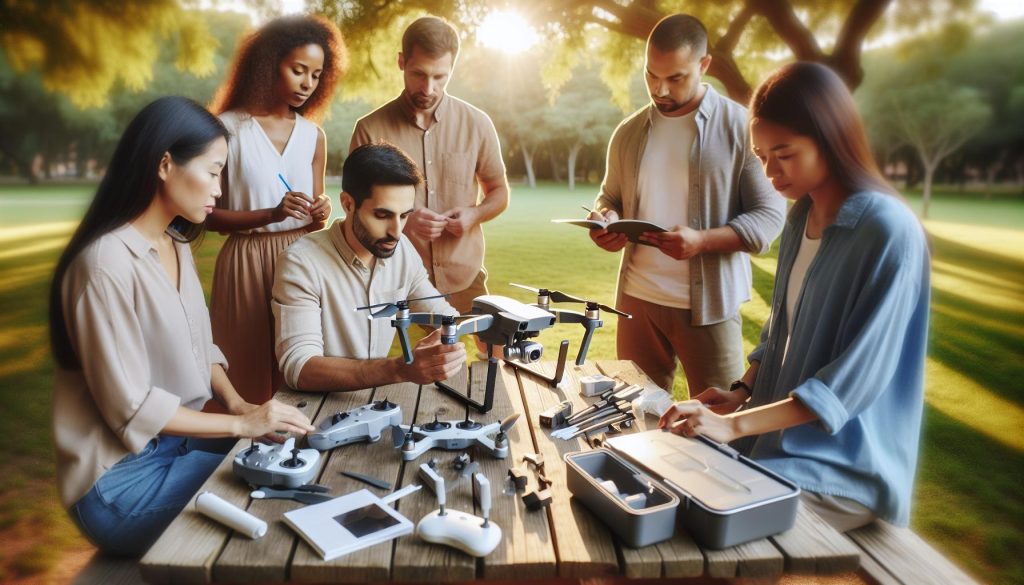
Setting up your DJI Mini 2 SE can be an exciting yet daunting task, especially for beginners eager to capture stunning aerial footage. This drone, known for its portability and advanced features, makes it easy to elevate your photography and videography. In this guide, we will walk you through essential steps, from unboxing to calibration, ensuring that you embark on your flying journey with confidence. Understanding how to properly set up your drone not only enhances your flying experience but also ensures safety and compliance with regulations. Whether you’re aiming to capture breathtaking landscapes or simply explore the skies, our comprehensive instructions will give you the tools you need for successful drone operation. Let’s get started and unlock the full potential of your DJI Mini 2 SE!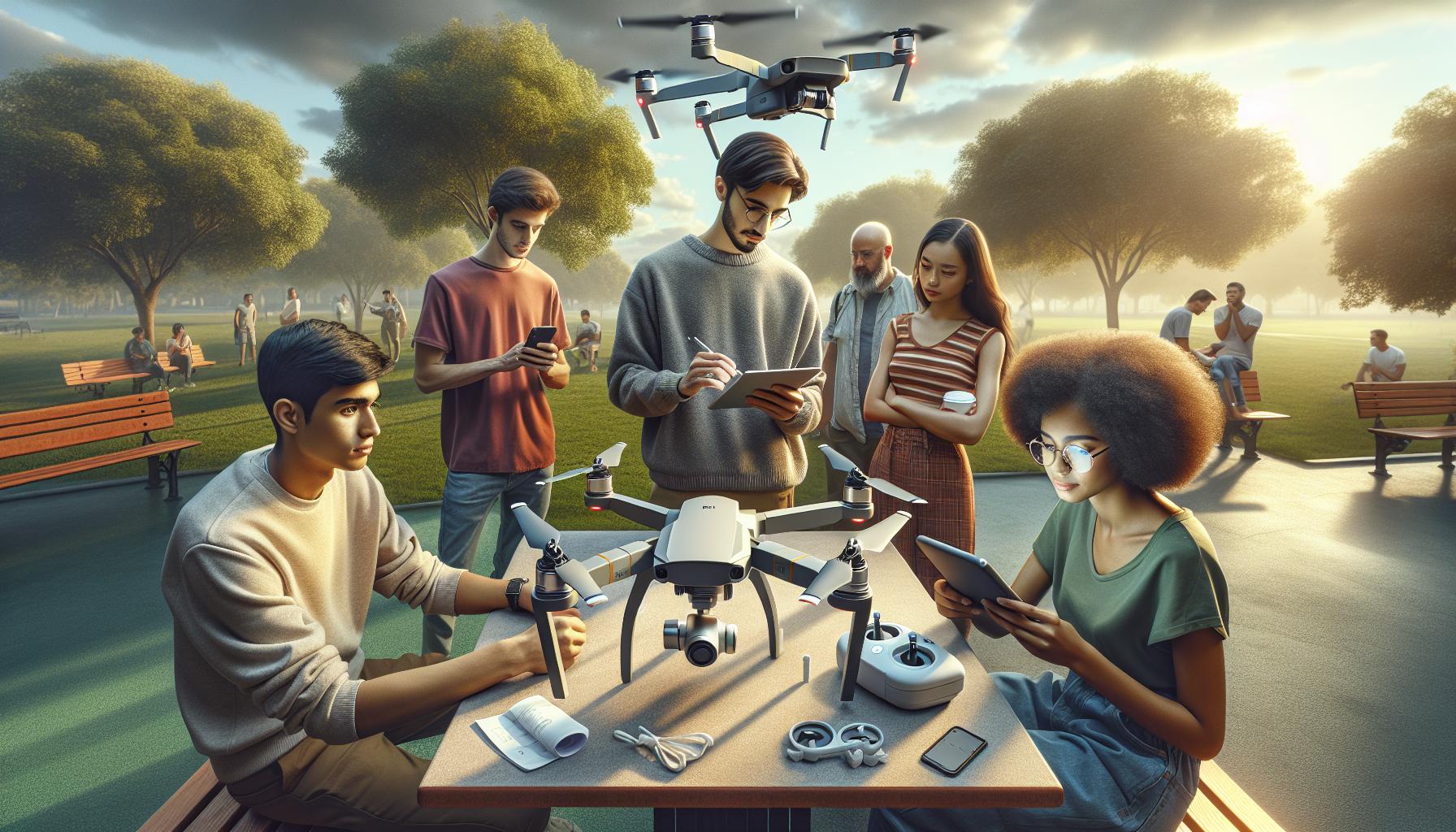
How to Prepare for Your DJI Mini 2 SE Setup
Getting ready to set up your DJI Mini 2 SE is an exciting step toward capturing stunning aerial footage and experiencing the thrill of flight. Preparation can make all the difference in ensuring a smooth initial flight experience. Start by finding a spacious, open area with few obstacles and minimal wind, ideally away from populated areas. This will not only help you practice safely but also gives you the freedom to explore the potential of your drone without stress.
To ensure a successful setup, gather the necessary tools and accessories beforehand. You’ll need the drone itself, the remote controller, a charged battery, and your smartphone or tablet for the DJI Fly app. If available, having extra batteries can extend your flying time, while propeller guards can be useful as a safety precaution during your first flights. Make sure to read through the user manual provided by DJI, as it offers vital insights into the drone’s features and specifications specific to the Mini 2 SE.
Before unboxing, consider setting aside some time to familiarize yourself with the DJI Fly app. Downloading and installing it on your device is essential, as it will guide you through the setup process and provide access to updates and advanced features. Additionally, ensure that your device is compatible and has sufficient storage for the app’s data and downloads. Once you have everything ready, you will be primed for a seamless and enjoyable setup experience.
Essential Tools You Need for Setup
Before embarking on your journey with the DJI Mini 2 SE, equipping yourself with the right tools is crucial to ensure a seamless setup and flight experience. Having the necessary accessories at hand not only streamlines the process but also enhances your overall enjoyment and safety while flying. Below are the essential tools you should gather and consider.
- DJI Mini 2 SE Drone: The centerpiece of your setup, ensuring it is fully intact and in perfect condition before starting.
- Remote Controller: This device allows you to pilot your drone with precision. Ensure it is fully charged and has its joysticks properly attached.
- Smartphone or Tablet: Necessary for running the DJI Fly app, which will guide you through the setup process and provide real-time data. Make sure your device is compatible and has ample storage for updates and media files.
- Charged Batteries: At least one fully charged battery is essential for your first flight. Consider investing in additional batteries for longer flying sessions.
- Propeller Guards: Especially recommended for beginners or when flying in tight areas, these guards provide an extra layer of safety.
- Micro SD Card: A high-speed SD card is critical for storing your photos and videos. Ensure it meets the requirements for the Mini 2 SE.
- Multi-Tasking Charger: A charger that can charge multiple batteries in sequence can save you time and keep your drone in the air longer.
- User Manual: Familiarizing yourself with the manual can provide insights into the specifications, features, and care requirements for your drone.
While gathering these tools, take the opportunity to set up a dedicated workspace where you can carefully unbox your drone and its accessories. Keep the workspace organized to avoid misplacing any components, and ensure you have a cleaner or microfiber cloth ready to wipe down any surfaces before flight. By preparing thoughtfully, you establish a solid foundation for both learning and enjoying your new drone technology.
Step-by-Step Guide to Unboxing the Mini 2 SE
Unboxing your DJI Mini 2 SE is an exciting step that marks the beginning of your aerial adventures. The process can set the tone for your overall experience, making it crucial to approach it with care and attention. Here’s a practical guide to ensure you make the most out of this essential task.
Begin by choosing a clean, spacious area where you can lay out all the components without the risk of losing anything. Open the box carefully, and as you lift off the lid, familiarize yourself with the layout of the contents. Inside, you should find the Mini 2 SE drone, the remote controller, at least one battery, a set of propellers, a charging hub, and the user manual. Take your time to remove these items gently to avoid any accidental damage.
As you remove each component, check for any protective covers or stickers that may need to be removed before use. The drone will likely be wrapped in a protective film, which can be peeled away easily. Be thorough in this step-leaving any protective materials on might affect the drone’s performance and functionality. Consider setting aside the charging hub for the moment; it’s crucial for getting your batteries ready but can come into play just after the unboxing.
Once everything is out, it’s beneficial to give each part a quick inspection. Ensure that there are no visible damages or missing components-this can save you time and frustration later. Take the user manual and quickly skim through the initial pages to familiarize yourself with the key safety precautions and operational advice. It’s also a good moment to organize everything neatly on your workspace, ensuring that each accessory is easily accessible when you dive into setting up the drone.
After the unboxing, prepare to proceed to the next steps, such as installing the DJI Fly app and managing battery charging. With your Mini 2 SE unboxed and inspected, you’re one step closer to taking to the skies and capturing stunning aerial footage.
Installing the DJI Fly App: A Complete Walkthrough
Getting your DJI Mini 2 SE ready for flight goes beyond just connecting wires; the first essential step is downloading the DJI Fly app. This critical piece of software not only acts as the command center for your drone but also facilitates various advanced features to enhance your flying experience. A seamless installation process will ensure you’re up and running in no time, allowing you to focus on capturing those breathtaking aerial shots.
To start, grab your smartphone or tablet and head to either the App Store (for iOS devices) or Google Play Store (for Android devices). In the search bar, simply type DJI Fly. Look for the official app developed by DJI Technology Co., Ltd. and click on the Download or Install button. Make sure your device has enough storage space to accommodate the app, as it includes various features and functionalities that will assist you in flight preparation and management.
Once the app is installed, open it to create or log into your DJI account. If you’re new to DJI, you’ll need to register by providing some basic details. Completing your profile is essential for accessing cloud features, firmware updates, and community support. After logging in, the app will prompt you to connect your Mini 2 SE. This process typically involves firing up the drone and remote controller, enabling the Wi-Fi feature on your smartphone, and selecting the drone’s network from your Wi-Fi settings.
After connecting, be sure to follow any on-screen tutorials or prompts for initial calibration and firmware updates. It’s vital to keep your firmware up to date to take advantage of the latest features and improvements. You can check for updates directly through the app; simply navigate to the Profile tab at the bottom, where you’ll find the Firmware Update section ready for attention.
In summary, installing the DJI Fly app is a straightforward yet vital step in your Mini 2 SE setup. With the app on your device, you’ll unlock a range of functionalities-from flight planning and flight modes to accessing real-time telemetry information. Taking the time to ensure a proper installation will lay a strong foundation for your aerial adventures.
Battery Management: Charging and Insertion Tips
Charging your DJI Mini 2 SE’s battery properly not only maximizes its lifespan but also ensures that you’re ready for a thrilling flight every time you head out. Lithium polymer (LiPo) batteries are commonly used in drones due to their superior energy density, but they require careful handling. To keep your drone flying, follow these essential tips for battery management, from charging to insertion.
To start, always charge your drone’s battery using the official DJI charger designed specifically for the Mini 2 SE. Using alternative chargers can lead to inconsistent charging and potentially damage the battery. Before charging, inspect the battery terminals for any debris or damage, and ensure the battery is at room temperature; extreme cold or heat can affect charging efficiency. It’s a good practice to keep battery charge levels between 20% and 80% if you’re not planning a flight soon, as this range optimizes battery health.
When inserting the battery into the drone, align the battery with the slot, making sure it’s oriented correctly. Slide the battery into the compartment until you hear a click, indicating a secure connection. It’s important to ensure that the battery is fully seated; any obstruction may prevent the drone from powering on correctly. For safe operations, always double-check that the battery is locked in place before takeoff.
After a flight, allow the battery to cool down before charging. This practice ensures safety and longevity for your LiPo battery. If you notice swelling or any unusual behavior from the battery, it’s crucial to stop using it immediately and consult DJI support or a professional for advice. Proper care during battery management can enhance your flying experience and prolong the life of your DJI Mini 2 SE, allowing you to capture those stunning aerial views with confidence.
Connecting Your Remote Controller to the Drone
Connecting your remote controller to the DJI Mini 2 SE is a critical step that ensures smooth and responsive operation, allowing you to harness the full capabilities of your drone. A seamless link between the controller and the drone not only enhances your flying experience but also boosts safety and control. Whether you’re a first-time user or seeking a refresher, getting this connection right is essential for your aerial adventures.
To establish this connection, begin by powering on both your remote controller and the drone. Ensure that both devices are adequately charged. Locate the power button on the drone, typically found at the front, and press it until the LED lights indicate it is powered on. Do the same for the remote controller. When both devices are active, you will notice the status LEDs on the drone pulsing, indicating it is ready for connection.
Pairing Process
The pairing process is straightforward:
- Press and hold the “C1” and “C2” buttons on the back of the remote controller until the indicator light begins to blink.
- On the drone, press the power button once, then quickly press and hold it again until the lights start to flash. This indicates that the drone is in pairing mode.
- After a few moments, the remote controller will emit a sound indicating that it has successfully connected to the drone.
- Check the smartphone app connected to the controller for confirmation and to ensure camera feed is accessible.
Once paired, it’s advisable to perform a function check to confirm that all controls are responsive and functioning. Tilt the drone and observe if the gimbal is working correctly. A solid connection is crucial, particularly in environments with potential interference, so always monitor your connection status before each flight.
By ensuring your remote controller and drone are properly linked, you create a more reliable and enjoyable flying experience. This connection serves as the foundation for every successful flight, allowing you to explore the skies with confidence, capturing stunning aerial footage and navigating with precision.
Basic Gimbal Calibration for Smooth Operations
Achieving smooth and stable footage from your DJI Mini 2 SE requires more than just a steady hand; it necessitates the proper calibration of the gimbal. The gimbal is a crucial component that ensures your camera remains level during flight, compensating for any movements or vibrations. A poorly calibrated gimbal can lead to shaky videos and tilted horizons, undermining your aerial photography efforts. Thus, mastering gimbal calibration is essential for both novice and experienced pilots who want to capture breathtaking and professional-quality imagery.
To begin the calibration process, ensure your DJI Mini 2 SE is on a level surface to eliminate any tilt or unevenness that could impact calibration accuracy. Power on your drone and connect it to the DJI Fly app, which will guide you through the calibration steps. In the app, navigate to the settings menu and look for the gimbal options. Here, you will typically find a ‘Gimbal Calibration’ function.
Step-by-Step Gimbal Calibration
Follow these steps to calibrate your gimbal effectively:
- In the DJI Fly app, select the option for gimbal calibration.
- Follow the on-screen prompts to begin calibration, which may require you to move the drone through a series of positions.
- Watch closely as the app indicates when to tilt the drone forward, backward, and side to side, ensuring each movement is smooth and deliberate.
- After completing the movements, the app will process the data and confirm whether the calibration was successful.
Once completed, it’s beneficial to test the gimbal’s functionality before your flight. Ensure that when you tilt the drone, the camera adjusts smoothly and remains level. This preliminary check can save you from potential issues during actual flying conditions.
In addition to initial calibration, it’s wise to periodically recalibrate the gimbal, especially if you notice any drifting or instability in your video footage. Environmental factors such as temperature variations or frequent transportation can affect gimbal performance. By incorporating regular calibration into your pre-flight checklist, you enhance the reliability of your drone’s camera system, ensuring stunning aerial shots with every flight.
Updating Firmware for Optimal Performance
Keeping your DJI Mini 2 SE updated is crucial for maintaining optimal performance and unlocking new features. DJI frequently releases firmware updates that not only improve the drone’s stability and functionality but also address any existing bugs that could impede your flying experience. By staying current with these updates, you’ll ensure that your drone operates smoothly and safely, which is especially important for capturing high-quality footage.
To update your firmware efficiently, follow these straightforward steps:
- Connect the Drone to the DJI Fly App: Ensure that your Mini 2 SE is powered on and connected to your smartphone via the DJI Fly app. This app is essential not only for flight control but also for managing updates.
- Check for Updates: Once connected, navigate to the home screen of the app. If there’s an available firmware update, a notification will appear prompting you to download it.
- Download the Update: Follow the on-screen instructions to begin the download. Make sure you have a stable internet connection and sufficient battery life on both the drone and the remote controller to avoid interruptions during the update process.
- Install the Update: After downloading, the app will guide you through the installation process. This typically involves confirming that you want to proceed with the update. The drone will restart automatically during this step.
- Verification: Once the installation is complete, the app may prompt you to verify that the firmware has been updated successfully. It’s a good practice to check the version number displayed in the app against the latest version available on the DJI website.
Why Updating Is Important
Staying updated isn’t just about new features; it also enhances flight safety and experience. Firmware updates can improve the drone’s GPS accuracy, increase battery efficiency, and fix known issues that could compromise performance during flight. This proactive maintenance can prevent potential malfunctions and ensure a reliable flying experience.
In addition to regularly checking for updates, consider joining DJI forums or following their official announcements. This will keep you informed about upcoming updates and user experiences that might further inform how you use your Mini 2 SE. Keeping your equipment updated is a vital part of responsible drone piloting that ultimately contributes to a more enjoyable and safe flying experience.
Understanding Flight Modes for Beginners
Understanding the various flight modes available on your DJI Mini 2 SE is crucial for both enhancing your flying experience and ensuring safety. Each mode caters to different flying styles, skill levels, and specific scenarios, allowing you to maximize the capabilities of your drone. Here’s a breakdown of the primary flight modes, along with practical insights on when to use each.
Flight Modes Explained
- P Mode (Positioning Mode): This mode is perfect for beginners. It utilizes GPS and visual sensors to provide stable flight and precise positioning, making it easier to navigate. In P Mode, the drone responds smoothly to controls and is suitable for capturing photos and videos in a stable manner. Always start your adventures in this mode as you become accustomed to flying.
- S Mode (Sport Mode): Once you’re comfortable with the controls, you might want to switch to Sport Mode. This mode unlocks the drone’s full speed and agility, allowing for faster maneuvers and a more exhilarating flying experience. Keep in mind that S Mode disables some safety features, so be sure to have your flying skills polished before engaging in this faster mode.
- T Mode (Tripod Mode): Ideal for shooting videos or taking detailed photos, Tripod Mode reduces the drone’s speed and enhances control sensitivity. This mode is particularly beneficial in tight spaces or when flying indoors, providing greater stability. Use this mode to ensure smooth and precise movements for capturing high-quality footage without abrupt shakes.
- ATTI Mode (Attitude Mode): While not a standard mode on the Mini 2 SE, it’s important to understand for drone flying in general. This mode allows the drone to maintain altitude without GPS, which can be useful in areas with poor satellite signals. However, it requires a more skilled pilot to manage the drone’s horizontal movement manually.
Choosing the Right Mode
Understanding when to utilize each mode can significantly affect your flying experience. For instance, when you’re learning to fly, stick to P Mode to build confidence. As you gain more experience, S Mode will allow you to explore the limits of your drone’s capabilities. Utilize Tripod Mode for capturing videos during special occasions or scenic views, where stability is paramount.
Having a solid grasp of these flight modes not only empowers you as a pilot but also enhances the safety and quality of your flights. Make it a practice to assess your flying environment and skill level before switching modes, ensuring that you can adapt to any situation with confidence. Remember, with practice, you’ll find the modes that best suit your flying style and needs, paving the way for enjoyable and successful flights with your DJI Mini 2 SE.
Tips for Safe Takeoff and First Flight
Starting your journey with the DJI Mini 2 SE can be an exhilarating experience, but ensuring a safe takeoff and first flight sets the foundation for your skills as a drone pilot. Before you launch into the sky, it’s essential to conduct a thorough pre-flight check and prepare both yourself and your environment. Follow these tips to enhance your safety and confidence as you take to the skies.
Begin by choosing an open space free from obstacles, such as tall buildings, trees, and power lines. Look for a clear patch of land where you can comfortably execute your takeoff and landing. Additionally, ensure the area is away from people and pets to avoid accidents. Conduct a brief walk-through of the area, checking for potential hazards. This visual inspection will help you identify any unexpected objects or changing weather conditions that could impact your flight.
Next, perform a comprehensive pre-flight checklist. Make sure that the batteries of both your drone and remote controller are fully charged. Ensure that your Mini 2 SE is properly calibrated and ready for flight. Before takeoff, briefly review the DJI Fly app to familiarize yourself with the controls and any warning indicators. Having a solid understanding of these elements will give you the confidence to execute your first flight safely.
As you prepare for takeoff, engage the drone in P Mode to utilize its built-in stabilization features, which are beneficial for beginners. When you launch, keep the drone at a low altitude at first-around 1-3 meters (3-10 feet)-to gain a sense of its responsiveness and stability. Gradually ascend as you become more comfortable. During this initial flight, practice basic maneuvers such as altitude changes, steady turns, and hovering, refining your control skills.
Finally, maintain a visual line of sight with your drone at all times and be attentive to your surroundings. Monitor the battery level closely, as your first few flights should be shorter in duration to develop your skills without risking a low battery warning mid-flight. Conducting a smooth landing when your battery is getting low or when you feel uncertain will promote positive experiences and build your confidence for future flights. Enjoy your time in the air, and remember that practice leads to proficiency.
Common Setup Issues and Troubleshooting
Setting up your DJI Mini 2 SE can lead to a rewarding flying experience, but it’s important to be aware of common setup issues that may arise. Understanding how to troubleshoot these problems not only enhances your confidence as a pilot but also ensures that you can quickly resolve any hiccups that may occur.
One of the first issues you may encounter is difficulty pairing the drone with the remote controller. If the Mini 2 SE just flashes yellow and doesn’t connect, try resetting the drone by pressing and holding the power button for about four seconds until you hear a sound, then attempt the pairing process again [[3]]. Additionally, make sure that your mobile device is compatible with the DJI Fly app and is not experiencing any connectivity issues.
Firmware updates are crucial for optimal performance. If you are prompted to update firmware during setup but face an error message, ensure that your phone or tablet is connected to a stable Wi-Fi network. Insufficient battery charge can also hinder the updating process, so ensure both your drone and remote controller are fully charged before proceeding with updates. Follow the on-screen instructions in the app to complete the update process effectively.
Battery management is another area where users often experience confusion. Make sure you insert the batter correctly, ensuring that the battery’s contact points align with the drone. If the battery isn’t recognized, try restarting both the drone and the controller. Always remember to check the battery status in the app to prevent mid-flight failures.
As you become more familiar with the DJI Mini 2 SE, remember to refer to the troubleshooting guides available online for specific issues related to your drone model, such as those provided by iFixit [[1]]. By anticipating and effectively resolving common setup issues, you can focus more on the joy of flight and less on technical difficulties.
Exploring Advanced Features of the Mini 2 SE
Unlocking the full potential of your DJI Mini 2 SE transforms your flying experience from basic to extraordinary. While getting accustomed to the straightforward controls and features is essential, delving into the drone’s advanced capabilities can elevate your aerial photography and videography, enhance your flight safety, and expand your creative boundaries.
Intelligent Flight Modes
One of the standout features of the Mini 2 SE is its intelligent flight modes, which simplify capturing stunning footage without requiring advanced piloting skills. Whether you’re a beginner or an experienced pilot, these modes allow you to focus on creativity rather than complex maneuvers. For instance, using QuickShots, you can select predefined flight paths like Dronie, Rocket, Circle, or Helix to easily create cinematic shots. Each of these modes provides a unique perspective and helps you capture dynamic videos that can be shared with friends or on social media, making them ideal for both casual pilots and professional creators.
Obstacle Avoidance
Safety is paramount when flying any drone, and the Mini 2 SE is designed with features that lend peace of mind. It includes forward obstacle sensing, which helps prevent collisions during flight. When engaged, the drone will automatically stop or slow down if an object is detected in its path. This feature is especially beneficial for beginners who may be anxious about flying in tight spaces. However, it’s essential to remember that this system is not foolproof, and maintaining situational awareness is still crucial.
Enhanced Camera Functionality
The Mini 2 SE boasts a 12MP camera capable of shooting 4K video at 30 frames per second, offering impressive clarity and detail. To maximize image quality, utilize the drone’s HDR capabilities to capture a wider dynamic range. This feature is particularly beneficial in challenging lighting conditions, such as flying during sunrise or sunset. Additionally, enabling the digital zoom allows you to capture distant subjects without sacrificing image quality, providing more creative flexibility in framing your shots.
Customizable Settings
Personalizing your flying experience is straightforward with the Mini 2 SE. The drone allows for adjustments to camera settings, responsive controls, and flight limitations via the DJI Fly app. For example, modify the maximum altitude and distance settings according to your local regulations and personal comfort levels. Experimenting with these settings helps you discover the best configuration for various flight scenarios, optimizing safety and enhancing your overall experience.
By fully embracing these advanced features, pilots can not only enhance their operational skill set but also refine their craft, turning everyday flights into captivating visual stories. As you grow more familiar with each capability, your confidence and creativity will soar, leading to an even more enjoyable time with your drone.
Frequently Asked Questions
Q: What are the initial steps to set up the DJI Mini 2 SE?
A: To set up the DJI Mini 2 SE, start by unboxing the drone and ensuring all parts are present. Charge the battery fully, download the DJI Fly app on your mobile device, and create or log into your DJI account to begin the connection process.
Q: How do I connect my phone to the DJI Mini 2 SE?
A: To connect your phone, first launch the DJI Fly app, then plug your device into the remote controller using the appropriate cable. Ensure the remote controller is powered on, which will establish a connection to the Mini 2 SE.
Q: What should I do if the DJI Fly app doesn’t recognize my Mini 2 SE?
A: If the DJI Fly app does not recognize your Mini 2 SE, check if the drone and remote controller are powered on and properly connected. Restart both devices and ensure the app is updated to the latest version. Also, reinstall the app if issues persist.
Q: How do I perform a pre-flight check on the DJI Mini 2 SE?
A: Perform a pre-flight check by inspecting the drone for damages, ensuring the battery is fully charged and properly inserted, checking the firmware for updates, and confirming that the GPS signal is strong. Always make sure to do a range test before flying.
Q: What should I do if my DJI Mini 2 SE does not take off?
A: If the Mini 2 SE does not take off, check if the battery is adequately charged and seated correctly. Ensure GPS signal strength is sufficient and that the firmware is updated. Verify that you are in an open area free from obstacles that may prevent takeoff.
Q: How do I update the firmware on the DJI Mini 2 SE?
A: To update the firmware, connect your Mini 2 SE to the DJI Fly app. The app will prompt you if an update is available. Follow the on-screen instructions to download and install the firmware updates to enhance performance and features.
Q: What are the safety precautions when flying the DJI Mini 2 SE for the first time?
A: For your first flight, ensure you fly in an open area away from people and obstacles. Conduct a thorough pre-flight check, be aware of local regulations, and consider flying in beginner mode to limit the drone’s speed and altitude while you gain confidence.
Q: How can I troubleshoot connectivity issues with the DJI Mini 2 SE?
A: To troubleshoot connectivity issues, ensure both the drone and remote controller are fully charged. Try restarting both devices, check for any blocked signals, confirm you are using the correct app version, and remove any physical obstructions between the remote and drone.
Key Takeaways
As you prepare to take your DJI Mini 2 SE to the skies, remember that mastering your drone setup is just the beginning of your aerial adventure. By following the steps outlined in this guide, you’re well-equipped to capture stunning footage and explore new heights. Don’t hesitate to dive deeper into topics like firmware updates or gimbal calibration to enhance your flying experience even further.
For more tips and tricks, check out our comprehensive tutorials on drone safety procedures and advanced features. If you have questions, we’d love to hear from you-drop a comment below or share your experiences! To stay updated on all things DJI, subscribe to our newsletter for the latest insights and exclusive content. Your journey in drone flying is just getting started-let’s soar together!