Connecting your drone to the DJI Fly app is a vital step for unlocking the full potential of your flying experience. Did you know that a proper setup can significantly enhance your control over the drone and improve your aerial photography? Whether you’re a novice eager to capture stunning landscapes or a seasoned pilot refining your skills, mastering the connection process is essential to ensure a smooth flight. In this guide, we’ll walk you through the step-by-step process to link your smartphone with the controller and drone, equipping you with the knowledge to take to the skies confidently. Are you ready to elevate your drone flying experience? Let’s dive in!
How to Download and Install the DJI Fly App
To dive into the world of aerial photography and videography with your DJI drone, the first step is to obtain the DJI Fly app, an essential tool for both flying and managing your drone. Downloading and installing this app can be a straightforward process if you follow the right steps.
Begin by determining your device’s compatibility with the DJI Fly app through the official DJI website, where you can also access the download link. If you’re using an Android device, keep in mind that the app might not always be available on the Google Play Store due to regional restrictions or device compatibility issues. In such cases, head over to the DJI Download Centre and select the appropriate version for your device. Make sure to download the APK file directly to your device.
Next, after downloading the app, it may prompt you for permission to install applications from unknown sources. If your device flags the installation as potentially unsafe, go to the settings and enable unknown sources for that particular installation, then proceed to install the app. If you encounter difficulties during the installation, double-check that your Android device is updated to ensure compatibility.
Once installed, launch the DJI Fly app and proceed to log in or create a new account if necessary. It’s essential to pair your drone with the app correctly, which often involves connecting via the remote controller. Follow the on-screen instructions for a seamless experience, ensuring your drone is powered on and prepared for the connection. This setup not only prepares your equipment for flight but also unlocks the complete suite of features available through the app, enhancing your aerial experience significantly.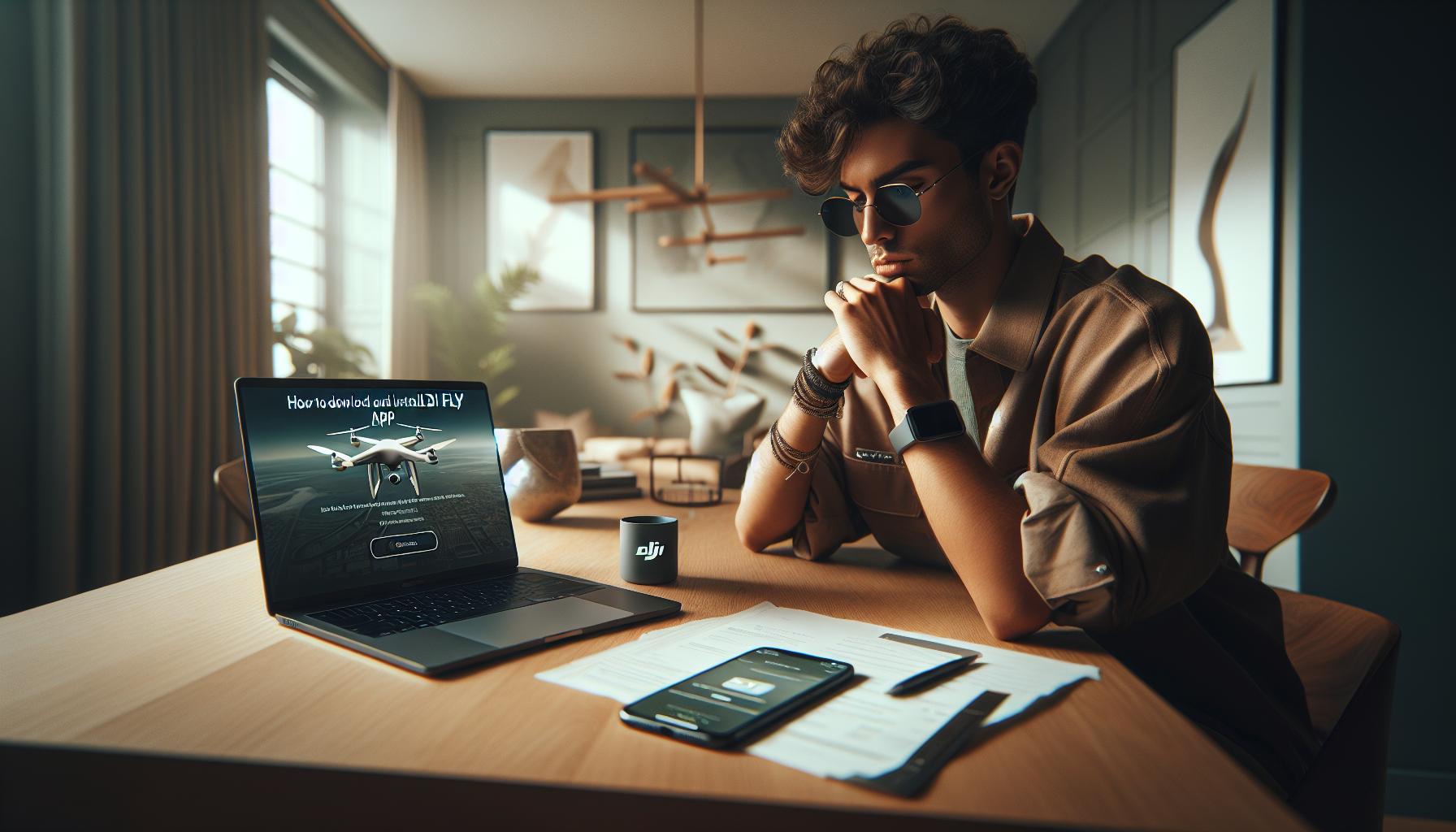
Setting Up Your Drone for First Use
Setting up your drone for the first time is an exciting journey, but it can also feel overwhelming with all the components and features at your disposal. To ensure a smooth start, it’s essential to prioritize the setup process for both safety and optimal performance. The first step is unboxing your drone and inspecting all the parts. Confirm that everything is included-this should include the drone, remote controller, battery, charger, propellers, and any cables or manuals.
Once you’ve familiarized yourself with the components, the next critical step is to charge the battery fully. A well-charged battery not only maximizes flight time but also enhances safety during your first flights. Depending on your model, the battery can take a couple of hours to charge fully, so plan ahead. While the battery charges, review the user manual or watch tutorials specific to your drone model to understand its features, flight modes, and safety warnings.
Before pairing your drone with the DJI Fly app, ensure everything is physically ready. This includes properly attaching the propellers according to the manual’s instructions. Incorrectly installed propellers can cause instability during flight, so double-check that they are secured tightly and installed in the right locations. With your drone assembled and charged, it’s time to power it on and activate the remote controller.
Next, download the DJI Fly app if you haven’t already, and ensure your mobile device is connected to Wi-Fi for any necessary updates. Launch the app, follow the guided prompts, and ensure your drone’s firmware is up to date for the best experience. Updating the firmware can prevent many connectivity issues and ensures your drone operates efficiently. With these steps completed, your drone is ready for its inaugural flight-a moment that marks the beginning of countless aerial adventures!
In summary, a careful and methodical approach to setting up your drone is paramount. Taking the time to properly inspect, charge, and configure your equipment prepares you for capturing stunning visuals while prioritizing your safety and enjoyment as a drone pilot.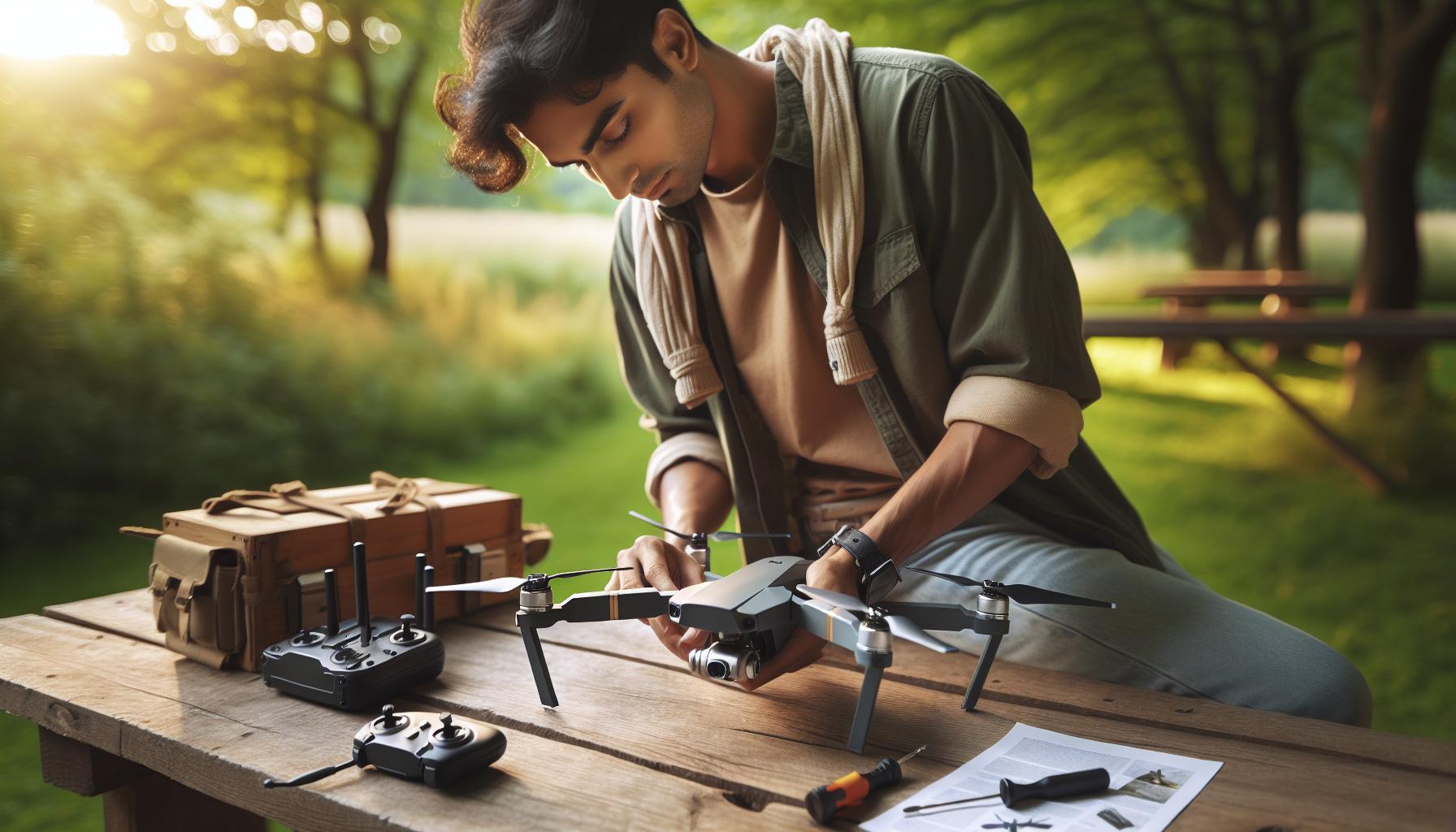
Step-by-Step Guide to Connecting the App
Establishing a connection between the DJI Fly app and your drone is a pivotal step in ensuring a successful flight experience. With the app serving as the primary interface for controlling your drone, understanding how to connect them properly can streamline your preparations and help you take to the skies quicker. Here’s a straightforward guide to get you set up without any hassle.
Start by powering on your drone and remote controller. It’s vital that both devices are charged and fully operational. Once powered on, launch the DJI Fly app on your mobile device. The first screen you encounter may prompt you to connect to your drone. If it doesn’t automatically detect your drone, follow these steps:
- Connect Your Phone to the Controller: Use the appropriate USB cable to connect your smartphone to the remote controller. Make sure that you are using the correct cable type compatible with both your mobile device and the remote controller.
- Link the Controller to Your Drone: With the app open, follow the on-screen instructions to link the remote controller to your drone. You may need to press the linking button on the drone if prompted. This button is usually located near the battery compartment. Hold it until you hear a confirmation sound indicating that the drone is ready to pair.
- Finalize Connection: After a successful pairing process, the DJI Fly app will begin to display real-time information from the drone, such as battery levels, GPS signal strength, and camera settings. This signifies that the connection has been successfully established.
Now that your app is connected to the drone, keep an eye on the firmware status. The DJI Fly app will typically notify you if there are any firmware updates required for either the drone or the remote controller. Always ensure that your devices are up to date to prevent issues and enhance functionality.
Connecting the DJI Fly app to your drone does not have to be a daunting task. By following these straightforward steps, you can facilitate a smooth and efficient connection, setting the stage for an enjoyable flying experience.
Understanding Your Drone’s Remote Controller
The remote controller serves as an essential bridge between you and your drone, enabling control and providing real-time feedback during your flight. Understanding its features and functions is key to maximizing your flying experience. Each DJI drone model may have slight variations in design and control scheme, but a few core elements remain consistent across the range.
One of the most crucial aspects of the remote controller is the layout of the control sticks, buttons, and display. The control sticks are typically located on the left and right sides of the controller and are responsible for maneuvering the drone-elevating or descending, turning, and moving it forward or backward. Familiarize yourself with the tactile feel of these sticks to improve your reflexes while flying, especially in dynamic environments. Directly above the left stick, you’ll often find a dedicated button for taking photos or starting video recording, which allows for quick access to capturing those breathtaking aerial shots.
Understanding Controller Features
Modern remote controllers come equipped with various features that enhance your flying experience. For instance, many DJI remote controllers include a built-in display that conveys essential information such as battery status, GPS signal strength, and live video feeds from your drone’s camera. This real-time feedback helps you make informed decisions during your flight. Also, some controllers offer customizable buttons, allowing you to assign frequently used functions, such as returning to home or activating Intelligent Flight modes, for quicker access during flight.
Another pivotal aspect of the remote controller is the connection method to your drone. This usually involves pairing via a wireless protocol, and it’s a good practice to ensure your controller and drone firmware is updated to minimize connectivity issues. If you encounter problems while connecting, double-check that your controller is charged and that you’ve followed the wireless pairing steps outlined in the DJI Fly app.
Ergonomics and Comfort
Comfort is also paramount when operating your drone for extended periods. Look for a remote controller that fits well in your hands and offers a stable grip. Some models even come with adjustable neck straps or bases to help reduce strain during prolonged use. Testing the controller before your first flight to ensure you are comfortable with its weight and button placement can significantly enhance your flying experience.
Ultimately, getting to know your drone’s remote controller is not just about learning its functions-it’s about developing a feel for how it responds to your commands. Practice and familiarization will help ensure that your flights are as smooth and controlled as possible, letting you focus more on capturing stunning aerial footage and enjoying the incredible view from above.
Navigating the DJI Fly App Interface
To effectively connect your DJI drone with the DJI Fly app, navigating the app’s comprehensive interface is crucial. The DJI Fly app is designed to facilitate a seamless flying experience, providing all the necessary tools and information right at your fingertips. Once installed, the app welcomes you with an intuitive home screen where you can view flight data, access camera settings, and control the drone with ease.
A key feature of the app is the Camera View, which serves as the primary interface during flight. This area displays a live video feed from your drone’s camera, along with critical flight information including altitude, distance, battery life, and GPS signals. Understanding this display is vital for informed flying, as it not only helps you monitor your drone’s status but also enhances your ability to compose stunning aerial shots. The bottom of the screen features quick-access buttons for taking photos, recording video, and adjusting camera settings.
To make full use of the app’s capabilities, familiarize yourself with its various menus. You can access settings for flight modes, camera controls, and even safety features like geofencing and obstacle avoidance under the menu represented by three dots or lines, depending on the version. This section allows you to customize your flying experience to suit different conditions and preferences. For example, you can switch between beginner and expert modes to control the drone’s response sensitivity or activate various Intelligent Flight modes, such as Follow Me or Waypoints.
Additionally, the app includes a Preparation Reminder that prompts you to carry out essential pre-flight checks. Always adhere to these reminders to ensure safe operation. The settings menu is also where you’ll connect to your drone for the first time, as well as perform essential calibrations for sensors and gimbals. Remember that keeping your app updated is crucial; regular updates can introduce new features and enhance performance stability, ensuring your flying experience remains smooth and enjoyable.
To maximize your efficiency in using the DJI Fly app, practice navigating through the various interfaces. Familiarize yourself with each feature before your first flight, enabling you to focus on piloting the drone rather than fumbling with controls. Whether you’re capturing breathtaking landscapes or creating dynamic videos, mastering the DJI Fly app will significantly enhance your aerial photography and videography experiences.
Calibrating Your Drone’s Sensors and Gimbal
To ensure safe and effective operation of your drone, calibrating its sensors and gimbal is an essential step before your first flight. Calibration helps maintain the accuracy of the drone’s navigation systems and ensures your camera captures stunning, stable footage. Take the time to follow this process thoroughly for the best aerial experience.
Begin by opening the DJI Fly app and connecting to your drone. Once successfully linked, navigate to the camera view screen. Here, you will find an option for “Calibrate” in the settings menu, typically represented by an icon with three dots or lines. Selecting this option will provide you with a series of on-screen instructions tailored to your specific drone model.
For sensor calibration, you’ll be prompted to perform a series of movements. For instance, the app might instruct you to rotate the drone on its horizontal and vertical axes to gather data from the accelerometer and gyroscope. It’s crucial to conduct these movements slowly and steadily to ensure accurate readings. After completing the sensor calibration, the system will confirm when the calibration is successful.
Next, proceed to gimbal calibration, which can further enhance your footage stability. The gimbal stabilizes the camera’s orientation even when the drone itself is in motion. In the app, select the gimbal calibration option, and follow the prompts to keep your camera aligned properly. This normally involves placing your drone on a level surface and allowing the app to guide you through the adjustments. Once finished, you should see a confirmation message indicating that the gimbal is now calibrated for optimal performance.
Regularly , especially after firmware updates or significant temperature changes, is highly recommended. This practice not only aids in achieving clearer images and videos but also contributes to safer flying by ensuring that your drone responds accurately to your commands. By taking these simple steps during setup, you can significantly elevate your flying experience and enhance the quality of your aerial captures.
Performing Firmware Updates for Optimal Performance
To truly unlock the potential of your DJI drone, staying up-to-date with firmware updates is essential. These updates not only introduce new features but also enhance performance, improve stability, and fix bugs that could impact your flying experience. Whether you’re a casual flyer or a seasoned professional, understanding how to perform firmware updates through the DJI Fly app is a critical aspect of drone ownership that can ensure optimal operation.
Begin by connecting your drone to the DJI Fly app. Once connected, look for notifications indicating that a firmware update is available. If your device displays a banner or alert about the update, this is your cue to initiate the process. Navigate to the settings menu within the app, usually represented by a gear icon, and select the firmware option. Here, you will find detailed information about the current firmware version and any updates available for download.
Before proceeding, ensure that your drone’s battery and the mobile device running the DJI Fly app are sufficiently charged to avoid interruptions during the update. A stable Wi-Fi connection is also crucial, as firmware files can be large and require reliable internet access. Once you’re ready, follow these steps:
- Select the firmware update option in the app.
- The app will automatically download the firmware update. Once the download is complete, you’ll be prompted to install it.
- During installation, do not turn off your drone or app and stay clear of the updating process until the app confirms that the installation is complete.
After the update, it’s good practice to perform a quick check on your drone’s functionality. Ensure that all features are operational, and consider recalibrating your drone’s sensors and gimbal if it hasn’t been done recently. Regular updates, especially following major changes or releases from DJI, can enhance your drone’s performance and reliability, providing a smoother flying experience and access to the latest flight technologies.
Troubleshooting Common Connectivity Issues
Establishing a reliable connection between your DJI drone and the Fly app is crucial for a seamless flying experience, yet many users encounter connectivity issues that can be frustrating. Before launching your drone for flight, it’s essential to troubleshoot common connectivity problems to ensure optimal performance.
First, check the compatibility of your mobile device with the DJI Fly app. Ensure that your smartphone or tablet meets the app’s minimum system requirements and that you’re running the latest version of the app. Often, simply updating the app can resolve connectivity issues that arise from bugs or glitches in previous versions. Removing and reinstalling the app may also help clear up any persistent issues that updates alone cannot fix.
Next, ensure that your drone and remote controller are fully charged. Insufficient power can lead to unstable connections or failures to pair. After confirming adequate battery levels, restart both your mobile device and the drone’s remote controller to reset their systems. This simple step often eliminates minor bugs that could interfere with connectivity. If your drone supports Wi-Fi connections, verify that your network signal is strong to avoid dropouts during setup.
While trying to connect your drone, observe the status lights on both the remote controller and the drone itself. A blinking or solid light often indicates readiness or connection status. Make sure you’re within an appropriate range; excessive distance can lead to connectivity failures. If problems persist, consult the DJI Fly app for specific error codes or messages, and refer to the support resources provided by DJI for further guidance on resolving these issues. Connecting successfully not only enhances your flying experience but also helps in utilizing advanced features the app offers.
In the rare case that connectivity issues continue despite trying these steps, consider reaching out to DJI customer support for expert assistance. Addressing connectivity issues preemptively can significantly enhance your drone flight experience, ensuring that you spend more time enjoying the skies and less time troubleshooting.
Utilizing Advanced Features in DJI Fly App
Taking full advantage of the advanced features available in the DJI Fly app can significantly enhance your flying experience, whether you’re a seasoned pilot or just getting started. The app is designed to harness the full potential of your DJI drone, providing you with tools that can elevate your aerial photography, improve safety, and simplify flight management. Understanding how to navigate these features effectively is essential for turning a good flight into an exceptional one.
One of the standout functionalities within the DJI Fly app is the intelligent flight modes. These modes, such as ActiveTrack, Point of Interest, and Waypoints, allow you to automate complex maneuvers with ease. For instance, ActiveTrack can follow a subject while keeping the focus perfectly framed, which is fantastic for capturing dynamic action shots without the need for manual adjustments. To access these modes, simply open the app, select your drone, and tap the Flight Mode icon. Each mode comes with a brief tutorial within the app, guiding you through its capabilities and best use cases.
In addition to intelligent flight modes, the app’s powerful editing tools cannot be overlooked. After capturing aerial footage, the DJI Fly app allows you to edit your videos with various templates and music options. This feature is particularly beneficial if you’re looking to quickly share your adventures on social media without the need for in-depth video editing software. After shooting your video, navigate to the Editor section within the app, select your clips, and choose from pre-made themes to create a polished final product.
Furthermore, keeping your drone up to date is crucial for optimal performance, and the DJI Fly app simplifies this process through its firmware update notifications. When connected to your drone, the app will prompt you to download and install any required updates, which often include enhancements to flight stability and new features based on user feedback. Simply follow the on-screen directions to ensure your equipment is quickly and easily configured for the best flying experience.
In conclusion, leveraging the advanced features of the DJI Fly app not only enhances your flying capabilities but also ensures your drone remains a reliable shooting tool in various conditions. Whether it’s through capturing stunning footage automatically or keeping your system updated, the app transforms how you interact with your drone, allowing for a more engaging and fulfilling experience in the skies.
Safety Guidelines for Flying Your Drone
Flying a drone can be an exhilarating experience, but it comes with inherent responsibilities that demand attention to safety guidelines. To ensure a successful and enjoyable flight, it’s crucial to keep in mind both the operational and environmental factors that can affect your drone’s performance and safety.
Begin by familiarizing yourself with the local regulations governing drone use. Each country has its own set of rules that dictate where and how you can fly. For example, many jurisdictions require you to keep the drone within line of sight, avoid flying over people, and maintain a specific distance from airports and emergency response areas. Utilize resources from local aviation authorities to stay informed about these regulations and ensure compliance.
Before taking off, conduct a thorough pre-flight check. This includes inspecting the drone for physical damage, ensuring that all parts are securely attached, and verifying that the battery is fully charged. Additionally, check that your DJI Fly app is updated to the latest version prior to flight. If you’re flying in an area with potential obstacles, do a quick survey of the environment to identify any tall buildings, trees, or power lines that could pose a risk.
While in the air, remain vigilant and ready to respond to changing conditions. Wind speed, weather changes, and even unexpected wildlife can interfere with your flight. Keep your drone at a reasonable altitude to maintain control and avoid potential collisions. Utilize the built-in safety features of your DJI drone, such as geofencing and altitude limits, to help navigate these situations.
Finally, post-flight, review your flight experience with an eye toward improvement. Take notes on any issues encountered, and if necessary, make adjustments to your pre-flight checks and operational procedures. Embracing this approach not only enhances your safety but also fosters a mindset of continuous learning and adjustment-key factors in mastering drone piloting. Following these safety guidelines will not only protect your equipment but also ensure a positive experience every time you take to the skies.
Exploring Flight Modes and Settings
Understanding the various flight modes and settings available in your DJI drone can significantly enhance your flying experience, whether you’re a beginner or a seasoned pilot. Each mode is designed for specific flying conditions and user capabilities, offering a range of features that can simplify your piloting tasks or unlock advanced capabilities.
Common Flight Modes
DJI drones typically offer several flight modes, each tailored to different scenarios:
- Position Mode (P Mode): This is the standard mode for most operations, utilizing GPS to maintain stability and altitude. Ideal for beginners, it allows you to focus on getting comfortable with your drone’s controls.
- Sport Mode: Designed for experienced pilots, this mode unlocks the drone’s full speed and agility, significantly reducing the GPS effects for faster maneuvers. This is perfect for racing or advanced aerial photography where quick reactions are necessary.
- Attitude Mode (ATTI Mode): This mode disables GPS hold, allowing for more freedom of movement. It’s primarily used for training and developing piloting skills in challenging conditions since the drone can drift with the wind.
- Tripod Mode: This setting limits the drone’s movement speed and stick sensitivity, making it ideal for capturing smooth, steady shots during videography, especially in tight or crowded spaces.
- Waypoints and Follow Me Modes: These intelligent flight modes allow the drone to autonomously navigate pre-defined paths or follow your movements, utilizing GPS and the DJI Fly App’s capabilities for automated filming and photography.
Adjusting Camera Settings
Utilizing the camera settings effectively can take your aerial photography to the next level. Most DJI drones allow you to adjust various camera settings through the DJI Fly App, enabling you to optimize the quality of your shots under different lighting and environmental conditions. Pay special attention to:
- Shutter Speed: Adjust this in bright light to prevent overexposure.
- ISO Settings: Keep it low for bright conditions, and increase it in low light to avoid grainy images.
- White Balance: Customize this based on your environment to maintain natural colors.
Understanding Advanced Settings
Familiarizing yourself with advanced settings can set you apart as a drone operator. Many DJI drones come equipped with features such as Obstacle Avoidance and Return to Home (RTH), which are crucial for ensuring safe flights. A thorough understanding of how to enable and adjust these settings will provide significant advantages in safety and functionality.
Flying with confidence in your chosen mode, understanding when to switch based on your environment, and mastering camera settings will optimize your experience and output. Explore these modes in safe surroundings and practice switching between them to discover how each impacts your flying and filming capabilities, enhancing not just your technical skills, but your enjoyment as a drone pilot.
Legal and Regulatory Compliance Tips for Drone Pilots
Operating a drone can be an exhilarating experience, but it comes with a responsibility to adhere to legal and regulatory requirements. As remote pilots, staying informed about the rules governing drone operation ensures not only your safety but also the safety of others. Countries and regions have varying regulations, so it’s essential to familiarize yourself with local laws before flying your DJI drone.
Know Your Local Regulations
Start by researching the specific regulations that apply in your area. Many countries have established aviation authorities that provide guidelines for drone use. For instance, in the United States, the Federal Aviation Administration (FAA) outlines rules that include registering your drone, obtaining a Remote Pilot Certificate for commercial use, and adhering to altitude and airspace restrictions. Similarly, in other countries, such as Canada or the UK, there are dedicated drone regulations that must be followed.
Registering Your Drone
Most regions require drone registration, especially if the drone exceeds a certain weight. In the U.S., for example, drones weighing more than 0.55 pounds must be registered with the FAA. The registration process is usually straightforward, requiring the submission of your drone’s information and payment of a fee, which then provides you with a unique identification number to display on your drone.
Understanding No-Fly Zones
Awareness of no-fly zones is crucial. Areas around airports, military bases, and populated regions often have restrictions on drone flights. Utilize apps like the DJI Fly app, which offers features to avoid flying in restricted areas. This proactive approach minimizes the risk of accidents and reinforces responsible flying practices. Always check for real-time updates on airspace status before takeoff.
Staying Informed About Changes
Regulations can change frequently, so it’s important to stay informed. Subscribe to newsletters or updates from your local aviation authority, and join drone community forums or associations where pilots share experiences and best practices. Participating in these communities can provide insights into legal updates as well as tips for compliant flying.
By operating within the legal framework, you contribute to a safer environment for all airspace users. Following these guidelines not only protects you legally but also enhances the reputation of drone enthusiasts as responsible operators. Ensure you review these legal and regulatory requirements regularly, allowing you to fly confidently and enjoy your aerial adventures responsibly.
Frequently Asked Questions
Q: How do I reset the connection between my DJI Fly app and the drone?
A: To reset the connection, power off your drone and remote controller. Restart both devices, then open the DJI Fly app. Ensure that the drone is in pairing mode, and tap the connect icon in the app to re-establish the connection.
Q: What devices are compatible with the DJI Fly app?
A: The DJI Fly app is compatible with select iOS and Android devices. Check the DJI support website for a list of devices that meet the minimum operating system requirements to ensure optimal performance while using the app.
Q: Why does my DJI Fly app keep disconnecting from the drone?
A: Frequent disconnections can stem from interference, an outdated app, or low battery levels. Ensure your app is updated, minimize physical barriers between the remote and drone, and check battery status to improve connectivity.
Q: Can I connect my DJI Fly app to multiple drones?
A: Yes, you can connect the DJI Fly app to multiple drones. However, you must disconnect from one drone before connecting to another. Navigate to the app’s device settings to manage connections easily.
Q: What should I do if my DJI Fly app shows a “no connection” error?
A: If you see a “no connection” error, check that both the drone and remote controller are powered on and fully charged. Restart the app, ensure you have a stable network, and reattempt to connect through the app settings.
Q: How often should I update my DJI Fly app?
A: Update your DJI Fly app regularly to ensure you have the latest features and security fixes. Check for updates in your device’s app store or within the app itself every few weeks for optimal performance.
Q: How can I improve the connection quality of the DJI Fly app with my drone?
A: To enhance connection quality, avoid using the app in areas with high wireless interference, ensure a clear line of sight, keep the remote controller antenna oriented properly, and regularly update firmware and the app.
Q: Is it necessary to calibrate my drone each time I connect the DJI Fly app?
A: While it’s not necessary to calibrate every time you connect, it’s recommended to calibrate whenever noticeable flight issues occur or when flying in new locations. Calibration ensures accuracy in navigation and stability.
Wrapping Up
Now that you’ve mastered connecting the DJI Fly App to your drone, you’re just a flight away from capturing stunning aerial images and videos. Remember, troubleshooting common issues like app crashes or connection problems can enhance your flying experience, so don’t hesitate to check our comprehensive guides on firmware updates and advanced flight modes. If you’re eager to elevate your drone skills, explore our articles on gimbal calibration and obstacle avoidance techniques.
Join our community by signing up for our newsletter to stay updated on the latest drone trends and tips! Your feedback is invaluable, so feel free to leave a comment or share your flying experiences with us below. Keep exploring and happy flying – the sky is your playground!