In today’s fast-paced digital world, capturing high-quality audio is crucial for any content creator using an iPhone. The DJI Mic Mini offers an innovative solution, seamlessly connecting to your device for crisp sound recording. However, many users struggle with the setup process. This guide will walk you through the simple steps to connect your DJI Mic Mini to your iPhone, whether you’re a budding vlogger or a seasoned filmmaker. With this knowledge, you can enhance your audio quality, making your content more engaging and professional. Let’s dive in and unlock the full potential of your audio recordings!
How to Prepare Your iPhone for the DJI Mic Mini Connection
To set up your iPhone for a seamless connection with the DJI Mic Mini, it’s essential to ensure that your device is ready both physically and digitally. With the right preparations, you can maximize the performance of this cutting-edge microphone system.
Begin by checking for software updates on your iPhone. Navigate to Settings > General > Software Update to confirm you are running the latest iOS version. This step is crucial as it helps ensure compatibility with the DJI Mic Mini and any related apps you may use for recording and editing. Additionally, ensure that your storage is sufficient for audio files, freeing up space if necessary.
Next, familiarize yourself with the compatibility of your specific iPhone model. According to the DJI Mic Mini compatibility list, certain models may restrict simultaneous use and charging. For example, the iPhone 14 Pro and iPhone 14 Plus fall under such conditions. To maintain flexibility during your recording sessions, consider the model you own and check the compatibility details here [[3]].
Lastly, prepare your settings for maximum audio quality. It’s advisable to disable any unnecessary background applications that may interfere with audio recording and check that your Bluetooth is turned off (if not needed for direct connection) to prevent any disruptions during use. With these preparatory steps taken, you can confidently move onto connecting the DJI Mic Mini and enjoy its feature-rich audio capabilities.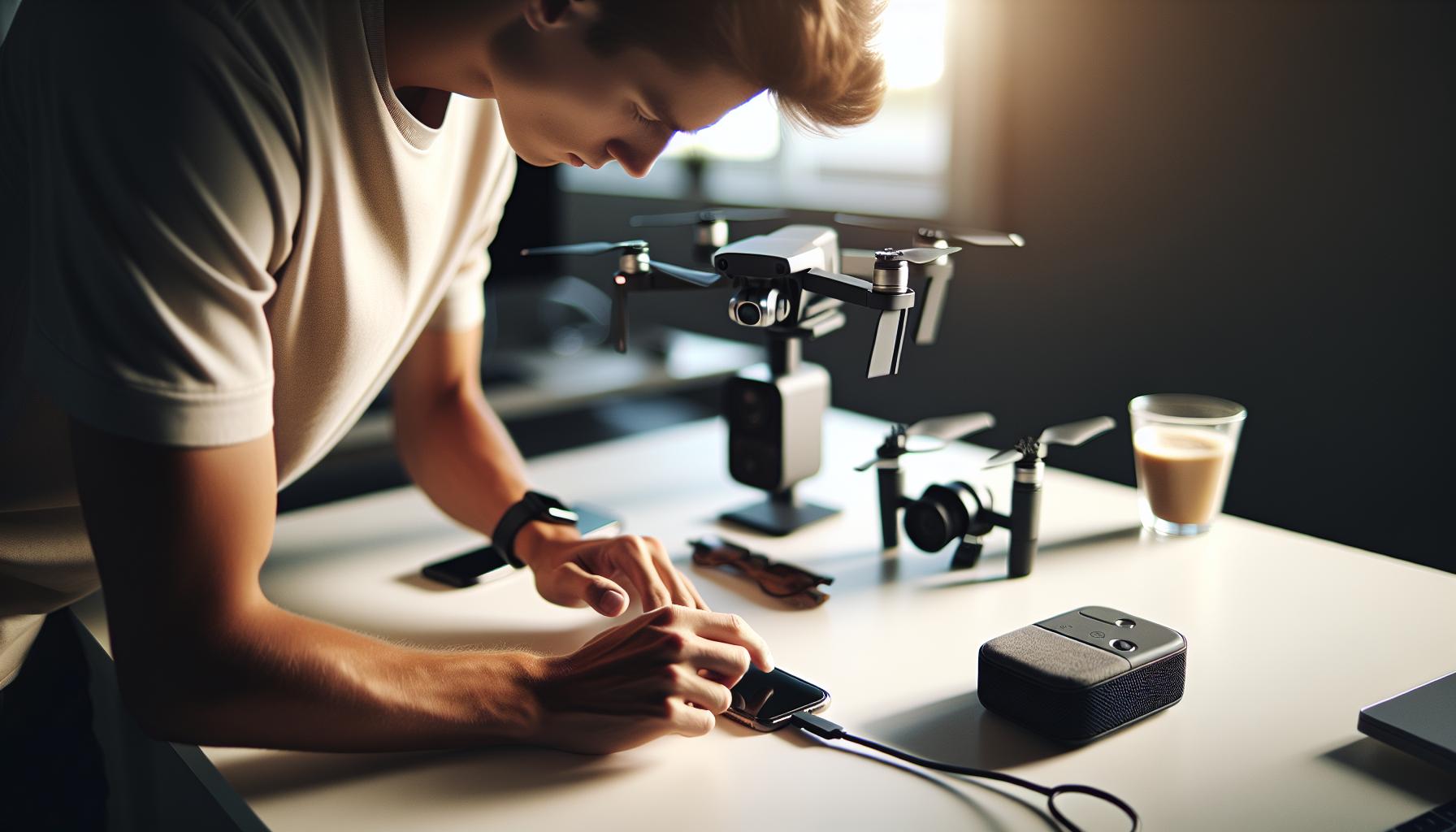
Exploring the DJI Mic Mini Features and Benefits
The DJI Mic Mini is revolutionizing how creators capture audio, merging advanced technology with incredible portability. Its compact design and operational simplicity make it a tool of choice for videographers, vloggers, and content creators on the go. One of the standout features of the DJI Mic Mini is its dual-channel recording capability, enabling users to connect two microphones simultaneously. This functionality is perfect for interviews or dialogues, making it easier to capture clear, distinct audio from multiple sources.
Operating the DJI Mic Mini is straightforward, as it utilizes a wireless connection to eliminate the clutter of cables while maintaining a reliable performance. The system boasts a range of up to 250 meters, which allows for freedom of movement during recordings – an essential detail for dynamic shooting environments. Additionally, the built-in rechargeable battery offers up to 15 hours of continuous use, providing peace of mind for long recording sessions. Users can also benefit from its intuitive pairing process with devices like the iPhone, ensuring quick setups without fumbling with complex configurations.
Moreover, the DJI Mic Mini comes equipped with useful features like real-time monitoring via earphones and a variety of included accessories that facilitate use in diverse situations, from indoor interviews to outdoor events. Its high-quality audio encoding ensures that recordings are clear and professional-grade, even in challenging environments with background noise. The unit’s sleek design and lightweight construction mean it can easily fit in a pocket or small bag, underpinning its suitability for spontaneous shoots and travel.
With the DJI Mic Mini, creators gain not just a microphone, but a powerful audio tool that enhances storytelling through high-quality sound. Whether you’re working with an iPhone for mobile projects or using it with a camera, the DJI Mic Mini streamlines the audio capture process, allowing creators to focus on their content without worrying about the technicalities of sound recording.
Step-by-Step Guide to Connect the DJI Mic Mini
To connect your DJI Mic Mini to an iPhone, follow these straightforward steps to ensure a seamless audio experience. Preparing your iPhone for the connection is vital to avoid any potential issues. First, make sure your iPhone is updated to the latest iOS version to guarantee compatibility with the DJI Mic Mini. Then, check that Bluetooth is enabled on your iPhone by going to Settings > Bluetooth and toggling the switch to on. With these initial preparations in place, you can move ahead with the connection process.
Begin by powering on both the transmitter (TX) and receiver (RX) of the DJI Mic Mini. On the transmitter, hold down the power button until the LED indicator lights up, signaling that the device is on. Do the same for the receiver. Once both devices are powered on, you need to pair them. The receiver will automatically search for the transmitter. After a moment, you should see a solid LED light on both units, indicating they are successfully connected.
Next, connect the receiver to your iPhone using an appropriate adapter. If your iPhone lacks a headphone jack (like the iPhone 7 and later), you’ll need a Lightning to 3.5mm audio adapter. Plug the receiver’s output into the adapter and then connect the adapter to your iPhone. Once connected, open your preferred audio recording app, ensuring it recognizes the microphone input. Popular apps that work well with the DJI Mic Mini include GarageBand, Voice Memos, and Camera apps.
If you encounter any issues during setup, double-check that both devices are charged and within range of each other. Placement is important-avoid having large obstacles between the mic and receiver to maintain a stable connection. Once everything is set up correctly, you’re ready to capture high-quality audio seamlessly from your iPhone with the DJI Mic Mini.
Using this lightweight and portable microphone enhances your recording quality, making it ideal for interviews, vlogs, and other audio projects on the go. Enjoy the freedom of wireless audio capture, knowing that you have a reliable setup at hand.
Troubleshooting Connection Issues with Your iPhone
Connection issues can be frustrating, especially when you’re eager to start recording high-quality audio with your DJI Mic Mini. Fortunately, putting a few troubleshooting steps into practice can help resolve most common connection problems you might encounter when pairing your microphone with an iPhone.
Start by ensuring both the DJI Mic Mini transmitter (TX) and receiver (RX) are fully charged. Low battery levels can cause devices to behave unpredictably, so it’s essential both devices are powered up. Next, confirm that Bluetooth is not only enabled on your iPhone but that it is also “seeing” the DJI Mic Mini. Go to Settings > Bluetooth and look for your device in the list of available connections. If it does not appear, try turning Bluetooth off and back on, or even restarting your iPhone.
Another key factor is the distance between the transmitter and receiver. Make sure they are within optimal range-typically under 100 meters with clear line-of-sight-without any significant obstructions, such as walls or large furniture that can interfere with the signal. If you notice the LED indicators blinking in an irregular pattern, this often indicates a connection problem. In this case, try unplugging the receiver from your iPhone and reconnecting it using the appropriate adapter.
If you’ve ruled out these common issues and are still struggling to connect, resetting the devices might help. To do this, turn off both the transmitter and receiver, then power them back on again while ensuring they are properly set to pair. Additionally, some users report success by deleting the DJI Mic Mini from the Bluetooth settings on their iPhone and then going through the pairing process again from scratch.
These practical troubleshooting steps should help you establish a successful connection between your DJI Mic Mini and iPhone, allowing you to start capturing crisp audio without unnecessary delays. If the problems persist despite these efforts, consulting the user manual or reaching out to DJI support may provide more tailored solutions.
Enhancing Sound Quality with DJI Mic Mini Settings
To truly harness the power of the DJI Mic Mini and elevate your audio recordings, understanding and adjusting the settings is paramount. The DJI Mic Mini offers a suite of customizable features that can significantly enhance sound quality based on the environment and the type of content being captured. Whether you’re vlogging, recording interviews, or shooting cinematic videos, optimizing these settings can make a noticeable difference in clarity and overall audio fidelity.
One of the first steps in enhancing sound quality is to adjust the microphone gain level. The DJI Mic Mini typically allows you to set the gain according to the recording environment-higher gain for quiet settings or softer voices, and lower gain for louder surroundings. Getting this balance right helps prevent distortion and ensures that you capture a clean, crisp sound. Additionally, consider using the built-in noise reduction feature during warmer months or in backgrounds with ambient noise, such as wind or city sounds. This feature actively minimizes unwanted background noise, letting your main subject shine through more clearly.
Furthermore, it’s crucial to consider the distance of the microphone from the sound source. For optimal sound pickup, keep the transmitter close to the subject. If you’re using the mic for interviews or presentations, positioning it properly can avoid echo and ensure your audio remains cohesive. Experimenting with placement can make a significant impact on your recordings, especially in larger rooms or outdoor settings.
Utilizing your iPhone effectively in conjunction with the DJI Mic Mini also involves leveraging apps that support audio customization. Many audio recording apps provide advanced features like equalization, which allows you to adjust specific frequencies based on your recording needs. For example, boosting mid-range frequencies may help in voice recordings, while reducing low frequencies can mitigate unwanted rumble or wind noise. By understanding how to navigate these settings, you can create professional-quality audio that stands out.
In summary, enhancing sound quality with the DJI Mic Mini involves a mix of adjusting microphone gain, positioning the mic effectively, and utilizing app features to tailor your audio to your specific needs. Being mindful of these elements not only elevates your recordings but also empowers you to produce content that resonates with your audience.
Tips for Using DJI Mic Mini in Different Environments
Using the DJI Mic Mini in varying environments can significantly impact the quality of your audio recordings. Whether you’re in a bustling city, a quiet room, or outdoors with unpredictable weather, adjusting your setup according to your surroundings can elevate your audio experience and ensure pristine sound capture.
In noisy environments, such as urban settings or crowded events, be sure to leverage the DJI Mic Mini’s built-in noise reduction feature. This capability helps filter out background chatter and distractions, focusing on your primary audio source. Furthermore, consider using directional positioning, orienting the microphone towards the speaker while minimizing side and rear noise pickup. If possible, position yourself and your subject away from noise sources to enhance audio clarity.
For indoor settings, where echoes and reverb can pose challenges, experimenting with the microphone’s gain settings can be beneficial. A lower gain might prevent distortion from reflective surfaces, while maintaining proximity to the subject will help keep voices clear and dynamic. Utilize soft furnishings like curtains or cushions to dampen sound reflections-this simple adjustment can significantly improve recording quality.
When recording outdoors, weather can also influence audio quality. Wind, for example, is notorious for interfering with clear sound capture. To mitigate this, the DJI Mic Mini offers windshields that can reduce wind interference dramatically. Additionally, choose a location with natural barriers, such as walls or trees, which can help block wind gusts and create a more stable sound environment.
Each recording location offers unique challenges, but understanding how to adjust your setup accordingly will help you maximize the DJI Mic Mini’s potential, creating professional-quality audio regardless of setting. Always take a moment to test the audio before proceeding with your recording-small adjustments can lead to significant improvements in your final product.
Maintaining and Caring for Your DJI Mic Mini
To ensure your DJI Mic Mini remains in optimal working condition, a dedicated routine for maintenance and care is essential. Proper handling not only extends the life of your microphone but also guarantees that you capture the highest quality audio possible during your recordings.
One of the simplest yet most effective maintenance tips is to keep the microphone clean. Dust, dirt, and moisture can compromise sound quality and damage electronic components. Use a soft, dry microfiber cloth to wipe down the exterior regularly, and inspect the microphone grille for any debris. If you notice any significant buildup, gently brush it off or use a small compressed air canister to clear out particles without damaging the mic. Additionally, ensure that the microphone and its accessories are stored in a protective case when not in use to prevent accidental damage.
Battery management is another cornerstone of maintaining your DJI Mic Mini. Regularly check the battery status before important recordings to avoid unexpected power failures. If the microphone is not in use for extended periods, consider removing the batteries to prevent leakage and corrosion. Always use high-quality rechargeable batteries to maintain performance and reduce waste, and charge them with the provided equipment to ensure compatibility and safety.
Lastly, software updates and firmware checks are crucial for keeping your microphone functioning at its best. Keep an eye on the DJI Mimo app, as it often provides updates that enhance the functionality of the DJI Mic Mini. Staying updated ensures you benefit from any improvements or bug fixes that enhance the microphone’s features, connecting seamlessly to your iPhone for simple setup and operation. By following these care tips, you’ll ensure that your microphone delivers professional-quality audio for all your recording needs.
Comparing DJI Mic Mini with Other Microphones
When exploring the world of portable microphones, the DJI Mic Mini stands out not just for its compact design but for its robust features tailored for users seeking quality audio on the go. To gauge its performance, it’s essential to compare the DJI Mic Mini with other popular microphones in the market, such as the Rode Wireless Go II and the Sennheiser XSW-D Portable Lavalier Set. Each of these models serves different use cases and user preferences, making it vital to understand their strengths and weaknesses in relation to the DJI Mic Mini.
The DJI Mic Mini is designed with versatility in mind, ideal for content creators who utilize their iPhones for video and audio recording. Its Bluetooth connectivity provides an easy setup, eliminating the need for cumbersome cables, and allowing for a wireless experience that significantly reduces setup time. In contrast, while the Rode Wireless Go II also offers wireless functionality, it emphasizes higher transmission ranges and dual-channel recording, making it a choice favored by professional videographers who need to capture multiple audio sources without physical limitations.
Sennheiser’s XSW-D Portable Lavalier Set is another competitor, noted for its professional-grade sound quality and reliability in various environments. However, it typically comes at a higher price point compared to the DJI Mic Mini, which offers an excellent balance of performance and affordability. For hobbyists and emerging creators, the DJI Mic Mini’s features, including straightforward app integration and compact design, provide a compelling option without sacrificing audio quality. It’s particularly effective for interviews, vlogs, and on-the-go recordings where simplicity and portability are key.
In conclusion, while the DJI Mic Mini shines with its ease of use and compact form factor, audiences looking for extended range and multi-channel capabilities might gravitate toward models like the Rode Wireless Go II or Sennheiser XSW-D. Ultimately, the best choice depends on specific project needs, budget, and the type of content being produced. Each microphone has its niche, and understanding these distinctions helps users make informed decisions tailored to their creative pursuits.
Understanding Compatibility: Device and App Requirements
Connecting the DJI Mic Mini to an iPhone for seamless audio capture hinges on understanding the device compatibility and app requirements. The DJI Mic Mini is designed to work efficiently with iPhones, leveraging Bluetooth technology to streamline the setup process. However, it’s crucial to ensure that your iPhone is updated to at least iOS 13 or later, as earlier versions may lack compatibility with the mic’s features and functionalities. This ensures that you can take full advantage of the app integrations that enhance the audio recording experience.
To facilitate the connection, download the DJI Mimo app, which is designed to work specifically with DJI products, including the Mic Mini. This app not only supports wireless connections but also provides a user-friendly interface for adjusting audio levels, monitoring sound quality, and accessing various recording settings directly from your device. Before starting the connection process, verify that Bluetooth is enabled on your iPhone and that the Mic Mini is fully charged for optimal performance.
Additionally, consider the physical components of your setup. Ensure you have the necessary adapters, particularly for newer iPhone models lacking a headphone jack. The lightning to 3.5mm adapter can be essential for connecting audio directly if you decide to use the Mic Mini in a wired mode alongside the Bluetooth option. Understanding these compatibility considerations can significantly enhance your recording experience, allowing you to focus on capturing high-quality audio without technical interruptions.
For best results, familiarize yourself with the DJI Mimo app’s settings to promote a smooth workflow. Some recommended practices include checking for firmware updates regularly to ensure your mic operates at peak performance. Keeping your devices and app aligned in terms of compatibility guarantees a reliable and efficient audio recording process, allowing you to concentrate on your creative pursuits rather than troubleshooting technical issues.
Maximizing Your Setup for Professional-Quality Audio
To achieve professional-quality audio when using the DJI Mic Mini with your iPhone, it’s essential to optimize every aspect of your setup. The right combination of settings, environment, and usage techniques can elevate your recordings, ensuring they meet high standards for both personal and professional projects.
Start by positioning your microphone correctly. The DJI Mic Mini features an omnidirectional pickup pattern, which means it can capture sound from all directions. However, to maximize clarity and reduce background noise, place the microphone as close to the sound source as possible, ideally within 6 to 12 inches. This proximity will enhance your audio quality by minimizing ambient sounds that can muddy the recording.
Make use of the DJI Mimo app, which offers various features for fine-tuning your audio settings. Utilize the app to adjust input levels, ensuring that the audio is neither too quiet nor clipping due to high volumes. A good practice is to monitor your audio while testing, aiming for levels that peak around -6 dB to -12 dB to strike a balance between loudness and clarity. Additionally, consider activating any noise reduction settings available in the app to further clean up your audio.
H3: Environment Considerations
The recording environment can substantially impact audio quality. For instance, if possible, choose quieter spaces with minimal background noise-like a room with soft furnishings that absorb sound-rather than a hard-surfaced area that creates echoes. If you find yourself in a less-than-ideal acoustic setting, consider using sound dampening materials, such as foam panels or blankets, to control reflections and reduce unwanted noise.
H3: Accessories That Enhance Performance
Complement your DJI Mic Mini with accessories that support optimal audio quality. Windscreens can be highly beneficial, especially in outdoor settings, preventing wind noise from interfering with your recordings. Additionally, a sturdy mount or clip ensures stability and prevents handling noise, allowing your microphone to focus on capturing sound rather than vibrations or bumps from movement.
By combining thoughtful placement, proper app settings, and environmental awareness, you can maximize your setup to achieve crisp, professional-quality audio with the DJI Mic Mini and your iPhone. This holistic approach ensures that technical aspects are covered, allowing you to focus on the content and creativity behind your recordings.
Real User Experiences: Reviews and Testimonials
Users rave about the DJI Mic Mini’s incredible ease of use and the professional-quality audio it delivers when connected to an iPhone. For many, the experience was eye-opening, elevating their recording capabilities without the cumbersome setup often associated with high-end audio equipment. A common theme in testimonials highlights the plug-and-play nature of the device-most users simply plug in the receiver, launch the DJI Mimo app, and start recording right away. This seamless integration is crucial for content creators who need reliable gear that won’t slow down their workflow.
One satisfied user mentioned how the DJI Mic Mini transformed their vlogging experience. Previously struggling with poor audio quality from built-in smartphone microphones, they found that the DJI Mic Mini allowed them to capture clear, crisp sound, even in bustling urban environments. This user emphasized the mic’s ability to filter out unwanted background noise, saying, “I could finally focus on my narrative without worrying about the city sounds creeping in.” They also noted the comfort of the lightweight mic, which made long recording sessions much more manageable.
Another user shared a memorable experience while using the Mic Mini for an interview series. They praised the app’s advanced features, such as real-time audio monitoring and intuitive sound adjustments, which helped them achieve “broadcast-quality” recordings right from their iPhone. The ability to make on-the-fly changes to the audio settings provided a new level of control tailored to each unique setting, whether they were in a quiet room or outside on a windy day.
Lastly, a content creator highlighted the build quality and design of the DJI Mic Mini, pointing out its compact size and included accessories that enhance usability. They appreciated the magnetic design feature, which allows for secure placement during shoots and avoids the hassle of traditional clips. This user noted, “It’s the perfect companion for a minimalistic gear setup, enabling me to pack light without sacrificing audio quality.” These real-world experiences underline the DJI Mic Mini’s reputation as a game-changer for anyone looking to improve their mobile recording capabilities.
Additional Accessories for an Enhanced Experience
To unlock the full potential of your DJI Mic Mini and elevate your recording experience, considering additional accessories can make a significant difference. Each accessory is designed to enhance usability, improve sound quality, or provide added protection, ensuring that you get the most out of your gear in various settings and scenarios.
One of the most beneficial accessories is the windscreen. This simple piece of foam dramatically improves audio quality during outdoor recordings by minimizing wind noise and unwanted ambient sounds. When recording in breezy conditions, adding a windscreen can significantly enhance clarity, allowing you to capture voices without interference.
Another essential accessory is the clip-on microphone mount. While the DJI Mic Mini is compact and lightweight, securing it effectively during dynamic activities-like vlogging on the move-can enhance your recording stability. A magnetic clip or a traditional lapel clip can hold the microphone securely, ensuring it stays in place, even through movement.
For those looking to maximize their recording quality, investing in a portable audio recorder can be a game changer. Models compatible with the Mic Mini allow for high-quality sound capture, storing audio independently from your iPhone. This not only opens up additional editing options post-recording but also provides a backup solution, ensuring you never lose precious footage due to technical hiccups with your phone.
Lastly, don’t overlook the value of a cable management system. Whether you’re working on a complex shoot or simply avoiding tangles during transport, properly managing your cables can prevent potential disasters. Velcro ties or dedicated cable pouches can help keep everything organized, allowing you to focus solely on your creative process.
Utilizing these accessories alongside your DJI Mic Mini can significantly enhance your recording capabilities, ensuring you’re prepared for any situation. By investing in the right tools, you can achieve not only convenience but also professional-quality audio in your projects.
Frequently asked questions
Q: How do I connect my DJI Mic Mini to my iPhone?
A: To connect your DJI Mic Mini to your iPhone, start by turning on the mic. Then, access your iPhone’s Bluetooth settings and ensure it’s on. Select the DJI Mic Mini from the list of available devices. Once paired, you can begin recording using your preferred audio app.
Q: What should I do if my DJI Mic Mini won’t connect to my iPhone?
A: If your DJI Mic Mini won’t connect to your iPhone, first ensure both devices are charged. Restart the microphone and your iPhone, then attempt to pair them again via Bluetooth. Also, check for any software updates on your iPhone that may enhance compatibility.
Q: Can I use DJI Mic Mini for video recording on my iPhone?
A: Yes, you can use the DJI Mic Mini for video recording on your iPhone. Once connected via Bluetooth, it captures high-quality audio that can significantly improve your video’s sound quality. Ensure that your recording app is set to use the external microphone.
Q: How do I ensure the best audio quality with the DJI Mic Mini on my iPhone?
A: For optimal audio quality with the DJI Mic Mini, position the microphone close to the sound source and minimize background noise. You can also adjust the gain settings within your audio recording app for clearer sound capture.
Q: Are there any special settings needed to connect DJI Mic Mini to iPhone?
A: No special settings are required to connect the DJI Mic Mini to your iPhone. Simply turn on Bluetooth on both devices and pair them. However, check your recording app’s settings to ensure it is set to use the DJI Mic Mini as the audio input.
Q: How far can I be from my iPhone when using the DJI Mic Mini?
A: The DJI Mic Mini can maintain a reliable Bluetooth connection up to approximately 30 feet (10 meters) from your iPhone. However, obstacles and interference may reduce this range, so it’s best to stay within close proximity for optimal performance.
Q: What devices are compatible with the DJI Mic Mini besides the iPhone?
A: Besides the iPhone, the DJI Mic Mini is compatible with various devices including Android smartphones, cameras with 3.5mm audio inputs, and laptops with Bluetooth capabilities. Always check the device’s specifications for compatibility.
Q: Where can I find the user manual for DJI Mic Mini?
A: You can find the user manual for the DJI Mic Mini on the official DJI website under the support section. This manual provides comprehensive setup instructions, troubleshooting tips, and detailed information about its features.
Final Thoughts
Now that you know how to connect your DJI Mic Mini to your iPhone seamlessly, you’re ready to elevate your audio recording experience like never before! Don’t let your creative energy fade – take immediate action and start experimenting with different recording settings today. If you want to further improve your skills, check out our articles on optimizing your DJI microphone setup and tips for troubleshooting audio issues.
For those looking to expand their knowledge, explore our guide on the best accessories to enhance your drone experience or dive into our advanced tutorials on drone operation and safety. Remember, mastering your equipment is key to capturing stunning footage. Sign up for our newsletter for the latest tips and product updates, and join our community to share your experiences. Your next great audio adventure starts now!