
Unboxing a new drone can be an exhilarating experience, especially when it’s a cutting-edge model like the DJI Mini 4 Pro. This compact powerhouse offers advanced features that attract both hobbyists and professionals, making it essential to understand the unboxing process to set the stage for an incredible flying experience. In this guide, we’ll walk you through the steps of opening your Mini 4 Pro, ensuring you don’t miss any crucial elements that enhance your journey. Whether you’re eager to explore its intelligent flying modes or capture stunning aerial footage, knowing how to properly unbox and set up your drone is the first step toward unlocking its full potential. Let’s dive in and discover how to elevate your aerial adventures right from the start.
How to Prepare for Unboxing the DJI Mini 4 Pro
Before diving into the excitement of unboxing your DJI Mini 4 Pro, it’s essential to set the stage for a seamless experience that ensures you’re ready to take full advantage of your new drone right out of the box. First and foremost, find a well-lit and clean workspace where you can lay out all materials without risking any small parts getting lost. The ease of your setup and eventual flying experience can significantly benefit from a tidy and organized area.
Gather a few essential tools and supplies you might need. While the Mini 4 Pro comes ready for flight, having a small pair of scissors or a box cutter can expedite the unboxing, especially if the packaging features tough seals. Some users prefer to keep a microfiber cloth nearby, not just for cleaning the drone but also for any excess fingerprints left on the controller or camera lens as you familiarize yourself with the components. A flexible surface like a soft mat can protect the drone from scratches once you start handling it.
As you prepare mentally, it’s also wise to have your smartphone or tablet charged up and ready to go, as you’ll need it to connect to the DJI Fly app, which enhances your flying experience with real-time data and controls. Reading through the user manual beforehand can give you insights into any idiosyncrasies of the Mini 4 Pro that will make your initial experience smoother. Although many find the DJI interface user-friendly, being familiar with essential functions before turning on the drone can alleviate any confusion during your first flight.
Establishing an unboxing routine that includes checking the manual and preparing your workspace can set a positive tone as you embark on your first journey with the DJI Mini 4 Pro, ensuring that your initial interaction is as enjoyable as the flights that will follow.
Essential Tools Needed for Unboxing
The unboxing experience is often the first glimpse into the exciting world of drone technology, and having the right tools on hand can make all the difference. To elevate your unboxing of the DJI Mini 4 Pro from a mere opening of a box to a thoroughly enjoyable experience, consider gathering a selection of essential tools and supplies.
First, you will need a reliable cutting tool such as a pair of scissors or a box cutter. Modern packaging can be surprisingly robust, featuring various seals and tape types that may require a little extra effort to open. Being properly equipped not only saves time but also helps prevent any accidental damage to the contents inside. Additionally, including a microfiber cloth is highly recommended. This small tool is perfect for removing fingerprints or smudges from the drone’s lens and your controller, ensuring every component is pristine as you start your journey.
Next, to protect your new gear, set up a soft mat or padding on your work surface. This ensures that your drone doesn’t get scratched during unpacking. A clean, flat surface is also ideal for organizing the contents of the box once opened. You’ll want to make sure you have a space where everything is visible, minimizing the risk of misplacing any crucial components.
It’s also wise to have your smartphone or tablet charged and ready, as you’ll soon need it to dive into the DJI Fly app that enhances your flying experience. This will allow you to not only control your drone, but also access various features and setup options that are key to making the most out of your device right from the start. Lastly, having your user manual handy can provide immediate guidance should you encounter any surprises while unpacking.
By preparing these essential tools, you set the stage for a more organized, efficient, and enjoyable unboxing experience that primes you for successful flights with your DJI Mini 4 Pro.
Step-by-Step Unboxing Instructions

Once you’ve gathered your tools and created a tidy workspace, it’s time to dive into the unboxing process. The DJI Mini 4 Pro is designed with tech enthusiasts in mind, and the anticipation of opening this innovative product adds to the excitement. Follow these steps to ensure a smooth and enjoyable unboxing experience.
Start by removing any external packaging such as plastic wrap or seals. Use your cutting tool carefully to avoid damaging the box itself; this is especially important if you plan to keep the packaging for storage or resale. Once the outer packaging is removed, take a moment to admire the well-organized inner layout. DJI often incorporates a user-friendly design, where compartments are designated for each item, making it easy to identify components.
Next, gently open the box and lift the lid to reveal the contents. The drone and its related accessories will be housed in foam inserts or molded sections to protect them during transit. Carefully extract the DJI Mini 4 Pro from its compartment, ensuring that you’re holding it securely by the fuselage to avoid disturbing any sensitive components like the camera or gimbal. Pay particular attention to the included accessories, such as the remote controller, extra batteries, propellers, and any carrying cases.
As you unpack each item, place them on your work surface in an organized manner. It’s wise to check the contents against the included manual or the listing on DJI’s website to ensure everything is accounted for. This checklist typically includes:
- DJI Mini 4 Pro Drone
- DJI RC 2 Remote Controller
- Intelligent Flight Battery
- Extra Propellers
- USB Charging Cable
- User Manuals and Quick Start Guides
- Any additional accessories specific to your bundle, such as ND filters or carrying bags
Once everything is laid out and accounted for, give each component a brief inspection for any signs of damage. This is an important part of the unboxing process that should not be overlooked. If you notice anything amiss, document your findings and contact DJI support for assistance.
Finally, once you’ve satisfactorily unboxed and inspected all components, you’re ready to proceed to the initial setup phase. Be sure to set aside time to enjoy this experience; assembling your new drone is just the beginning of what promises to be an exciting journey into the world of aerial photography and videography.
Inspecting Components: What Should Be Included

As you prepare to unveil the DJI Mini 4 Pro, you’ll find that familiarizing yourself with the included components is essential for maximizing your flying experience. A well-organized and comprehensive unboxing not only builds excitement but also sets the foundation for successful drone operation. By thoroughly inspecting each element immediately after unpacking, you can ensure that all necessary parts are present and in excellent condition, ready for your first flight.
When you open the box, you should expect to find several key components laid out neatly in protective foam or molded compartments to prevent damage during shipping. It’s important to check the include checklist against your package to ensure nothing is missed. Typically, the contents include:
- DJI Mini 4 Pro Drone – Your main device, equipped with advanced features for aerial photography.
- DJI RC 2 Remote Controller – This controller is essential for operating your drone efficiently.
- Intelligent Flight Battery – Make sure it’s charged before your first flight to enjoy uninterrupted adventures.
- Extra Propellers – Useful for replacements should you encounter any mishaps while flying.
- USB Charging Cable – For convenient charging of your drone and controller.
- User Manuals and Quick Start Guides – Essential reading for understanding your device and its capabilities.
- Additional accessories – Depending on your bundle, this may include ND filters, carrying bags, or a charging hub.
As you unpack each component, give them a careful inspection. Look for any signs of damage, such as dents or scratches on the drone body and controller or any missing parts. Document any issues-poorly sealed boxes are sometimes a telltale sign that components may have shifted during transit. If everything checks out, familiarize yourself with the items, as understanding their functions will enhance your operating confidence. With everything laid out and inspected, you’re already taking the first step toward becoming a skilled drone operator, so take your time to embrace this exciting beginning!
Understanding the DJI Mini 4 Pro Features
Equipped with cutting-edge technology and thoughtful design, the DJI Mini 4 Pro stands out in the competitive world of consumer drones, making it an enticing choice for both beginners and experienced pilots. This drone not only simplifies aerial photography with its intuitive features but also empowers users to capture stunning images and videos with remarkable ease. Understanding its features is crucial for maximizing your flight experience and fully leveraging its capabilities.
One of the most impressive aspects of the Mini 4 Pro is its 4K HDR video camera, which allows for stunning image quality with vibrant colors and enhanced detail. This drone can record 4K video at up to 100 fps, enabling you to create slow-motion footage that captures every detail with clarity. The camera is complemented by DLog and HLG video profiles, offering filmmakers versatility in post-production. Additionally, the omnidirectional obstacle avoidance system ensures safer flying by detecting and navigating around obstacles in all directions, reducing the risk of crashes and expanding the range of viable flying scenarios.
In terms of user experience, the DJI Mini 4 Pro incorporates Smart Features like Active Track, QuickShots, and Mastershots. These features not only simplify complex filming maneuvers but also allow users to focus on creativity rather than technical details. For instance, Active Track enables the drone to automatically follow a subject, while QuickShots aids in capturing dynamic footage without requiring advanced piloting skills. Furthermore, the DJI RC 2 Remote Controller enhances the operational experience with a responsive interface and improved battery performance, ensuring you stay connected during your fliers.
To ensure you get the most out of your new drone, familiarizing yourself with the Intelligent Flight Modes and safety settings is essential. These modes allow tailored responses to various environments and flying conditions, while safety checks ensure responsible flying practices. By understanding the Mini 4 Pro’s features, you can confidently navigate its capabilities, moving from basic operation to more advanced aerial photography and videography with relative ease. This preparation will set you on the path toward becoming a skilled drone pilot, ready to create breathtaking aerial content.
Initial Setup: Charging and Powering On
The excitement of unboxing the DJI Mini 4 Pro is only matched by the promise of incredible aerial photography and videography capabilities. Before diving into the thrills of flight, a critical step awaits: ensuring your drone is fully charged and ready to power on. This initial setup is not only essential for first-time users but also sets the stage for an optimal flying experience, free from interruptions due to battery issues.
To begin, locate the battery charging hub included in your package. It’s designed to charge multiple batteries simultaneously, significantly reducing wait time. Connect the charging hub to a power source using the provided USB-C cable. Once connected, the hub’s LED indicators will illustrate the status of each battery. A steady green light signals a full charge, while a blinking light indicates charging is in progress. Make sure to charge your remote controller as well, as it’s an integral part of your flying experience.
After ensuring that both your drone batteries and remote controller are fully charged, it’s time to power on. Start by inserting a charged battery into the aircraft; it will click into place when correctly inserted. To power on the Mini 4 Pro, press the power button located on the top of the battery once, then press again and hold for a few seconds until you see the drone’s lights illuminate. The drone is programmed to perform a self-check, which includes testing the motors and various sensors, so be patient during this brief startup procedure. Upon successful startup, the indicators will stabilize, signaling that your drone is ready for its first flight.
Don’t forget that powering off is just as crucial; to turn the drone off, press and hold the power button again until the lights go out. Properly managing the power cycle of your drone not only conserves battery life but also helps maintain its performance, contributing to a safer flying experience. With your drone fully charged and powered on, you’re one step closer to capturing breathtaking aerial shots with the DJI Mini 4 Pro.
Connecting Your Mini 4 Pro to the App
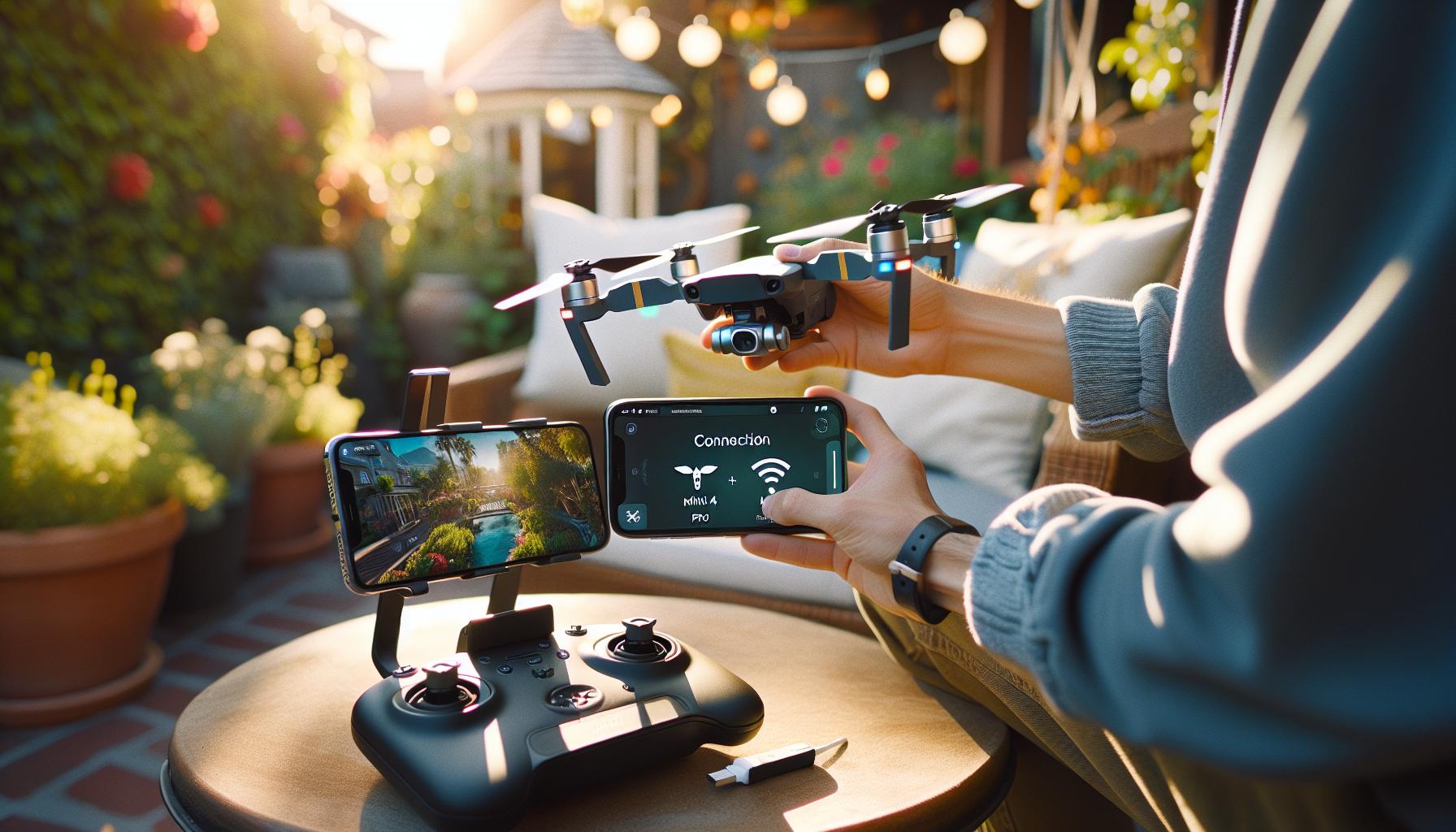
To unlock the full potential of your DJI Mini 4 Pro, connecting it to the DJI Fly app is an essential step in your flying journey. The app not only serves as the command center for your drone but also enhances your flying experience through various features such as flight planning, live video feed, and configuration options. Once your drone is charged and powered on, you’re just a few clicks away from an exciting aerial adventure.
Start by downloading the DJI Fly app, available on both Android and iOS platforms. Ensure you have the latest version to access all the newest features and improvements. After installation, open the app and create a DJI account if you don’t already have one; this will allow you to save and retrieve footage and settings quickly. Once you’re logged in, it’s time to pair your drone with the app.
Establish a connection by following these simple steps:
- Turn on your remote controller and Mini 4 Pro.
- In the DJI Fly app, select “Start Fly” from the main menu.
- Follow the on-screen prompts to connect to your drone. The app will automatically search for devices.
- Once your drone appears, select it to initiate pairing.
Tip: Make sure your mobile device’s Bluetooth is enabled, as the app relies on this feature to communicate with the drone.
After connecting, the app will guide you through essential settings and firmware updates if necessary. This communication between your drone and mobile device provides real-time telemetry data and live video streaming, significantly enhancing your situational awareness in the air. Always check for any software updates before taking to the skies, as these can include important performance improvements and new features.
Connecting your Mini 4 Pro to the DJI Fly app not only prepares you for your first flight but also ensures that you harness the drone’s full capabilities, from intelligent flying modes to advanced camera features. With everything set up, you’re ready to embark on your aerial photography journey with confidence.
Camera and Gimbal Setup Made Easy

Setting up the camera and gimbal of your DJI Mini 4 Pro can dramatically enhance your aerial photography experience, making it essential to get this step right. The Mini 4 Pro boasts advanced camera features, including a remarkable 4/3 CMOS sensor, allowing for stunning image quality in various lighting conditions. A properly calibrated gimbal prevents shaky footage, ensuring smooth and professional-looking videos.
To start with the camera setup, you’ll want to ensure that your camera lens is free of any protective covers and that it’s clean for optimal image clarity. If there are any filters you’ve chosen to use, be sure to attach these firmly. Once your camera is set, the gimbal needs calibration. Most of this can be handled through the DJI Fly app, which makes the process user-friendly.
To calibrate the gimbal:
- Launch the DJI Fly app and connect your Mini 4 Pro.
- Navigate to the settings menu and select “Gimbal.” From there, choose the option to calibrate.
- Follow the on-screen prompts to complete the calibration, which typically involves rotating the drone in specific directions to ensure the gimbal is centered and functioning correctly.
After calibration, ensure that the gimbal is moving smoothly. Gimbal movement should be fluid; a jittery response could indicate the need for recalibration or further troubleshooting. Additionally, take a moment to explore camera settings within the app, such as switching between photo and video modes, adjusting resolution settings, and familiarizing yourself with exposure compensation and other advanced features.
With a properly calibrated gimbal and camera set up, you are now equipped to capture breathtaking shots. Experiment with various shooting modes and angles to take full advantage of the Mini 4 Pro’s capabilities. Whether it’s stunning landscapes or dynamic action shots, understanding and optimizing your camera and gimbal settings will significantly enhance the quality of your footage and overall flying experience.
Firmware Updates: Ensuring Your Drone is Ready
Before taking to the skies with your DJI Mini 4 Pro, ensuring your drone’s firmware is updated is a crucial step that should never be overlooked. Firmware updates play a vital role in enhancing drone performance, adding new functionalities, and fixing potential bugs that could affect flight stability and safety. By keeping your drone updated, you not only optimize its performance but also harness the full potential of the advanced features this remarkable device has to offer.
To begin the update process, you’ll need to connect your Mini 4 Pro to the DJI Fly app, available on both iOS and Android devices. Upon opening the app, make sure your drone is powered on and properly linked via a USB cable or through a wireless connection. Once connected, the app will automatically check for any available firmware updates. If an update is available, you’ll be prompted to download and install it-this process will ensure your drone is equipped with the latest safety and performance enhancements.
Steps to Update the Firmware
- Open the DJI Fly app on your smartphone or tablet.
- Power on your Mini 4 Pro and ensure it is connected to the app.
- The app will prompt you if a firmware update is necessary; follow the on-screen instructions.
- Do not disconnect the drone or power it off during the update process; this could result in corrupting the firmware.
- Once the update is complete, restart your drone to apply the new settings.
### Why Regular Updates Matter
Keeping your firmware up to date not only enhances operational capabilities but also integrates new features that improve your flying experience. For example, firmware updates can introduce advanced intelligent flight modes, improved obstacle avoidance settings, and enhanced imaging options-features that elevate your aerial photography and videography to the next level. Additionally, developers frequently release updates to address safety vulnerabilities, ensuring that you can fly with confidence.
Lastly, always keep an eye on the firmware release notes provided by DJI. These notes highlight improvements and fixes, allowing you to make informed decisions on when it’s best to perform updates. Whether you are preparing for a casual flight or a professional shoot, maintaining your drone’s firmware ensures that you are flying not just safely, but also with the best tools available.
Troubleshooting Common Unboxing Issues
Unboxing a DJI Mini 4 Pro can be an exhilarating moment, but as with any new technology, it’s not uncommon to encounter a few hiccups along the way. To ensure a smooth start to your flying adventures, it’s helpful to be prepared for any unboxing issues that may arise. One common problem is missing components. Always double-check the contents against the packaging list provided in the manual. If something seems amiss, reach out to customer service for assistance; they can guide you through possible solutions or replacement options.
Another area where users frequently run into trouble is the setup of the DJI Fly app. It’s essential to ensure your smartphone or tablet is compatible with the app. If you’re having difficulty connecting the Mini 4 Pro to your device, try restarting both the drone and the app. Additionally, make sure your device’s Bluetooth and Wi-Fi are enabled, as these are crucial for establishing a connection. In cases where the app doesn’t recognize the drone, reinstalling the app can often resolve these connectivity issues.
If you encounter any issues while trying to charge your drone or batteries, check the charging cables and ports for any physical damage or debris. Ensure that you are using the provided charger, as third-party chargers may deliver inconsistent power supply, which can damage the battery or slow charge times. When charging, a blinking light usually indicates that the battery is charging properly; if it remains off or steady, there may be a problem that requires immediate attention.
Lastly, should you happen upon unanticipated warnings or error messages during your first setup process, referring to the user manual can provide crucial insight. For persistent issues that aren’t resolved through basic troubleshooting, seeking help from online forums or DJI’s support channels can connect you with fellow enthusiasts and experts who have navigated similar challenges. By addressing potential obstacles upfront, you set yourself up for a much more enjoyable flying experience with your new drone.
Tips for First-Time Drone Users
With the rise of drone technology, entering the world of aerial photography and videography can be both thrilling and overwhelming. For first-time users of the DJI Mini 4 Pro, being equipped with the right knowledge can make a substantial difference in your flying experience. Here are some essential tips to help you navigate your new drone effectively.
Understanding your drone’s features is crucial. The DJI Mini 4 Pro boasts impressive capabilities, including a high-quality camera system and various flight modes. Familiarize yourself with these features through the user manual and online resources. This understanding will empower you to make the most of your drone’s potential and help you capture stunning footage right from the start.
Before you take your first flight, conducting thorough pre-flight checks is essential. Inspect your drone for any signs of damage, ensure propellers are securely attached, and verify battery charge levels. Additionally, check for firmware updates through the DJI Fly app, as these can enhance performance and introduce new features.
When it comes time to fly, start in a wide-open area away from obstacles and populated locations. Opt for beginner mode within the app, which limits altitude and distance, letting you build confidence. Practice basic maneuvers such as takeoff, landing, and rotating the camera. As you become more proficient, you can explore advanced features like waypoint flying and automated shooting modes.
Lastly, always prioritize safety. Adhering to local regulations regarding drone operation is not just a legal requirement but also a responsible practice. Maintain visual line-of-sight with your drone and be cautious of your surroundings, especially high winds or nearby wildlife. By grounding your initial experience in safety and education, you’ll set a solid foundation for a fulfilling and enjoyable journey as a drone pilot.
Safety Checks Before Your First Flight
Conducting with the DJI Mini 4 Pro is not just a good practice-it’s essential for a successful launch. Every new pilot must understand that a few simple precautions can prevent potential mishaps and ensure a smooth flying experience. The Mini 4 Pro, while robust and user-friendly, still requires diligence and respect for the technology at hand.
Begin your pre-flight checklist by thoroughly inspecting the drone itself. Check for any visible signs of damage that could have occurred during shipping or unboxing. Ensure that the propellers are securely attached and in good condition; any cracks or bends could alter flight performance and lead to accidents. Additionally, assess the camera and gimbal mechanism for any obstructions or loose components. After the physical checks, verify battery charge levels-both for the drone and the remote controller. It’s advisable to fully charge both before your initial flight, promoting uninterrupted flying time.
Check the firmware version on the DJI Fly app. Updating to the latest firmware not only enhances the drone’s efficiency but also introduces critical safety features and improvements that DJI frequently rolls out. This step is fundamental, as firmware updates can address bugs or vulnerabilities in the system that might affect stability during flight.
Lastly, familiarize yourself with the environmental conditions. Avoid flying in high winds or adverse weather, which can compromise the drone’s stability and control. Utilizing the app’s no-fly zone map can also prevent you from launching in restricted areas. Engage in a mental check of your immediate surroundings for obstacles and other potential hazards. This preparation sets a solid foundation for a safe first flight, allowing you to focus on enjoying your new aerial capabilities.
By taking the time to perform these safety checks, you’re not just safeguarding your equipment; you’re cultivating responsible flying habits that will serve you well throughout your journey as a drone pilot.
Frequently Asked Questions
Q: What is included in the DJI Mini 4 Pro box when unboxing?
A: The DJI Mini 4 Pro box typically includes the drone, a battery, a remote controller, spare propellers, a charging cable, and user manuals. Check the “Inspecting Components” section in the article for a complete list.
Q: How do I properly open the DJI Mini 4 Pro box?
A: To open the DJI Mini 4 Pro box, carefully remove the lid and gently lift out the foam inserts. Take out each component individually to ensure safe handling. Follow the “Step-by-Step Unboxing Instructions” for detailed guidance.
Q: What should I check for when inspecting the DJI Mini 4 Pro components?
A: After unboxing, verify that all components are included and undamaged. Check for any visible tears or defects. Refer to the “Inspecting Components” section to ensure everything is accounted for.
Q: Is there a specific order to unpack components of the DJI Mini 4 Pro?
A: Yes, it’s best practice to unpack the remote controller first, followed by the drone. This allows you to easily access the charging equipment and spare parts. See the article’s “Step-by-Step Unboxing Instructions” for more detailed steps.
Q: Why is it important to prepare before unboxing the DJI Mini 4 Pro?
A: Preparing before unboxing helps ensure you have the necessary tools and a clean workspace, reducing the risk of damage. It sets a positive tone for your first experience with the drone. Refer to the “How to Prepare for Unboxing” section for tips.
Q: How can I safely remove the DJI Mini 4 Pro from its packaging?
A: To safely remove the DJI Mini 4 Pro from its packaging, lift it out gently by the body, avoiding contact with propellers. Use both hands to ensure stability. More safety tips can be found in the article.
Q: What should I do if I find a missing component in the DJI Mini 4 Pro package?
A: If a component is missing, check the packaging thoroughly. If still unavailable, contact DJI customer support for assistance. The “Troubleshooting Common Unboxing Issues” section provides guidance on this.
Q: When should I perform my first firmware update after unboxing?
A: Perform the first firmware update after initial setup. This ensures your DJI Mini 4 Pro has the latest software for optimal performance. Refer to the “Firmware Updates” section for detailed instructions.
Final Thoughts
Congratulations on unboxing your DJI Mini 4 Pro! Now that you’re equipped with this remarkable drone, you’re ready to capture stunning aerial footage and explore new perspectives. Remember, mastering your drone involves following a few essential steps like calibrating the gimbal and updating firmware-don’t miss our detailed guides on firmware updates and gimbal calibration to get the most out of your flying experience.
If you have any lingering questions, feel free to check out our community forums or dive into advanced tutorials to elevate your piloting skills. Don’t forget to share your first flight experiences in the comments below! Stay connected with us for the latest tips, product reviews, and expert advice that’ll enhance your aerial adventures. Your next journey begins now-let’s take to the skies!