In today’s tech-savvy world, flying a DJI drone with an Android phone is not only possible but also incredibly convenient. With the right app and a few straightforward steps, you can transform your smartphone into a powerful remote control, unlocking your drone’s full potential. This guide will walk you through the setup process, ensuring you capitalize on the amazing features DJI drones offer. Whether you’re a seasoned pilot or just starting your aerial journey, learning to integrate your Android device seamlessly will elevate your flying experience. Curious about how to get started? Let’s dive into the setup that will have you soaring in no time!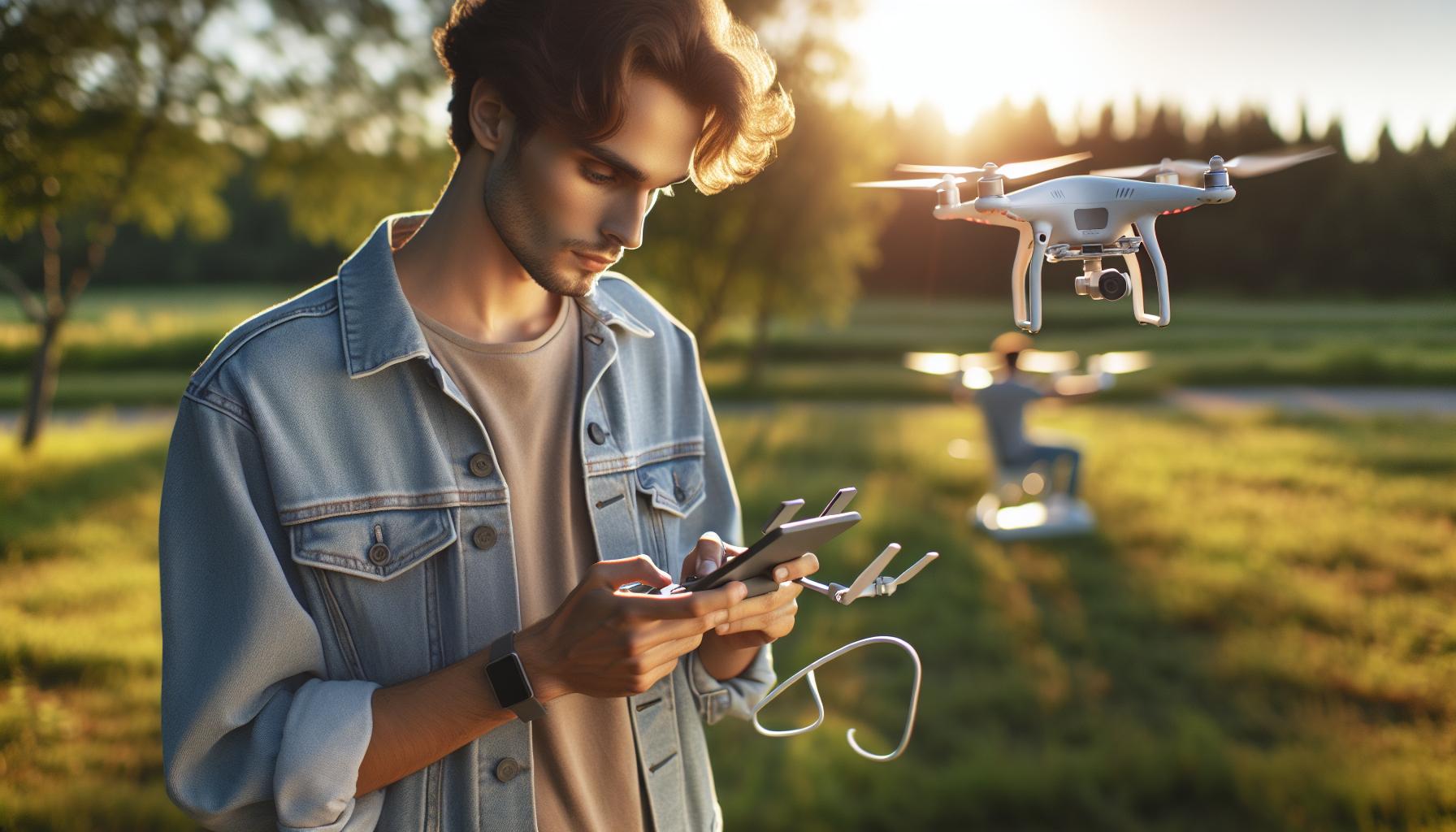
Can You Use an Android Phone with DJI Drones?
Using an Android phone with DJI drones opens up a world of aerial possibilities, combining the portability of mobile devices with the advanced capabilities of DJI technology. Most DJI drones are designed to seamlessly integrate with the DJI GO or DJI Fly apps, which are readily available for Android users. This compatibility allows users to access flight controls, camera settings, and live video feeds directly from their smartphones, enhancing the piloting experience with intuitive interfaces and rich features.
To successfully connect your Android device to a DJI drone, it is essential to download the appropriate app from the Google Play Store. Installation is straightforward, but ensuring that your device meets the minimum system requirements for the app is vital for effective operation. After downloading, you’ll typically connect your phone to the remote controller via USB, allowing the app to communicate with the drone. Once connected, follow the on-screen prompts to complete the setup, which often involves calibrating the drone and checking for firmware updates to ensure optimal performance.
Maintaining a stable connection between your Android device and the drone can sometimes present challenges. Common issues include incompatible USB cables or settings that prevent the app from accessing device permissions. To troubleshoot these issues, check your phone’s settings to ensure that the app has the necessary permissions, and try using a different USB cable if the connection is unstable. Regular updates for both your Android operating system and the DJI app can also help mitigate connectivity problems and enhance overall functionality.
In summary, flying a DJI drone with an Android phone is not only feasible but also incredibly efficient. With the right setup and minor troubleshooting, drone enthusiasts can take full advantage of their mobile devices to maximize their flying experience, unlocking a range of features and settings that enhance creativity and control in the air. This dynamic synergy provides not just the power to fly but the tools to elevate aerial photography and videography to new heights.
Step-by-Step Setup Process for Android Users
Connecting your Android phone to a DJI drone not only provides a streamlined interface for controlling flight functions but also enhances your aerial photography and videography experience with advanced features and real-time data. The setup process is designed to be user-friendly, allowing both novices and seasoned pilots to take advantage of their mobile devices efficiently.
To begin the setup, ensure that you have downloaded the appropriate DJI app, either DJI GO or DJI Fly, from the Google Play Store. Here’s a step-by-step breakdown of the process:
1. Prepare Your Android Device
- Check Compatibility: Before anything else, verify that your Android device meets the minimum system requirements for the DJI app you downloaded. You can find these requirements listed on the app’s Google Play Store page.
- Enable Permissions: Once installed, launch the app and grant it the necessary permissions to access your phone’s camera, GPS, and other features.
2. Connect the Drone and Controller
- USB Connection: Use a compatible USB cable to connect your Android device to the drone’s remote controller. The cable must fit your device properly; consider using the original cable provided by the manufacturer if possible.
- Power On: Turn on both the drone and the remote controller. Often, the controller will require a brief boot-up period, indicated by its LED lights.
3. Open the DJI App and Complete Setup
- Launch the App: Open the DJI app on your smartphone. You will usually see a prompt to connect to the drone. Follow the on-screen instructions to establish the link.
- Calibration: The app may prompt you to calibrate the drone’s compass and gimbal. Follow the instructions carefully to ensure optimal flight performance.
- Check for Firmware Updates: Once connected, it’s crucial to check for any available firmware updates for both the drone and the remote controller. This step helps prevent potential issues during flight and enhances overall functionality.
4. Confirm Connection and Prepare for Flight
- Live Feed Access: After successful setup, you should be able to view a live feed from the drone’s camera on your Android device. Take a moment to test this and familiarize yourself with the controls.
- Pre-Flight Checklist: Before taking off, ensure that your drone’s battery is fully charged, the propellers are securely attached, and that the area is free of obstacles and people.
By following these steps, you will be well on your way to flying your DJI drone using your Android phone, unlocking powerful features that modern drones provide. Enjoy your flying experience and remember to adhere to local regulations and safety guidelines for drone operations.
Essential DJI Drone Apps for Android Devices
Equipping yourself with the right apps transforms your Android device into a powerful tool for controlling DJI drones, providing access to features that enhance the flying experience and improve safety. The cornerstone for any DJI pilot is selecting the appropriate app that aligns with their drone model. The most commonly used applications are DJI GO 4 and DJI Fly, each designed to cater to different drone series and user preferences.
DJI GO 4
This app is tailored for more advanced DJI models, such as the Phantom 4 series and the Mavic Pro. It offers comprehensive functionalities, including live video feed, intelligent flight modes, detailed flight telemetry, and camera control settings. Users can also access advanced features like waypoint mapping and specific intelligent flight modes for capturing complex shots. The interface is robust, providing a range of options for experienced pilots who wish to fine-tune their flying experience.
DJI Fly
For newer models like the Mavic Mini and Mini 2, DJI Fly offers a streamlined and user-friendly interface that simplifies the flying process for beginners while still providing essential features. This app includes tutorials and quick tips, making it ideal for novice pilots. DJI Fly focuses on intuitive controls, allowing users to engage with the camera and flight settings without overwhelming complexity. The app also features one-tap shooting modes that allow for impressive photographs and videos with minimal effort.
Additional Helpful Apps
Beyond the primary DJI apps, there are other tools that can enhance your drone experience:
- DJI Assistant 2: This desktop application enables firmware updates and calibration, essential for maintaining optimal performance.
- Airdata UAV: An analytics tool that provides detailed flight logs and performance data, helping pilots monitor flight patterns and make informed decisions.
- SkyDroid: An app that offers advanced mapping features and integrates with certain DJI models for expanded functionalities.
By utilizing these applications, Android users can maximize their experience with DJI drones, making flights safer and more enjoyable while showcasing their aerial photography skills with impressive results. Whether you are capturing stunning landscapes or conducting professional assessments, the right software is essential for success in the sky.
Understanding DJI Drone Compatibility with Android
Android devices have become essential companions for DJI drone pilots, enabling seamless interaction and control over various drone models. Understanding the compatibility between DJI drones and Android phones is crucial for optimizing your flying experience. Most current DJI drones are designed to work with a range of Android devices, but it’s important to ensure your device meets the necessary specifications to maximize functionality.
When selecting an Android phone to use with your DJI drone, consider several factors. First, check for compatibility with the DJI GO 4 or DJI Fly apps, as these are the primary applications for controlling most models. Ensure your device runs on Android version 6.0 or higher for optimal performance, as older versions may lead to connectivity problems. In addition to the operating system, a capable processor and adequate RAM will significantly enhance the app’s responsiveness and the overall stability of the connection with the drone.
To improve your flying experience, you may want to adjust your phone’s settings. Disabling background applications and enabling developer options can optimize performance by allocating more resources to the DJI app. Moreover, ensuring that your phone’s battery is sufficiently charged will prevent abrupt disconnections during flights, which can result in lost control or compromised safety.
Additionally, while most Android devices will work well, specific models-with their exceptional displays and processing capabilities-stand out among pilots. Devices like Samsung Galaxy or Google Pixel phones are frequently recommended for their reliability and performance with DJI drones. Ultimately, a well-informed choice in your Android device will contribute to a more enjoyable and successful flying experience.
Troubleshooting Common Connection Issues
Connection issues can be frustrating, especially when preparing for an important flight. Understanding how to troubleshoot these problems can make all the difference in your flying experience. One common scenario involves the app not detecting the drone. Begin by ensuring your Android device is properly connected. The USB cable must be firmly attached to both the drone and your phone. If the connection still fails, try using a different cable, as some cables are designed for charging only and do not support data transfer.
Another frequent issue pertains to app performance. Should you experience lag or crashes, it’s advisable to clear the app cache and data. Navigate to your device settings, find the DJI app, and select the options to clear cache and data. This process can enhance performance by removing temporary files that may be causing disruptions. After clearing, make sure to finalize updates for both the app and your device firmware to ensure compatibility and stability.
For users encountering GPS connection errors, check if the drone is in an open area, away from tall buildings and other obstructions that may interfere with GPS signals. If the GPS signal is still weak, reboot the drone and the app. Additionally, re-calibrating the compass within the app can also resolve location discrepancies.
Lastly, keep an eye on your device’s battery level and performance. High background usage from other applications can slow down processing speeds, impacting connection stability. Close unnecessary apps and consider enabling ‘Do Not Disturb’ mode to minimize interruptions during critical flight operations. Ensuring your Android phone runs smoothly is vital for maintaining a robust connection with your DJI drone, enhancing both your control and overall flying experience.
Firmware Updates: Keeping Your Drone Ready
Keeping your DJI drone updated with the latest firmware is essential for unlocking new features, improving performance, and ensuring safety. Firmware updates often include critical security patches and enhancements to flight stability, which can significantly enhance your overall flying experience. For example, users may notice improved camera performance or more precise GPS tracking after a firmware update. Thus, regularly checking for and installing updates is a proactive way to maintain your drone’s functionality.
To perform a firmware update, begin by connecting your Android device to the drone via the DJI Fly app. This app will automatically notify you when a new firmware version is available for your specific drone model. It’s vital to ensure that your drone’s battery charge is above 30% before starting the update to prevent interruptions that could lead to corruption of the firmware. For best practices, consider fully charging your drone and using a stable Wi-Fi connection to download any updates.
Once you receive the firmware update notification in the app, follow these steps:
- Tap on the notification to begin the download process.
- Once the firmware is downloaded, the app will prompt you to install it. Ensure you follow the on-screen instructions carefully.
- After installation, reboot your drone to finalize the update. Confirm the successful update by checking the firmware version in the app.
If you encounter any issues during the update process, such as connectivity problems, it’s advisable to restart both your drone and your Android device. Additionally, you can consult the DJI support forum or app-specific help sections for troubleshooting assistance. Maintaining your drone with up-to-date firmware not only maximizes its capabilities but also instills confidence in your operations, whether you are capturing stunning aerial photography or flying for recreational purposes.
Gimbal Calibration Made Easy for Beginners
Calibrating the gimbal on your DJI drone is one of the most critical maintenance tasks you can perform to ensure that your aerial footage is stable and professional-looking. A well-calibrated gimbal not only enhances the quality of image capture but also helps the drone respond more accurately to your control inputs, especially during rapid movements or changes in altitude. Whether you’re a budding videographer or simply want to capture your adventures, understanding how to calibrate your gimbal using an Android device will empower you to take full advantage of your drone’s capabilities.
To start the calibration process, make sure your drone is on a level surface and powered on. Connect your Android device to the drone using the DJI Fly app. Navigate to the settings menu, where you will find the gimbal setup option. Here, you can select the “Gimbal Calibration” option. It’s advisable that the drone is securely held or placed on its landing gear to avoid any movement during this process since even minor shifts can affect calibration accuracy.
Once in the calibration menu, follow the on-screen instructions carefully. Typically, you will have to select “Start Calibration,” after which the gimbal will move to predefined positions automatically. Watch closely as the gimbal moves through its full range of motion to calibrate itself. This process usually takes only a couple of minutes, but it’s crucial to keep the drone still until the calibration sequence is complete. After calibration, test the gimbal’s responsiveness by gently moving the drone and checking if the camera remains steady and focused as intended.
In case you encounter issues where the gimbal doesn’t seem to respond as expected post-calibration-such as unusual noises or jerky movements-repeating the calibration process can often resolve these. Additionally, ensuring that the firmware is up-to-date can alleviate some gimbal-related problems since your drone benefits from the latest improvements from DJI. With these simple steps, beginners can ensure that their DJI drone captures stunning, smooth footage every time they fly.
Mastering Flight Modes with Your Android Device
Flying a DJI drone with an Android device opens up a world of creativity and technological excitement. Whether you’re an aspiring aerial photographer or a hobbyist looking to experience the thrill of flying, mastering the various flight modes accessible through your Android device can elevate your drone experience to new heights.
DJI drones come equipped with multiple flight modes that cater to different flying styles and skill levels. These modes are designed to optimize performance for various scenarios, providing greater control or automating certain maneuvers to ensure you capture stunning footage with ease. Key flight modes include:
- P-Mode (Position Mode): This is the default mode for flying, where the drone uses GPS and vision sensors to stabilize and hold its position. A perfect choice for beginners.
- S-Mode (Sport Mode): Feel the adrenaline with increased speed and agility. In S-Mode, the drone is more responsive, letting experienced pilots perform advanced maneuvers.
- A-Mode (Attitude Mode): Useful for flying in environments where GPS signals are weak, this mode disables GPS, allowing the pilot to have full control without stability assists.
- Tripod Mode: Ideal for precision flying, this mode slows the drone’s movement and improves control, perfect for capturing detailed shots in tight spaces.
- QuickShots: Automated flight patterns that allow the drone to execute pre-programmed maneuvers, great for capturing dynamic shots with minimal input.
To switch between flight modes using your Android device, open the DJI Fly app once your drone is connected and powered on. Navigate to the flight settings and select your desired mode. Before taking off, familiarize yourself with how each mode operates, as this will greatly enhance your piloting skills and help you achieve the results you’re looking for.
As you gain confidence, don’t hesitate to experiment with these various flight modes. Each offers unique capabilities that can transform your flight experience and improve your aerial photography skills. Whether you’re soaring high above beautiful landscapes or navigating intricate structures, mastering these modes will enable you to showcase your creative vision with precision and flair. Remember, practice in a safe environment and keep learning to optimize your drone’s capabilities!
Safety Procedures for Android Drone Pilots
Operating a DJI drone safely is paramount, especially when using an Android phone as your control device. Understanding and implementing safety procedures ensures not only the protection of your drone and equipment but also the safety of people and property around you. Here are essential safety measures to consider before and during your drone flights.
First and foremost, always conduct a thorough pre-flight check of your drone and Android device. Ensure that the drone’s firmware is up to date and that the DJI app on your phone is the latest version. Before taking off, inspect the physical condition of your drone: check for any signs of damage to the propellers, battery, and body. Additionally, make sure your Android device is charged and that you have ample storage space for your flight data and photos.
Establishing a Safe Flight Environment
Choose a suitable flying location that meets the legal and regulatory requirements in your area. Avoid crowded places, as flying in populated areas increases the risk of accidents. When selecting a flying site, consider the following factors:
- Clearance from Buildings and Trees: Ensure you have ample space around you, allowing for safe takeoff, landing, and maneuvering.
- Weather Conditions: Only fly in suitable weather; wind gusts, rain, and extreme temperatures can affect drone performance.
- Local Air Traffic: Verify that you are not infringing on restricted airspace or near airports using apps or resources that provide airspace maps.
Maintaining Situational Awareness
During flight, it’s crucial to maintain visual contact with your drone. Many novice pilots mistakenly rely too heavily on their screens, forgetting that the drone’s position may become obscured. Be vigilant about surrounding obstacles and other people nearby. Always keep in mind the “line of sight” rule: if you cannot see your drone without the aid of technology, it’s best to bring it back.
Additionally, familiarize yourself with your drone’s emergency features. Many DJI models come with “Return to Home” functions that help bring the drone back to its takeoff point in case of signal loss or low battery. Understanding how these features work can significantly enhance your safety and confidence as a pilot.
By following these safety procedures, Android drone pilots can greatly reduce risks associated with flying and ensure a more enjoyable and productive experience. Safety should always be your top priority, allowing you to focus on capturing the awe-inspiring aerial footage that DJI drones are designed to achieve.
Indoor Flying Tips for DJI Drones
Flying a DJI drone indoors can be a thrilling experience, yet it requires a different set of techniques than outdoor flying due to confined spaces and potential obstacles. Indoor environments present unique challenges, such as limited airflow, reflective surfaces, and the absence of GPS signals. Therefore, understanding specific guidelines is essential for a safe and successful indoor flight.
Before taking off, ensure that you have adequately adjusted your drone settings for indoor flying. Many DJI drones come equipped with a ‘GPS’ and ‘ATTI’ mode; when flying indoors, switching to ‘ATTI’ mode can be beneficial since your drone will rely on onboard sensors rather than GPS data. This can help improve stability in environments where satellites cannot provide a reliable signal. Additionally, consider using the indoor vision positioning system available on most models, which uses downward-facing sensors for better altitude hold and lateral positioning.
To create a safe indoor flying environment, follow these practical tips:
- Clear the Area: Ensure the space is free of clutter and obstacles like furniture, ceiling fans, or shelves that might obstruct flight.
- Use a Large Space: Opt for larger indoor areas, such as gymnasiums or warehouses, to prevent collisions.
- Perform Pre-Flight Checks: Before flying, conduct a thorough inspection of your drone. Verify that the propellers are secure, and the battery is fully charged.
- Increase Awareness: Stay alert to other occupants in the space. Ensure that everyone is aware of the flight to avoid accidents.
- Practice Hovering: Start with basic maneuvers such as hovering and gentle turns to get accustomed to the drone’s handling indoors.
Lastly, keep in mind that the battery life can be affected by indoor conditions due to increased flight demand and potential obstacles. Monitor your battery levels closely to avoid unexpected landings. By adopting these strategies, you can make the most of your indoor flying experiences, honing your skills and enjoying the extraordinary capabilities of DJI drones, all while maintaining a strong focus on safety and control.
Exploring Advanced Features of DJI Drones
Advanced features of DJI drones unlock a realm of creative possibilities, enabling pilots to capture stunning visuals and enhance their flight experience. Mastering these functionalities can significantly improve the quality of your aerial photography and videography, ultimately elevating your work or hobby to a professional level.
One of the standout capabilities found in many DJI models, including the Mavic and Air series, is ActiveTrack, which allows the drone to autonomously follow a selected subject. This feature is ideal for capturing dynamic shots while you focus on your performance or activity. Simply select the subject on your screen, and watch your drone smoothly track it, adjusting its position and altitude in real time.
Another innovative function is Waypoint Navigation, enabling pilots to plan a flight path by designating specific GPS coordinates. This is particularly useful for repetitive tasks such as mapping or surveying, where consistent capture angles are essential. You can input precise coordinates via your Android device, allowing for greater accuracy and efficiency in your work.
Additionally, many DJI drones come equipped with an array of intelligent flight modes-such as CineSmooth for cinematic shots, or Sport Mode for high-speed action. Utilizing these modes not only enhances your flying experience but also ensures that you can adapt to various filming conditions smoothly. Experimenting with these features will not only expand your technical skills but also inspire creativity in your aerial projects.
To take full advantage of these advanced features, ensure your Android device is updated and running the latest version of the DJI app. This will not only provide access to new features as they are released but also facilitate stable and effective communication between your phone and drone, crucial for a successful flight experience.
Legal and Regulatory Considerations for Drone Usage
Understanding the legal and regulatory landscape for drone usage is crucial for anyone piloting a DJI drone, especially those using an Android phone for control. Different countries and regions have specific laws that govern drone operations, and failure to comply can result in fines, confiscation of equipment, or worse. For example, the Federal Aviation Administration (FAA) in the United States requires drone operators to register their drones if they weigh over 0.55 pounds and have specific operational guidelines including maximum altitude limits and visibility restrictions.
When flying your DJI drone, it’s essential to remain aware of local laws regarding restricted airspace. Many urban areas, near airports, and in certain parks may have no-fly zones where drone operations are prohibited. Additionally, using apps such as DJI Fly or other navigation applications can provide information on no-fly zones and suggest safe flight areas. Being informed about these regulations not only keeps you compliant but also ensures safety for both your drone and those on the ground.
- Registration Requirements: Ensure your drone is registered according to your country’s regulations.
- Altitude Limits: Most regulations limit drones to a maximum altitude of 400 feet above ground level.
- Visual Line of Sight: Pilots must maintain visual line of sight with their drone unless exempted by special permissions.
- Respect Privacy: Always be mindful of people’s privacy and avoid flying over private property without consent.
- Insurance Considerations: While not universally required, procuring insurance can protect against liability claims.
Being aware of these legal considerations is fundamental for responsible drone operation. As you set up your DJI drone with your Android device, always check your local regulations before flight. This not only ensures compliance but enhances the overall experience by allowing you to focus on capturing stunning aerial images and supporting your creative endeavors without legal distractions.
Frequently asked questions
Q: Can I use any Android phone to fly a DJI drone?
A: Yes, most modern Android phones can be used to fly DJI drones, provided they meet the minimum operating system requirements. Check the DJI app’s compatibility list to ensure your device is supported for optimal performance.
Q: What DJI apps are essential for Android drone users?
A: The primary app for controlling DJI drones is the DJI Fly app for Mini and Mavic series, and the DJI GO 4 app for Phantom and Inspire series. These apps offer features like camera settings, flight modes, and live video streaming for enhanced flight experience.
Q: How do I connect my Android phone to my DJI drone?
A: To connect, install the DJI app, power on your drone, and connect your phone using the provided USB cable or wireless connection, depending on the model. Follow on-screen instructions in the app for successful pairing.
Q: What should I do if my Android phone doesn’t connect to my DJI drone?
A: If you experience connection issues, try restarting your drone and phone, check for app updates, and ensure USB debugging is enabled on your phone. Refer to the “Troubleshooting Common Connection Issues” section of the setup guide for further assistance.
Q: How can I update my DJI drone’s firmware using an Android phone?
A: Open the DJI app, connect to your drone, and navigate to the “Firmware Update” section. Ensure your phone has an active internet connection to download and install the latest firmware version.
Q: Can I use third-party apps to control my DJI drone?
A: While some third-party apps exist, it’s recommended to use official DJI apps for better compatibility and access to the latest features. Third-party apps may not guarantee reliable performance or full functionality.
Q: Is it possible to fly a DJI drone without a phone?
A: While it’s technically possible to fly DJI drones without a phone, using one enhances control, settings adjustment, and real-time video feedback. Many features are only accessible through the mobile app.
Q: What are the legal requirements for flying a DJI drone with an Android phone?
A: Legal requirements depend on your location, but generally, you need to follow local regulations regarding drone registration, flying altitude, and no-fly zones. Check national and local drone laws to ensure compliance.
Insights and Conclusions
Now that you’re equipped with the knowledge to successfully fly a DJI drone using your Android phone, it’s time to take action! Don’t just stop here-explore our detailed guides on optimizing drone settings, calibrating your gimbal, and understanding essential flight modes to enhance your flying skills. Have questions or need further assistance? Check out our troubleshooting tips or join our community forums for expert advice and shared experiences.
As you embark on your drone flying journey, remember that staying informed about regulations and safety practices is key to maximizing your enjoyment. Consider subscribing to our newsletter for the latest updates, tips, and exclusive drone content that can elevate your flying experience. If you’re excited to learn more, dive into our comprehensive reviews of the latest DJI models, including practical comparisons to help you choose the best drone for your needs. Fly safe, and happy droning!