Connecting your DJI drone to your phone is a crucial step that enhances your flying experience, enabling you to access advanced features, real-time telemetry, and seamless video streaming. Did you know that proper connection not only optimizes your drone’s performance but also allows you to unlock capabilities like live streaming and creative shooting modes? Whether you’re a hobbyist looking to capture stunning aerial footage or a professional seeking precise control, understanding how to set up this connection is essential. In this guide, we’ll walk you through the simple steps to ensure a successful link between your DJI drone and smartphone, addressing common concerns and helping you maximize your drone’s potential. Get ready to elevate your flight experience!
How to Install the DJI App on Your Phone
To harness the full potential of your DJI drone, it’s essential to start by installing the DJI Fly app on your smartphone. This powerful tool enables you to control your drone, access various features, and enhance your flying experience. Installation is a straightforward process, whether you’re using an Android or iOS device.
Begin by navigating to the appropriate app store on your smartphone. For Android devices, head to the Google Play Store, while iPhone users should go to the Apple App Store. In the search bar, type “DJI Fly” to find the official app. Ensure you select the correct application, as various third-party applications might appear in your search results. Once you’ve located the DJI Fly app, tap the download button to initiate the installation. Depending on your internet connection, this should take just a few moments.
After the app has finished downloading, open it and follow the on-screen instructions to create an account or log in if you already have one. This step is essential, as having a registered account allows seamless access to firmware updates, flight logs, and additional features that enhance your flying experience. Once logged in, you’re ready to begin pairing your drone with the app, unlocking the full array of functionalities designed to make your drone flying safer and more enjoyable.
Before the first flight, ensure your smartphone’s operating system is updated and that you have the latest version of the DJI Fly app installed. Updates may include essential enhancements that improve the performance and compatibility of your drone. Embrace this first step, as the DJI Fly app is your gateway to mastering the skies!
Step-by-Step Guide to Pairing Your Drone
To effectively pair your DJI drone with your smartphone, follow these straightforward steps that streamline the connection process. This critical setup allows you to access a multitude of features through the DJI Fly app, enhancing your flying experience significantly.
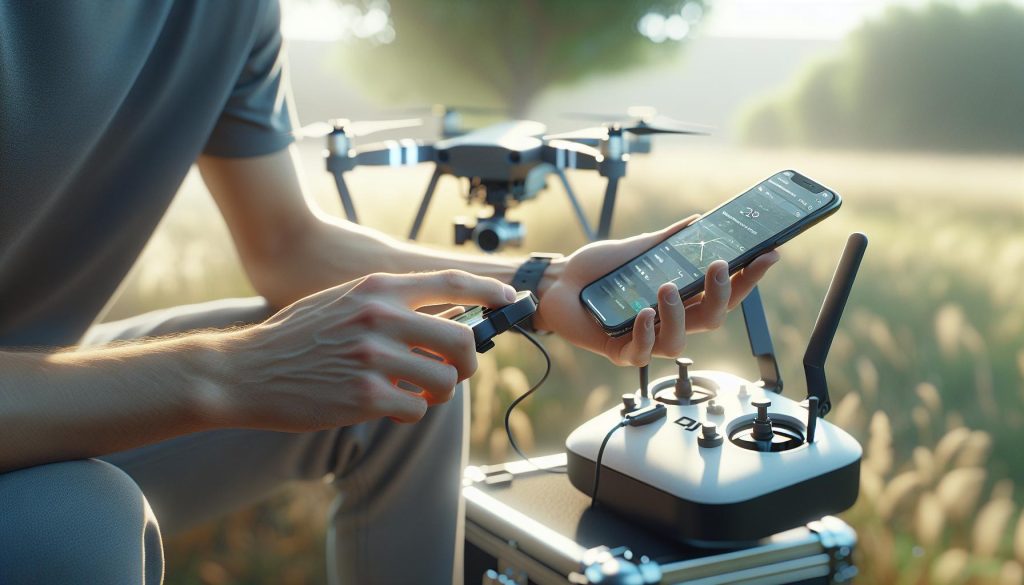
Begin by activating your drone and remote controller. Ensure both devices are fully charged for uninterrupted operation. Turn on your drone and controller by pressing and holding the power button on each device until they power up. Next, connect your smartphone to the remote controller via the appropriate cable. Depending on your phone model, this may be a USB-C, Lightning, or Micro-USB cable.
Once connected, be sure to open the DJI Fly app on your smartphone. The app should automatically detect your connected drone. If prompted, follow any on-screen instructions to complete the pairing process. You may need to verify a prompt that appears on your remote or your smartphone screen, indicating that you want to establish a connection.
If you encounter any issues, ensure that your devices are compatible by checking the DJI compatibility list on their website. Also, restart both your smartphone and the drone system; sometimes, a simple reboot can resolve connectivity issues. After powering them back on, repeat the connection steps.
For a more detailed approach, you may refer to the following checklist:
- Ensure both devices are charged.
- Use the correct cable to connect your smartphone.
- Open the DJI Fly app and check for prompts.
- Reboot if necessary and retry the pairing process.
This systematic approach not only facilitates a successful connection but also ensures you’re ready to take advantage of all the functionalities your DJI drone has to offer. Once paired, you can start exploring features such as obstacle avoidance and flight modes right at your fingertips!
Understanding DJI Drone Models and Compatibility
Understanding the nuances of DJI drone models and their compatibility can significantly enhance your flying experience and ensure seamless operation when connecting your drone to your smartphone. DJI offers a wide range of drones tailored for various levels of expertise, from beginner-friendly options like the Mini series to advanced models such as the Mavic and Phantom. Each model comes with its specific features, performance capabilities, and compatible software, making it essential to choose one that suits your needs.
When selecting a drone, consider its intended use. For instance, the DJI Mini 4 Pro is ideal for casual flying and beginners due to its lightweight design and ease of use, while the Mavic 3 series appeals to professionals with advanced imaging systems and longer flight durations. Additionally, understanding the compatibility of your smartphone with the DJI Fly app is crucial, as not all devices support the app’s functionalities. Always check the official DJI compatibility list to ensure your smartphone is equipped to handle the app’s demands, as having an incompatible device can lead to connection issues during setup.
The physical connection between your smartphone and the drone’s remote controller varies depending on the model. Most DJI models are paired using a USB-C, Lightning, or Micro-USB cable. Therefore, having the correct cable is paramount to facilitate this connection. Furthermore, for optimal performance, keeping your firmware updated is necessary. Regular updates help in fixing bugs and enhancing compatibility, making your drone fly smoother and more reliably.
- Model-specific features: Familiarize yourself with the unique features of your drone to maximize usage.
- App compatibility: Check your smartphone’s compatibility with the DJI Fly app.
- Correct cable: Ensure you have the right cable to connect your smartphone to your drone’s controller.
- Firmware updates: Regularly update your drone’s firmware for the best performance.
In essence, a deep understanding of your chosen DJI drone model, its compatibility requirements, and the intricate details of the connection process empowers you to engage in safe and effective flying, enriches your skill set, and allows you to explore the expansive capabilities that DJI drones offer.
Essential Setup Steps for Your DJI Drone
Starting your journey with a DJI drone involves several essential setup steps that ensure a smooth flying experience from the first flight. Proper preparation not only enhances the operational efficiency of your drone but also sets the groundwork for safe and enjoyable flying. Here’s a step-by-step guide to get your DJI drone connected to your phone seamlessly.
Begin by downloading the dedicated DJI Fly app, available on both iOS and Android platforms. Once installed, create or log into your DJI account. This app is crucial for controlling your drone, viewing live footage, and accessing flight settings. Before heading out, make sure your drone, remote controller, and mobile device are all fully charged to avoid interruptions during setup and flight.
When you’re ready to connect your drone to your phone, follow these steps:
- Powering Up: Turn on your drone and remote controller. The power buttons are usually located on the drone’s body and on the controller’s side.
- Connecting via Cable: Use the appropriate USB cable to connect your mobile device to the remote controller. Depending on your smartphone’s model, this could be a USB-C, Lightning, or Micro-USB connection. Ensure the cable is firmly connected to prevent any interruption during pairing.
- Launching the App: Open the DJI Fly app on your smartphone. The app should automatically recognize your drone and prompt you through the activation process if it’s your first-time setup.
- Follow on-screen Instructions: Adhere to the app’s instructions to complete the pairing process. This may involve updating your drone’s firmware if prompted. Keeping your firmware updated is vital for performance enhancements and bug fixes, which contributes to a smoother flight experience.
- Calibration and Setup: After successful pairing, you may need to calibrate the drone’s compass and gimbal. This helps the drone perform optimally and increases stability while flying. The DJI Fly app provides guidance on calibrating these components.
- Check Settings: Before taking off, ensure all your settings are configured to your liking in the app. This includes selecting your desired resolution for photos and videos, flight modes, and safety parameters.
- Pre-flight Checklist: Conduct a pre-flight inspection before each outing. Verify that the propellers are secure, the battery is fully charged, and the area is safe for flying.
By carefully following these steps, you’ll set yourself up for a successful and enjoyable flying experience with your DJI drone. Regular connectivity checks and incorporating care routines will reinforce your drone’s longevity and reliability, ultimately enhancing your aerial adventures.
Troubleshooting Connection Issues with Your Drone
Connection problems between a DJI drone and your smartphone can be frustrating, but they are often easily resolved with a few troubleshooting steps. First, ensure that all your devices-drone, remote controller, and phone-are fully charged. Low battery levels can lead to connectivity issues during the setup process, so a fresh charge is essential for a smooth experience.
If you find that the DJI Fly app fails to recognize your drone, start by restarting both your smartphone and the drone. Sometimes, a simple reboot can clear up any glitches causing the connection to falter. Additionally, verify that your mobile device is running the latest version of the DJI Fly app, as updates often include crucial fixes for connectivity issues. Ensure that Bluetooth and Wi-Fi are enabled on your phone, as the app may require both to establish a connection.
Should you continue to encounter difficulties, double-check the USB cable connecting your phone to the remote controller. Make sure it is compatible with your smartphone model, as using an incompatible cable can hinder data transfer. Try using a different cable if you have one available. Additionally, inspect the physical connections to ensure they are tight and secure, as even minor disconnections can disrupt communication.
If the drone still doesn’t connect, consult the settings in the DJI Fly app. Navigate to the settings menu and reset your connection preferences. Look for options to clear the cache or reset the app; this can sometimes resolve residual errors that affect connectivity. For persistent issues, refer to the DJI support page or community forums for additional guidance. Engaging with other users who may have encountered similar problems can offer unique insights or solutions, enhancing your overall flying experience.
Configuring Drone Settings via Your Phone
Configuring your drone’s settings through the DJI app on your mobile device can significantly enhance your flying experience, providing you with greater control and personalization. Once your DJI drone is successfully connected to the app, a wealth of options becomes available, allowing you to tailor performance to suit your needs and flying conditions.
To start, navigate to the Main Settings within the DJI Fly app. Here, you’ll find sections dedicated to adjusting flight parameters, camera settings, and safety features. Within the Flight Controls menu, you can modify settings such as Maximum Altitude, Maximum Distance, and even customize your Return-to-Home (RTH) altitude. Setting an appropriate RTH altitude, for example, ensures that your drone safely ascends above obstacles on its way back.
In addition to flight parameters, adjusting the Camera Settings allows you to optimize image quality and capture stunning footage. Within this menu, you’ll find options to control ISO, shutter speed, white balance, and resolution settings. Remember, using the right settings can make a significant difference when flying in varying light conditions, so it’s worthwhile to familiarize yourself with these options. For instance, switching to manual exposure settings can help maintain consistent brightness in challenging lighting situations.
Furthermore, the DJI Fly app provides various safety features you can configure. Enabling options like Obstacle Avoidance, Geo-fencing, and Smart Return-to-Home can dramatically increase flight safety. Setting up geo-fencing prevents your drone from flying into restricted areas, while obstacle avoidance settings can help your drone steer clear of potential hazards automatically.
Don’t overlook the Firmware Update section, as regular updates ensure your drone operates smoothly and incorporates the latest features and bug fixes. The app provides notifications for updates, and it’s advisable to back up your drone settings before proceeding with any updates to avoid losing your personalized configurations.
By thoroughly exploring and configuring the settings via the DJI app, you enhance not only the safety and efficiency of your flights but also the overall enjoyment of piloting your drone. With the right setup, you can focus more on the thrill of flying and capturing breathtaking imagery without the distraction of technical hiccups.
Syncing Firmware Updates for Optimal Performance
Ensuring that your DJI drone is running the latest firmware is essential for maintaining optimal performance and unlocking new features. Firmware updates can enhance flight stability, improve obstacle avoidance capabilities, and correct any bugs that might affect your flying experience. Fortunately, syncing firmware updates is a straightforward process when using the DJI Fly app.
Start by connecting your drone to your mobile device and launching the DJI Fly app. Once your drone is connected, navigate to the Firmware Update section, which is typically found in the main settings menu. The app will automatically check for any available updates. If an update is available, it will display the version details along with a summary of changes or enhancements. Here, you can choose to proceed with the update. It’s advisable to have your drone’s battery charged to at least 50% to avoid interruptions during the update process.
During the update, make sure that your mobile device maintains a stable internet connection. Updates may take several minutes, and it’s crucial not to disconnect the drone or power off either device until the update is complete. Once finished, the app will prompt you to reboot the drone, which helps apply the new firmware effectively. After the drone has restarted, you can verify that the update was successful by checking the firmware version again in the app’s settings.
For those concerned about losing custom settings, it’s wise to back up your configurations before initiating the update. You can usually export these settings from the DJI Fly app for safe keeping. Updates are not just about new features; they often include important security enhancements, so checking periodically for updates keeps your device secure and performing at its best. With each new firmware update, you can experience improvements that enhance the overall safety, efficiency, and enjoyment of your drone flying experience.
Exploring DJI App Features for Enhanced Flying
The DJI app is a treasure trove of features that can significantly enhance your flying experience, whether you are a novice or an experienced pilot. By connecting your DJI drone to your mobile device through the DJI Fly app, you unlock a plethora of functionalities designed to optimize flight performance and provide valuable insights into your aerial adventures.
One of the remarkable features is the real-time flight data display, including altitude, speed, battery status, and GPS signal strength. This information helps you make informed decisions during your flight, ensuring safety and maximizing performance. The app also provides a dynamic map that shows your drone’s position and the planned flight path, allowing you to navigate seamlessly even in unfamiliar environments.
Another standout feature is the various intelligent flight modes available, such as QuickShots and ActiveTrack. QuickShots simplifies complex maneuvers into easily executable commands, enabling you to capture cinematic footage effortlessly. ActiveTrack allows the drone to autonomously follow and film moving subjects, perfect for action shots or when you’re out exploring. Such automation not only enhances creativity but also eliminates the need for advanced piloting skills.
Furthermore, you can leverage the app’s camera settings and editing tools to refine your shots for stunning visuals. Adjusting parameters like ISO, shutter speed, and exposure directly from your phone gives you the flexibility to react to changing lighting conditions. After capturing your footage, the app features basic editing tools that allow you to trim videos, apply filters, and create highlights, all before sharing your work on social media.
In summary, the DJI app enriches the flying experience by offering critical data, simplifying complex maneuvers, and providing powerful editing tools. Familiarizing yourself with these features not only enhances your operational skillset but also ensures that you make the most of your DJI drone’s capabilities. Whether you’re pursuing photography, videography, or simply enjoying the thrill of flight, the DJI Fly app is your essential companion in the sky.
Advanced Tips for Using Your Drone’s Phone Connection
Establishing a solid connection between your DJI drone and your mobile device not only enhances the flying experience but also maximizes the drone’s features and capabilities. A seamless connection will enable you to leverage real-time data, camera controls, and smart flight modes, ensuring that you achieve spectacular aerial shots with ease. Here are some advanced tips to elevate your drone operation using the phone connection and ensure you are getting the most out of the DJI Fly app.
Optimize Your Connection
To avoid connectivity issues, always use a high-quality USB cable to connect your device to the drone. The integrity of the cable can significantly affect data transfer and signal strength. Additionally, ensuring that your mobile device is updated to the latest operating system can reduce potential software conflicts. Lastly, consider switching to “Airplane Mode” on your phone during flights. This can help eliminate interference from other wireless signals.
Utilize Intelligent Flight Modes
Make the most out of your drone’s intelligent flight modes by exploring features such as ActiveTrack, Waypoints, and Follow Me. For instance, when using ActiveTrack, pay attention to how your subject is positioned in the frame; adjusting the starting distance can enhance the footage quality. Utilize Waypoint mode for pre-planned shots, which will allow your drone to autonomously navigate to specified locations, leaving you free to focus on other tasks such as capturing video or taking photos.
Manage Battery Life Effectively
Monitoring battery life is crucial when flying a drone. Through the app, keep an eye on your drone’s battery usage and distance traveled in real-time. Engage “Battery Save Mode” to extend flight time, but remember that this can reduce performance slightly. Additionally, assess battery voltage, as maintaining it above 30% can prevent unnecessary power drain and unsafe landing circumstances.
Sync Firmware Updates Regularly
Maintaining updated firmware is essential for optimal drone performance. Before every flight, check for firmware updates through the DJI Fly app. Regular updates not only improve functionality but also enhance safety features. Set a habit of syncing firmware updates regularly, particularly after major app updates or if you’ve encountered performance issues during previous flights.
Employing these strategies not only improves the operational efficiency of your DJI drone but also empowers you to create breathtaking aerial content with confidence. By optimizing your connection and exploring the app’s capabilities, you become a more skilled pilot, ready to tackle new challenges in the skies.
Safety Guidelines for Connecting and Flying Drones
Flying a drone combines thrill and responsibility. Ensuring safety while connecting to your DJI drone and flying is vital for protecting both your equipment and the surroundings. Understanding the regulations, implementing best practices, and maintaining situational awareness can significantly enhance your experience and mitigate risks.
First, always familiarize yourself with local laws and regulations governing drone flight in your area. This includes restrictions on altitude, no-fly zones, and required permits. The Federal Aviation Administration (FAA) in the United States mandates that UAV operators must fly below 400 feet and maintain a visual line of sight with their drone at all times. Ignoring these guidelines can lead to serious legal repercussions and accidents. In addition to national regulations, check for local ordinances that might impose further restrictions.
When preparing for a flight, pre-flight checks are essential. Before connecting your phone to the drone, ensure that both the drone and controller batteries are fully charged. Check that the propellers are securely attached and free from damage. Use the DJI Fly app to perform a thorough system check, ensuring that GPS, compass, and other critical systems are operational. This app also allows you to update firmware, which can include important safety features. Furthermore, conducting a quick environmental assessment for obstacles such as trees, buildings, and power lines helps you avoid potential hazards during your flight.
Once your drone is in the air, stay vigilant. Monitor your drone’s altitude, battery life, and distance from your location, using the app for real-time updates. In unfamiliar environments, start with a conservative flying style, maintaining a safe altitude and practicing basic maneuvers to become accustomed to how your drone responds. Always be ready to take manual control in case of sudden changes in wind or unexpected obstacles. Additionally, consider weather conditions; avoid flying in heavy wind, rain, or low visibility, as these factors can dramatically increase the risk of accidents.
Following these safety guidelines not only protects your drone investment but also cultivates responsible flying habits. By being proactive and informed, you can elevate your aerial photography or videography to new heights while ensuring a safe and enjoyable experience. Whether you’re a hobbyist or a professional, integrating these practices into your routine will contribute to a sustainable relationship with this exhilarating technology.
Common Mistakes When Connecting DJI Drones
Connecting your DJI drone to your smartphone can be a straightforward process, but many new pilots encounter common pitfalls that can lead to frustration or connection issues. Understanding these mistakes is crucial to ensuring a smooth setup and an enjoyable flying experience.
One of the most prevalent mistakes is not updating the DJI Fly app before attempting to connect. The DJI Fly app often receives updates that improve functionality and fix bugs. Failing to use the latest version can lead to compatibility issues between the app and the drone. To avoid this, regularly check for updates in your app store and make sure you have the latest version installed before attempting to connect.
Another frequent oversight is neglecting to turn off any other Bluetooth connections or Wi-Fi networks on your smartphone that may interfere with the connection. Many users overlook this step, thinking that multiple connections will not impact the DJI connection; however, having other devices connected can cause the DJI Fly app to struggle to find the drone. Disconnecting or forgetting other devices can streamline the connection process, helping the app recognize the drone more efficiently.
Battery levels are also a critical factor. Users often connect their phones to the drone while either device is low on battery. This not only inhibits the ability to maintain a stable connection but can also lead to disconnections mid-flight. Always ensure that both your drone and controller are fully charged before initiating the connection process. Performing pre-flight checks, including battery levels, is essential to avoid interruptions during your flying session.
Furthermore, ignoring the importance of the drone’s Wi-Fi settings is a mistake many make. Ensure that the drone is powered on and its Wi-Fi network is actively broadcasting when attempting to connect. If your phone fails to see the drone’s Wi-Fi, consider restarting both the drone and the DJI Fly app, as this can often resolve connectivity issues. Additionally, familiarizing yourself with the specific Wi-Fi settings for your drone model can prevent misunderstandings that might disrupt the connection process.
By being aware of these common mistakes and taking proactive steps to avoid them, you can set the foundation for a successful and enjoyable experience with your DJI drone.
Accessories to Enhance Your Drone Experience
Equipping your DJI drone with the right accessories can elevate your flying experience and optimize performance. Whether you’re a hobbyist capturing breathtaking landscapes or a professional capturing high-resolution aerial imagery, the following accessories are essential for enhancing your drone experience.
Essential Accessories for Your DJI Drone
- Extra Batteries: One of the most critical accessories to invest in is additional batteries. DJI drones typically have a flight time ranging from 20 to 30 minutes, depending on the model and conditions. Carrying extra batteries allows for longer flight sessions without the need to land and recharge, maximizing your time in the air.
- ND Filters: Neutral Density (ND) filters are invaluable for controlling exposure when filming or photographing in bright conditions. These filters reduce the amount of light entering the camera lens, enabling you to use slower shutter speeds for smoother, more cinematic video and high-quality images.
- Carrying Cases: Protecting your drone while transporting it is crucial. A well-padded carrying case ensures your drone, remote, and accessories remain safe from damage during travel. Look for a case that provides compartments for all your gear, including batteries, cables, and filters.
- Propeller Guards: For beginners or when flying in tight spaces, propeller guards add an additional layer of safety. They help prevent damage to the propellers in case of a collision, protecting both your drone and nearby objects.
- Screen Sunshade: If you fly your drone on sunny days, a sunshade for your smartphone or tablet can minimize glare, making it easier to see the screen. This improvement in visibility allows for more precise control and improves your overall flying experience.
- Mobile Device Mounts: Properly securing your mobile device enhances the control of your drone. Look for mounts that can accommodate different sizes and ensure your device is easily visible without obstructing your view.
- Data Storage Solutions: High-resolution photography and 4K video require ample storage space. Invest in high-speed microSD cards that are compatible with your drone model, capable of handling the data transfer rates necessary for seamless recording.
Enhancing Flight Experience
Using these accessories not only improves practicality but can significantly enhance your skills as a pilot. For example, the use of ND filters can refine your video quality, lending a professional touch to your footage, while extra batteries ensure you have more opportunities to practice flying and capturing stunning shots without interruptions.
Taking the effort to understand and integrate these accessories into your drone setup can make a world of difference. Whether you are preparing for a photo expedition or simply reviewing footage from your last flight, the right accessories equip you to get the most out of your DJI experience, connecting seamlessly with your smartphone for a streamlined operation.
Frequently Asked Questions
Q: How do I connect my DJI drone to my smartphone?
A: To connect your DJI drone to your smartphone, download the DJI Fly app and install it. Open the app, power on your drone and remote controller, then select the “Connect to Aircraft” option in the app settings to pair them successfully.
Q: What do I do if my DJI drone won’t connect to my phone?
A: If your DJI drone won’t connect to your phone, ensure Bluetooth and location services are enabled. Restart both your drone and app. If issues persist, try deleting the app and reinstalling it or resetting your drone’s Wi-Fi settings in the DJI Fly app.
Q: Can I use my phone as the remote controller for my DJI drone?
A: Yes, most DJI drones allow you to use your smartphone as a controller via the DJI Fly app. Simply connect your phone to the drone using USB or Wi-Fi and tap the “Go Fly” button within the app to start controlling your drone.
Q: How can I improve the connection stability between my DJI drone and phone?
A: To improve connection stability, keep your smartphone’s operating system updated, minimize background apps, and ensure a clear line of sight between the drone and your phone. Regularly refresh and reboot both devices to maintain optimal performance.
Q: What should I check if the DJI Fly app does not recognize my drone?
A: If the DJI Fly app does not recognize your drone, ensure it’s powered on and within range. Verify that your phone is compatible with the app and that the latest version is installed, or restart both the app and your phone to refresh the connection.
Q: Why is my DJI drone’s video feed not displaying on my phone?
A: If the video feed is not displaying, check your drone’s connection to the app. Ensure that the camera is powered and functioning. Restart both the drone and your smartphone, or check for firmware updates, as outdated software can cause feed issues.
Q: How can I troubleshoot connection problems with DJI QuickTransfer?
A: To troubleshoot QuickTransfer issues, turn off Wi-Fi on other devices, restart your drone and DJI Fly app, or change the aircraft Wi-Fi name in the app if needed. For further assistance, refer to troubleshooting sections on the DJI support site.
Q: Is it necessary to connect my phone to fly my DJI drone?
A: While it’s not always necessary to connect your phone for basic flight, using it enhances the flying experience by allowing access to advanced features, live video feed, and camera controls through the DJI Fly app.
To Conclude
Now that you know how to connect your DJI drone to your phone, it’s time to take your aerial photography or videography skills to new heights! Don’t miss out on capturing those breathtaking moments-get your drone in the air and start exploring today. If you’re looking for more tips on maximizing your drone’s potential, be sure to check out our guides on gimbal calibration and safe flying procedures.
For those ready to dive deeper, explore our comparison articles on the latest DJI models to find the perfect match for your needs. Remember, whether you’re flying a Mini, Mavic, or Phantom drone, staying informed about techniques and updates can enhance your experience. Have questions or tips of your own? Leave a comment below, and let’s keep the conversation going! Your next aerial adventure awaits-let’s get flying!