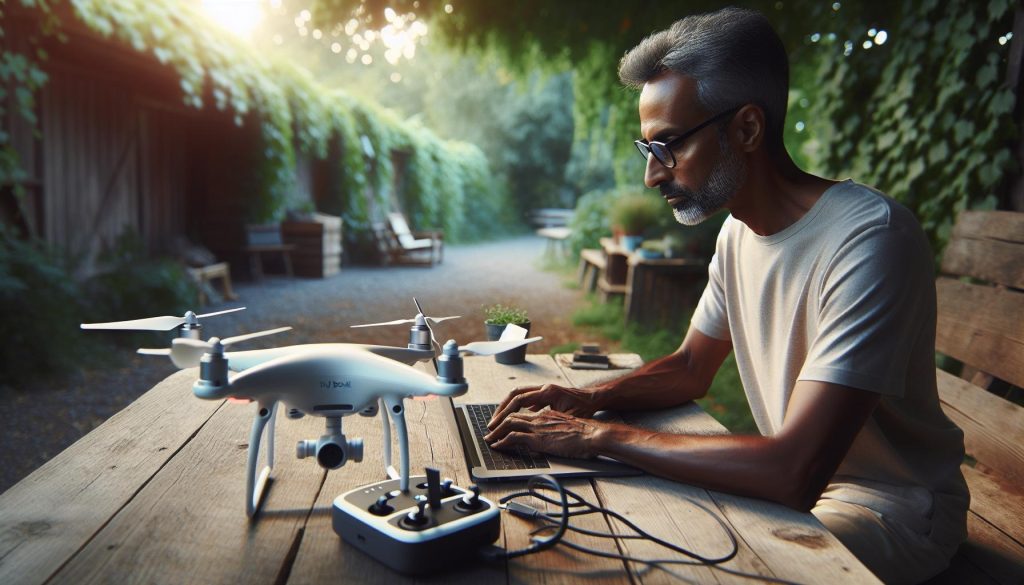
Capturing stunning aerial photographs with your DJI drone can be exhilarating, but knowing how to efficiently retrieve and save those images is equally essential for any drone enthusiast. Whether you’re a beginner eager to document your journeys or a seasoned pilot looking to enhance your portfolio, learning how to get pictures off your drone opens the door to showcase your adventures.
In this guide, we’ll explore the best methods to transfer, organize, and preserve your aerial shots so you can relive those breathtaking moments anytime. Say goodbye to the frustration of lost files and hello to easily accessible memories that inspire your next flight. Ready to elevate your photography game? Let’s dive into the essential steps to save your best shots!
How to Prepare Your DJI Drone for Photo Transfer
To ensure a seamless photo transfer experience from your DJI drone, preparation is crucial. Begin by fully charging your drone’s battery and ensuring that the SD card is properly inserted and functional. A reliable SD card not only stores your images but also plays a vital role in maintaining data integrity, so check its available storage space and format it if necessary, adhering to the camera’s requirements. Depending on your drone model, you may have different storage formats (like FAT32 or exFAT), but most DJI drones support standard microSD cards.
After ensuring your drone is prepared for a successful flight, ensure your remote control and mobile device are charged and updated. This not only enhances connectivity but also minimizes the risk of encountering software bugs during image transfer, which can occasionally occur with DJI’s software, as noted by users with newer devices. Additionally, ensure that the firmware is up to date; outdated firmware can lead to issues that complicate image retrieval later on.
If you’re looking to use the DJI Go application or any other software for image transfer, make sure they are also up to date. These applications often provide direct access to the photos stored on your drone, making the transfer process significantly more efficient. Keep the connection wire or the Wi-Fi setup handy, as these are essential for initiating the transfer to your mobile device or computer.
Lastly, setting the proper expectations about your transfer method is important. Familiarize yourself with different transfer options-whether it be directly through a cable connection, via an SD card reader, or using cloud services. By preparing appropriately and ensuring that all devices are fully operational, you set the stage for a smooth and efficient photo transfer process, allowing you to access and enjoy your images with ease.
Understanding DJI Drone Storage Systems
Understanding how DJI drones store images is essential for any operator looking to efficiently manage their photo and video files. DJI drones typically utilize microSD cards as their primary storage medium, which offers the speed and capacity required for high-resolution recordings. These cards not only retain your captured content but also play a critical role in ensuring seamless data integrity during flight and transfer processes.
DJI’s file management system organizes content into designated folders based on flight sessions, which can be particularly useful for tracking multiple shoots or projects. When purchasing a microSD card for your drone, it’s important to consider both speed class and capacity. For optimal performance, select cards rated UHS-I or UHS-II with a minimum U3 speed, significantly reducing the risk of dropped frames in video capture. Recommended capacities typically range from 16GB to 256GB, with 64GB being an ideal middle ground for most users.
Compatibility and Formatting
Not all microSD cards are equal, so ensuring compatibility with your specific DJI drone model is crucial. Most DJI drones support the popular FAT32 or exFAT file systems, but formatting options may vary. When using a new microSD card, format it through the DJI app or your computer to align with the drone’s specific requirements, safeguarding against potential data loss during storage.
Organizing Your Files
Once you’ve safely stored your images and videos, managing these files becomes paramount. Create a systematic naming and folder structure on your computer or cloud service to categorize your work effectively. Here are some best practices:
- Session folders: Organize files by date and location.
- Type of media: Separate photos, videos, and edited content.
- Keyword tagging: Use tags for easy retrieval based on themes or projects.
Utilizing these methods will not only simplify your workflow but also enhance your ability to locate and share your best shots with ease. Proper understanding and management of your DJI drone’s storage system empower you to maximize your creative potential while mitigating risks associated with data loss.
Transferring Images via SD Card: Step-by-Step Guide
Transferring images from your DJI drone via the microSD card is a straightforward yet critical process that every drone operator should master. This method is particularly useful because it allows for high-speed data transfer and ensures that you retain full control over your files without relying on additional software.
Start by powering down your drone and removing the microSD card. Make sure to handle it carefully to avoid any static discharge that could corrupt the data. Insert the card into an SD card adapter if necessary, then plug it into your computer’s card reader. Most modern computers will recognize the card immediately, displaying its contents in a new window.
Once the files are accessible, navigate through the folders to find your images. DJI typically organizes photos and videos into folders categorized by flight date or session, making it easier to locate specific images. You can usually find your high-resolution images in the “DCIM” folder.
To transfer your pictures, simply drag and drop the selected files to a designated folder on your computer, ensuring you have sufficient space to accommodate the image files. For better organization, consider creating subfolders based on project names or shooting dates. After transferring, it’s wise to safely eject the microSD card to prevent data corruption before removing it from your computer.
Remember, this method not only backs up your valuable footage but also allows you to edit, share, or delete files as needed. Keeping your files organized is crucial; consider developing a structure that suits your workflow, enabling quick retrieval for future projects. Always ensure that you have backed up your images in more than one location, such as an external hard drive or cloud storage, to safeguard against data loss.
Using the DJI Go App for Image Download
The DJI Go app serves as an indispensable tool for drone enthusiasts looking to streamline the process of downloading images directly from their DJI drones. With its intuitive interface and robust functionalities, the app simplifies the transfer process, allowing you to fetch your stunning shots quickly and efficiently. Whether you’re a hobbyist eager to share your latest adventure or a professional needing immediate access to project files, understanding how to leverage the DJI Go app can significantly enhance your workflow.
To get started, ensure that your drone is powered on and connected to the mobile device running the DJI Go app. Once the connection is established, navigate to the ‘Albums’ section within the app. Here, you will find all of your captured media organized neatly, facilitating easy access to your images and videos. Select the desired photos you wish to download by tapping on them, which could be in high-resolution formats, depending on your camera settings during the flight.
After selecting your images, look for the download icon-often represented by a downward arrow. Tapping this will initiate the transfer process, and the images will be saved directly to your mobile device’s gallery or designated folder within the app. For optimal results, especially with larger files, ensure you have a stable Wi-Fi or data connection, as this will expedite the transfer speed and minimize interruptions.
If you encounter any issues during this process, be sure to check the app’s settings, as updates or changes in permissions can sometimes hinder connectivity. Regularly updating the app will also provide new features and improvements that enhance usability. By utilizing the DJI Go app for downloading your images, you not only gain convenient access to your drone’s media but also set yourself up for efficient editing and sharing, keeping your creative workflow seamless and productive.
Exploring Direct Transfer Methods to Your Device
Capturing stunning aerial photographs is just the beginning of a drone pilot’s journey; the real challenge often lies in efficiently transferring and managing those images. For users looking to maximize productivity and minimize the hassle of moving files, direct transfer methods offer a seamless solution. These methods not only preserve image quality but also reduce the time spent on transferring images, allowing you to focus on what really matters: creating breathtaking content.
One of the most straightforward ways to transfer images is by using a USB cable to connect your drone directly to a computer. When using this method, make sure your drone is powered on and recognized by your operating system. Simply navigate to the drone’s storage through the device’s file explorer, select the images you want to transfer, and copy them to your desired location on your computer. This method is especially beneficial for transferring large files such as raw images, ensuring no quality is lost during the process.
Another option is utilizing a memory card reader, an accessory that can greatly streamline the transfer experience. By removing the SD card from your drone and inserting it into a compatible card reader connected to your computer, you can quickly access and transfer files. This method is particularly effective as it often allows for faster data transfer rates compared to using a USB connection. It’s also worth noting that handling files directly from the SD card can sometimes avoid the pitfalls of slow software uploads or connection issues that may arise when using apps like DJI Go.
For those in the field who may not have immediate access to a computer, certain DJI drones now support direct Wi-Fi transfer to smartphones or tablets. This feature allows you to initiate the transfer process using the DJI Fly app or similar applications, making it an ideal solution for on-the-go editing and sharing. To maximize efficiency, ensure that your mobile device is connected to a strong Wi-Fi network, enabling faster upload speeds and minimizing the risk of interrupted transfers.
By familiarizing yourself with these direct transfer methods, you empower yourself to manage your drone’s media with ease and confidence. Whether you’re sending files to clients, preparing for edits, or simply backing up your stunning captures, these techniques can save you time and ensure that your photo workflow remains organized and efficient.
How to Retrieve Photos from DJI Cloud
Retrieving photos from DJI Cloud can be a lifesaver for both hobbyists and professional drone pilots, especially when you’re on the go or looking to safeguard your precious aerial shots. DJI Cloud provides a convenient way to back up your images and access them anytime, anywhere, as long as you have an internet connection. To get started, ensure that your drone is connected to the internet and that you have a DJI account set up, as this is essential for utilizing the cloud services.
Once your images are uploaded to DJI Cloud, accessing them is straightforward. Open the DJI Fly or DJI Go app on your mobile device or log into the DJI Cloud website using your credentials. If you’re using the app, navigate to the album or gallery section where your uploads are stored. You can easily view your photos here, and by tapping on the images, you can download them directly to your device. To ensure high-quality downloads, look for options to select the image quality before starting the download; this is particularly useful for retaining details in larger files.
If you need to access a significant number of photos, consider using a computer for easier management. After logging into your DJI Cloud account online, you can download multiple images at once or create folders to organize your files efficiently. This approach not only saves time but also helps in maintaining a well-organized archive of your captures. Remember to have reliable internet access during the download process to avoid any interruptions.
For added security, always verify that your photos have been successfully uploaded to the cloud after each flight. This best practice ensures that your images are safe from loss or damage, providing peace of mind as you continue to capture stunning visuals. By leveraging DJI’s cloud services, you’re not just storing images; you’re creating a readily accessible library of your aerial adventures, ready for editing, sharing, or showcasing whenever you need them.
Troubleshooting Common Photo Transfer Issues
If you’re finding it challenging to transfer your stunning aerial shots from your DJI drone to your devices, you’re not alone. Many pilots encounter common issues during the photo transfer process that can be frustrating and time-consuming. Understanding these challenges and how to troubleshoot them can significantly enhance your workflow, ensuring that your images are safely stored and ready to be shared.
One frequent issue stems from the SD card not being recognized by your computer or device. To address this, ensure that the SD card is properly seated in the drone and formatted correctly. If you’re accessing the card directly, try using a different card reader or port on your computer. Additionally, consider using a USB cable to connect your drone directly to your computer, bypassing the SD card altogether; this often improves the reliability of transfers.
Another common problem involves apps such as the DJI Go app not syncing or crashing during the download process. Keep your app updated to the latest version to ensure optimal performance. If an update doesn’t resolve the issue, a simple restart of the application or your device can clear temporary glitches. Additionally, ensure that your mobile device has sufficient storage space to accommodate your downloads, as lack of space can hinder transfer capabilities.
For those utilizing DJI Cloud services, be aware that slow internet connection speeds can lead to interrupted uploads or downloads. Ensure you have a stable internet connection, preferably Wi-Fi, when attempting to retrieve your images. Regularly checking the status of uploads can help you avoid losing files during unforeseen interruptions. If you find that photos aren’t appearing in the cloud, re-upload them or check if the settings in the DJI app are correctly configured to enable cloud storage.
In some cases, firmware updates for your drone may be necessary to resolve compatibility issues with image transfer. Maintaining up-to-date firmware can not only enhance functionality but also ensure a smoother photo transfer experience. Regular updates are recommended not just for the drone but also for the associated apps, ensuring all components work seamlessly together.
By staying aware of these common issues and employing these troubleshooting strategies, you can ensure a more efficient and less stressful experience when transferring your incredible drone photos. Remember, understanding the specifics of your equipment and its limitations empowers you as a pilot and enhances the joy of aerial photography.
Best Practices for Organizing Your Drone Photos
Whether you’re an enthusiastic hobbyist or a professional drone pilot, organizing your aerial photography is crucial for maximizing the value of your images. With a systematic approach, you can easily locate your best shots and present them effectively. Here are some best practices designed to help you streamline the organization of your drone photos.
Start by establishing a consistent folder structure on your computer or cloud storage. Create main folders for each year and subdivide them into specific categories such as location, event, or project type. For example, you might have a structure like this:
- 2025
- New York Trip
- Central Park
- Statue of Liberty
- Wedding Shoot
- Client Name
- New York Trip
This hierarchy not only makes it easier to find specific images but also allows for a visually appealing portfolio when showcasing your work.
When importing images, take the time to rename your files descriptively. Utilize a format that includes the date and subject, such as “2025-08-17_NYC_Central_Park.” This method improves searchability when using file management systems or photo editing software and helps maintain context about each shot, thereby saving time when you revisit older work.
Another key aspect of photo organization is metadata management. Don’t forget to add information like keywords, locations, and descriptions using photo management software. This enriches the context of your images, making it considerably easier when retrieving specific photos later. Software like Adobe Lightroom not only allows tagging but also helps you rate and filter images effectively.
Lastly, consider creating a backup strategy that includes both local and cloud-based solutions. Storing duplicate copies ensures that you won’t lose your work in case of a hard drive failure or other unforeseen circumstances. Using external hard drives along with cloud services like DJI Cloud or Google Photos would provide a reliable system that enhances the safety of your cherished images.
By implementing these best practices, you’ll not only save time during photo retrieval but also elevate your overall efficiency as a drone photographer. Well-organized photos lead to a more enjoyable workflow and allow you to present your work with confidence.
Advanced Techniques for Photo Management and Backup
To safeguard your valuable drone imagery, it’s essential to adopt . One effective method includes utilizing robust software solutions designed specifically for photographers and drone pilots. Applications like Adobe Lightroom not only allow you to organize and edit photos but also streamline backup processes, ensuring that your work is preserved in multiple locations. With Lightroom, you can create collections and folders that group your aerial shots based on various factors such as location, date, or event. This meticulous organization will not only help in managing your workflow but also enhance your overall editing efficiency.
Implementing a Rigorous Backup Strategy
A well-planned backup strategy is critical for protecting your images against data loss. Consider adopting the 3-2-1 backup rule: keep three copies of your data, use two different storage types, and store one copy off-site. For instance, you can save your original images on your computer, back them up to a high-capacity external hard drive, and upload a third copy to a cloud service like DJI Cloud or Google Drive. This approach minimizes the risk of losing your photos due to hardware failures or natural disasters, providing peace of mind that your work is protected.
Enhancing Image Quality During Transfer
Being meticulous during the transfer process will also maximize your image quality. Always use high-speed USB cables and card readers to transfer files from your DJI drone to your computer. This ensures that you are minimizing potential data corruption during transfer. Moreover, avoid transferring JPEG files directly; opt instead for RAW images whenever possible. RAW files contain more data and allow for greater flexibility in post-processing, giving you the best possible outcome for your final images.
Automating Your Workflow
Automation tools can significantly enhance your photo management process. Applications like Photo Mechanic help you import, categorize, and even tag your images quickly, saving time and ensuring that every photo is neatly organized as you import it. Coupled with manual processes like regular maintenance and tagging, automating your workflow becomes a powerful ally in managing large volumes of drone imagery. Use customizable keywords and ratings to prioritize and sort images effectively, making it easy to locate the best shots for editing or sharing when needed.
By incorporating these advanced techniques, you’ll streamline your photo management and backup processes while ensuring your precious aerial images are safe and easily accessible for future use.
Choosing the Right Accessories for Easy Transfers
To efficiently transfer images from your DJI drone, having the right accessories can make all the difference, ensuring a smooth and quick process. High-quality tools not only streamline your workflow but also enhance the overall image transfer experience, making it easier to access and manage your breathtaking aerial shots.
One essential accessory is a high-speed SD card with ample storage capacity. Opting for a Class 10 UHS-I or UHS-II SD card can significantly reduce transfer times due to their faster read and write speeds. This is particularly important when dealing with high-resolution images, such as those captured in RAW format. Remember, investing in a reliable SD card is crucial to prevent data loss and to maintain optimal performance for your drone during flights.
Another valuable accessory is a dedicated card reader. While many laptops and computers come with built-in card slots, a USB 3.0 or USB-C card reader can provide faster data transfer speeds, further reducing the wait time when downloading your photos. Look for card readers that support multiple formats, including microSD, to enhance versatility and convenience during your editing sessions.
Cables and adapters are also pivotal in this process. Using a high-quality USB cable that matches your drone and the device to which you’re transferring images is crucial. A cable that supports USB 3.0 or higher is suggested, as it ensures faster transfer rates and greater reliability. Additionally, having adapters for different connections can be a lifesaver, especially if you’re working from multiple devices, such as a laptop and tablet.
Lastly, consider incorporating a backup battery pack for your mobile devices. Long image downloads often drain device batteries, especially when using applications for image management. A portable charger ensures your device stays powered throughout the transfer process, minimizing disruptions and allowing for uninterrupted workflow.
By selecting these important accessories-high-speed SD cards, efficient card readers, quality cables, and backup power sources-you can significantly streamline the transfer of images from your DJI drone and safeguard the integrity of your breathtaking captures. With the right tools at your disposal, you’ll be prepared for any shooting scenario, allowing you to focus on capturing stunning aerial imagery instead of stressing over the logistics of transferring it.
Maximizing Image Quality During Transfer Processes
When it comes to transferring images from your DJI drone, maintaining image quality is paramount, especially for professionals and enthusiasts who capture stunning aerial visuals. Protecting the fidelity of your photos during the transfer process begins well before you access your files; it involves understanding how file formats, transfer methods, and even environmental conditions can impact quality.
Utilizing the right file format is crucial. While JPEG files are convenient for quick sharing, if you’re looking to preserve the maximum detail and manipulate your images further, shooting in RAW format is the way to go. RAW images retain much more information than compressed formats, allowing for more post-processing flexibility without degrading quality. Be sure to set your drone to record in RAW before you take off; this will ensure that the highest quality files are available when you’re ready to transfer to your computer.
Once you’re ready to transfer your images, using a high-speed card reader is vital. A USB 3.0 or USB-C card reader not only speeds up data transfers but also minimizes the risk of data corruption that can occur with slower connections. Keeping your SD card free of fragmentation is also recommended; regularly backing up your files and formatting your card can help maintain optimal performance. Additionally, avoid transferring images in environments with strong electromagnetic interference, as this can disrupt the data transfer process and potentially lead to corruption.
To further optimize your transfers, ensure that your computer or mobile device is updated and free from unnecessary software running in the background. A cluttered system can slow down file transfers, leading to stress and risking the chance of errors. If you’re using the DJI Go app or other software, ensure it’s the latest version, as updates can improve performance and compatibility with file formats.
Lastly, using a dedicated photo management software can enhance the process. Applications like Adobe Lightroom not only allow you to organize and edit your photos seamlessly but also enable you to import images directly from your drone, which may help maintain image quality during transfer. By focusing on these strategies, you can protect the integrity of your drone images and ensure that your best shots remain breathtaking from capture to final output.
Legal Considerations for Drone Photography Imports
Navigating the legal landscape of drone photography imports is crucial for every aerial photographer, whether you’re a hobbyist or a seasoned professional. As drone usage expands globally, so does the complexity of laws regulating the importation of imagery. It’s vital to understand the implications of these laws, which can impact how you manage and share your drone-captured photos.
The most immediate concern is copyright and intellectual property rights. When flying in new locations or countries, familiarize yourself with their regulations regarding aerial photography. Some jurisdictions may impose restrictions on using drone footage for commercial purposes, while others may require permits. If you’re traveling or importing images for commercial use, ensure you have the legal rights to the photos, as unauthorized use could lead to hefty fines or legal action.
Additionally, customs regulations play a significant role in how you handle your drone photography imports. Different countries may have varying rules on what can be brought into their borders. When traveling, always check if your drone or its imagery might be subject to inspection or additional declarations. Certain sensitive areas may restrict photographic documentation altogether. Importantly, familiarize yourself with any country-specific limitations that could affect your travel plans or project timelines.
To avoid complications, it’s wise to keep detailed records of your drone operations, including flight logs and photographic permissions. This documentation can be invaluable, especially if you face scrutiny regarding your imagery’s legality. Establishing a clear chain of ownership for your photos, notably if you’ve captured images that feature identifiable private properties or individuals, can prevent disputes or claims of infringement.
In conclusion, being proactive about understanding and complying with drone photography laws not only protects your work but also paves the way for smoother operations whether domestically or abroad. With the right knowledge, you can focus on your craft while confidently navigating the unique challenges of aerial photography.
Frequently Asked Questions
Q: How do I transfer photos from my DJI drone to my phone?
A: To transfer photos from your DJI drone to your phone, connect your drone to the DJI Go app. Make sure your drone is powered on and paired with your device, then navigate to the album section in the app to download images directly to your phone’s storage.
Q: What should I do if my photos are not transferring from my DJI drone?
A: If your photos aren’t transferring, check your drone’s connection to the app, ensure the SD card is properly inserted and not corrupted, and verify that there’s enough space on your device. Restart the app or your drone if issues persist.
Q: Can I recover deleted photos from my DJI drone?
A: If you accidentally delete photos from your DJI drone, check for a backup on the SD card or in the DJI Cloud if you had it enabled. Additionally, using data recovery software may help retrieve lost files, though success depends on prior actions on the card.
Q: What is the fastest way to download images from a DJI drone?
A: The fastest way to download images is by using a compatible SD card reader. Remove the SD card from your drone, insert it into your computer using the reader, and copy the files directly, which bypasses app limitations.
Q: How do I organize photos taken with my DJI drone?
A: Organize photos by creating folders based on categories such as date, location, or event type. Using photo management software can also help in tagging and sorting images for easier retrieval.
Q: Is there specific software for editing photos from my DJI drone?
A: Yes, DJI offers applications like DJI Flimora that provide photo editing features. Alternatively, popular software like Adobe Lightroom and Photoshop is also great for editing high-quality drone images.
Q: How can I ensure the highest image quality when transferring from my drone?
A: To maximize image quality during transfer, always use a high-speed SD card, avoid Wi-Fi transfers for large files, and transfer directly via a card reader whenever possible to prevent quality loss.
Q: Why should I back up my DJI drone photos regularly?
A: Regularly backing up your DJI drone photos protects against data loss from accidental deletion, SD card failure, or device theft. Cloud storage solutions can offer secure off-site backups for your important images.
Closing Remarks
Now that you know how to get pictures off your DJI drone and save your best shots, it’s time to put that knowledge into action! Whether you’re eager to share stunning aerial views or simply savor those perfect captures, don’t let your incredible footage remain dormant. Dive into our in-depth guides on drone editing techniques and explore the latest and greatest in DJI’s lineup, including the Mavic and Mini series, to enhance your flying experience even further.
For tips on optimizing your drone’s performance and troubleshooting common issues, check out our articles on best practices for drone maintenance and flight safety. And if you’re looking to expand your skills, consider signing up for our newsletter for exclusive content tailored to both beginners and seasoned pilots.
Don’t hesitate to reach out with any questions or share your own experiences in the comments below. Your next adventure awaits-let’s elevate your photography game together!