When it comes to managing your DJI drone, knowing how to unbind it from your account can be crucial for a variety of reasons, from selling your drone to troubleshooting issues. If you’re looking to reset your device and start fresh, understanding this process is key to ensuring that your drone operates smoothly and is ready for a new owner or setup. Many enthusiasts encounter concerns about account security and device management, making this guide an essential resource. By following our detailed steps, you’ll gain the confidence to effectively and safely unbind your DJI drone, opening the door to greater flexibility and control over your flying experience. Ready to dive in? Let’s explore the complete reset process together!
How DJI Drone Binding Works: An Overview
To effectively manage your DJI drone, understanding how the binding process works is crucial. Binding refers to the secure connection established between your drone and its corresponding account, typically through the DJI app. This process ensures that the drone is uniquely registered under your account, enabling features like flight data tracking, cloud storage for photos and videos, and access to customer support. During binding, a unique identifier tied to your drone is paired with your DJI account, creating a secure link that protects your investment and allows for firmware updates and additional functionalities.
When bound to an account, your drone adheres to compliance and safety protocols that ensure optimal operation. However, there may come a time when unbinding the drone is necessary, whether it’s for transferring ownership, resolving technical issues, or preparing for a sale. Understanding when and how to unbind your drone can prevent potential errors, such as losing data or being unable to control your device after a reset.
It’s worth noting that unbinding is not merely a software function; it also involves securing your account and personal information. After unbinding, all settings and data associated with the drone remain intact unless specifically reset, allowing you to retain valuable information while ensuring that the drone can be newly linked to a different account if necessary. This is especially important for users who may plan to pass their drone on to another pilot.
In summary, the binding mechanism not only provides functionality and security but also dictates the ownership terms of your drone. Mastering this process equips you with the knowledge needed for smooth transitions, whether you’re troubleshooting or preparing for a new adventure with a different pilot.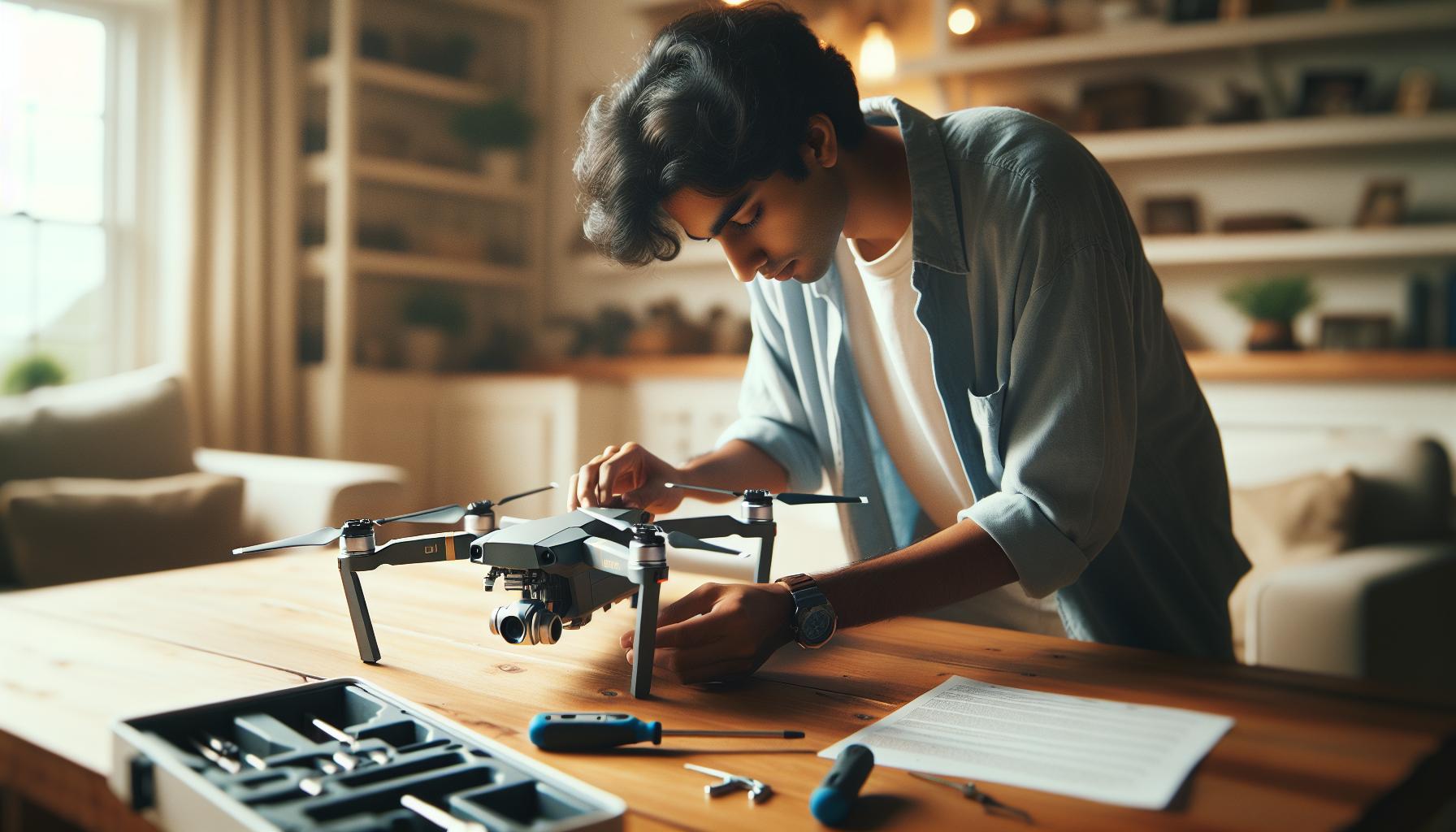
When to Unbind Your DJI Drone from Your Account
Understanding is crucial for any drone operator. Whether you’re switching devices, troubleshooting, or preparing to sell your drone, recognizing the right moment to complete this process can save you time and potential headaches. Unbinding may be necessary when you plan to transfer ownership of your drone, as the new owner will need to create their own connection to access features like flight data and firmware updates. Moreover, if you encounter persistent technical issues that cannot be resolved through regular troubleshooting, unbinding may be a reset approach to explore.
It’s also advisable to consider unbinding if you encounter significant updates or changes to your DJI account. For example, if you change your email address or switch to a different account, unbinding the drone first can streamline the process-ensuring that the new account is properly linked without remnants of the old configuration. In situations where you’re upgrading to a newer model, unbinding your current drone allows for a fresh start, ensuring that the new device doesn’t carry over any bugs or settings that could interfere with its operation.
Before initiating the unbinding process, ensure that you back up any necessary data from your drone, including flight logs and media files. While unbinding itself does not delete these, having a backup ensures that nothing integral is lost in case of unexpected complications during the transition. Consider these scenarios as part of your drone management strategy to maintain seamless operation while leveraging the full capabilities of your DJI equipment.
Step-by-Step Guide to Unbinding Your DJI Drone
To successfully unbind your DJI drone from your account, following a structured and step-by-step approach is essential. This process not only facilitates a smoother transition when changing ownership or accounts but also ensures that any potential link between your drone and your personal data is severed properly. Here’s how to navigate the unbinding process effectively.
Start by making sure that your drone is powered on and connected to the DJI app on your mobile device. Open the app and log in to your DJI account if you haven’t already done so. Once you’re logged in, navigate to the device management section in the app. Here, you will find a list of all your registered devices. Select the drone you wish to unbind.
Once you have selected your drone, look for the option labeled “Unbind” or “Remove Device.” This is usually found in the settings or device info menu. Tap on the unbinding option, which will prompt a warning, informing you that unbinding will detach the drone from your account. Confirm your decision by selecting “Yes” or “Confirm.” The app will then process your request to unbind the drone. It’s important to ensure that the drone is not in use during this process to avoid any disconnection issues.
After the unbinding process is completed, it’s essential to perform a quick check. Go back to the device management section to verify that your drone no longer appears on your account. Additionally, if you plan to sell or give away your drone, it’s a good idea to perform a factory reset afterward, which erases all personal data and Bluetooth connections.
As a final precaution, log out of your DJI account in the app and consider uninstalling it if you no longer intend to use it. This ensures that your personal information remains secure. Following these steps will help you unbind your DJI drone efficiently, preparing it for its next adventure, whether that be with a new owner or a fresh start for yourself.
Troubleshooting Common Unbinding Issues
Unbinding your DJI drone from your account should be a straightforward process, but it can lead to a range of issues that might cause delays or frustration. One common problem is connectivity; sometimes, the drone may not properly connect to the DJI app due to weak Wi-Fi or Bluetooth signals. Ensure that you are in a good signal area and reboot both the drone and your mobile device to troubleshoot connectivity issues.
Another frequent issue involves unbinding permissions. Make sure that the DJI app is fully up-to-date, as outdated software can cause bugs that prevent the unbinding process from executing correctly. If the app fails to respond or if you receive error messages during the procedure, it may help to clear the app’s cache or reinstall it altogether. This can refresh the app’s connection with your drone, allowing you to re-attempt the unbinding.
If the unbinding option is greyed out or unavailable, check whether the drone is in flight mode or still linked to another user account. Ensure that you are logged in with the correct DJI account that the drone is registered to. In cases where the drone remains unresponsive, performing a soft restart can help. Simply turn off the drone and the remote controller, wait a minute, then turn them back on and try the unbinding process again.
Lastly, if you continue experiencing issues after following these steps, consult the DJI support forums or customer service for more tailored assistance. Engaging with the community can provide insights into specific problems that other users may have faced. Remember, your experience matters, and sharing challenges can enhance the knowledge base for all DJI drone pilots. This collaborative spirit is essential, particularly in troubleshooting situations where simple fixes can lead to smoother operations in the future.
Understanding Account Security After Unbinding
When you unbind your DJI drone from your account, it’s essential to understand the implications for account security. This step not only severs the link between your device and your DJI account but also has ramifications for how your drone can be controlled and accessed moving forward. If you’re planning to sell, gift, or transfer ownership of your drone, ensuring thorough unbinding can help protect your personal information and prevent unauthorized access.
After unbinding, your drone should no longer synchronize with your DJI account, which means that any associated flight logs, settings, and user data will also be inaccessible. To enhance security further, consider changing your account password immediately after unbinding. This additional layer of protection ensures that if someone had physical access to your drone, their ability to connect to your account would be significantly limited. Be aware that if your drone is not properly unbound, the new owner may still face difficulties accessing it or could inadvertently access settings and data linked to your account.
To maintain robust security practices, it’s advisable to review the associated devices on your DJI account periodically. Keeping track of which devices are linked can help you prevent unauthorized access. In the event of a suspected compromise, quickly removing devices and changing passwords will safeguard your account. Furthermore, familiarizing yourself with DJI’s customer support options can provide you with the necessary resources should you require assistance navigating security concerns post-unbinding.
Ultimately, understanding the importance of account security after unbinding empowers drone owners to take proactive steps in protecting their personal data, fostering responsible and safe management of drone technology.
How to Perform a Complete Reset on Your DJI Drone
Performing a complete reset on your DJI drone is an essential step in the unbinding process, especially when you’re transitioning ownership or troubleshooting persistent issues. This resets your device to factory settings, erasing all flight logs, settings, and personal configurations, ensuring that your data is not accessible to the new owner and that the drone operates as it did out of the box.
To execute a complete reset, follow these streamlined steps tailored for various DJI drone models.
Step-by-Step Complete Reset Process
- Power On: Start by powering on your drone and remote controller. Ensure that they are both fully charged to prevent interruptions during the reset process.
- Access the App: Open the DJI Fly app or DJI Go 4 app on your mobile device. Ensure the app is connected to your drone.
- Navigate to Settings: Within the app, locate and select the ‘Settings’ icon. This is usually represented by a gear icon.
- Select Factory Reset: Scroll through the settings menu to find the option for ‘Restore Default Factory Settings’. Depending on your model, this may be under a subsection like ‘General’ or ‘Aircraft Management’.
- Confirm Reset: You will be prompted to confirm that you want to proceed with the factory reset. This step is crucial; once executed, all personal data will be removed. Confirm by selecting ‘Yes’ or ‘OK’.
- Wait for the Reset: The drone will initiate the reset process. Once completed, you will receive a notification within the app.
Key Considerations
After the reset, your drone will no longer link to your DJI account, and you will need to set it up again as if it’s a new device. This includes re-binding it to your account, updating firmware, and recalibrating any necessary settings (like the gimbal and compass).
Remember that while unbinding and resetting can resolve many issues, it’s still vital to maintain accurate flight logs and settings if you plan on using the drone regularly. Regular backups of this data can aid in quicker restorations in the future.
In summary, performing a complete reset on your DJI drone is straightforward but requires attention to detail. By carefully following these steps, you can ensure a smooth transition of ownership or a fresh start for troubleshooting operational issues. This process not only secures your personal data but also provides a clean slate for the drone’s new owner or for your future flying experiences.
Restoring Default Settings on Different DJI Models
Restoring the default settings on DJI drones is a crucial step in the unbinding process, whether you’re preparing the drone for a new owner or addressing technical difficulties. Each DJI model may have a distinct method for performing a factory reset, so understanding the nuances can enhance the user experience and ensure a smooth transition between users.
For instance, if you’re working with the Mavic series, the process typically involves using the DJI Fly app. Once you access the settings, look for ‘Restore Default Factory Settings’-a feature designed to wipe all previous configurations. This model requires a confirmation step to prevent accidental resets, ensuring that users are fully aware of the data they’ll lose. In addition, after performing the reset, any firmware updates necessary to bring the Mavic up to the latest standards must also be completed to maintain optimal performance.
On the other hand, if your device is from the Phantom series, the reset procedure is slightly different. The Phantom must be connected via the DJI Go app, where users can navigate to the ‘Settings’ section. Here you’ll find options to restore to default settings located under a specific Aircraft Management submenu. The app clearly outlines the implications of proceeding, including the loss of flight records and settings tailored to your personal preferences. This extra layer of guidance helps prevent user errors that could arise during the reset.
The Mini and Air series models continue this trend of user-friendly interfaces, emphasizing seamless integration between hardware and software. With both models, accessing the app and following a few straightforward prompts will suffice to reset the settings. It’s essential for users to recognize that regardless of the model, ensuring the drone’s firmware is updated before or after the reset can significantly enhance flight safety and functionality.
Regardless of the specific model, it’s advisable to document any important settings or configurations before executing a factory reset. This practice not only serves as a helpful reference when setting up again but also aids in providing a consistent user experience across multiple flights. By understanding the detailed restoration steps tailored to your specific DJI model, you empower yourself to manage your equipment more effectively while maintaining control over your data and setup.
Tips to Ensure Successful Unbinding Process
To effectively manage the unbinding process of your DJI drone, a clear plan is essential. Preparing your equipment and account beforehand can make a significant difference in ensuring everything goes smoothly. One key aspect to consider is syncing your devices. Ensure that your remote controller and mobile device are fully charged and properly connected to the drone. A stable connection prevents interruptions that could complicate the unbinding procedure.
It’s also wise to back up important data prior to unbinding. Many users overlook the potential loss of flight records, settings, and configurations. Screen capture settings or utilize the app’s export functions, if available, to keep your flight history and custom settings. This precaution not only preserves valuable data but also makes reconfiguring your drone easier after the process is complete.
Checking for any pending firmware updates can also streamline your experience. Before beginning the unbinding, update your drones and controllers to the latest firmware to mitigate any compatibility issues that might arise during the unbinding process. Furthermore, ensuring that you have linked your DJI account to the correct device prevents confusion and minimizes errors during the unbinding steps.
Lastly, patience and attention to detail are critical during the unbinding process. Follow the on-screen instructions closely, and take your time to confirm each step. Should you encounter any issues, refer to DJI’s official support resources or drone community forums for troubleshooting tips. Engaging with fellow drone enthusiasts can also unveil additional insights based on their experiences, making your unbinding process not only successful but also informative.
Best Practices for Managing Your DJI Account
Managing your DJI account with diligence is essential for a seamless drone flying experience, especially when preparing to unbind your drone. One of the best practices is to regularly update your account credentials and ensure that your contact information is current. This not only enhances account security but also ensures that you receive timely alerts about firmware updates, product recalls, or new features related to your drone. Furthermore, utilizing two-factor authentication (2FA) adds an additional layer of security, making it more difficult for unauthorized users to gain access to your account.
Another critical aspect is to maintain an organized digital environment where all your drone-related documentation is easily accessible. This can include purchase receipts, warranty information, and guides related to your specific drone model. Storing this information in a dedicated folder or using cloud storage solutions like Google Drive can help you retrieve documents when needed, especially during troubleshooting or warranty claims.
Backing Up Your Data
Before initiating any unbinding process, it’s crucial to back up your data. Ensure you have saved recordings, flight logs, and customized settings that can be easily restored later. Utilizing DJI’s app features, where available, allows for quick exports of important flight data. This step plays a pivotal role in preventing the loss of precious moments captured during your flights, as well as maintaining your preferred operational settings.
Lastly, keep a lookout for resources and communities online where fellow DJI users exchange knowledge and experiences. Forums and discussion boards can be treasure troves of information, offering insights into common issues or innovative tips that can enhance your drone operation. Engaging with these communities not only helps you resolve any potential problems faster but also fosters a supportive environment where you can learn from others’ experiences.
What to Do After Unbinding Your DJI Drone
After successfully unbinding your DJI drone from your account, there are several important steps to take to ensure that both you and your device are prepared for future operations or transitions to new ownership. This process not only safeguards your information but also optimizes your drone’s readiness for its next flight.
First and foremost, verify the unbinding by reconnecting the drone to the DJI app. You should be able to add the drone back as a new device. This ensures that the unbinding was successful and helps in confirming that no previous settings or data remain linked to your account. If the drone has retained any data, a complete reset is the next logical step.
Next, perform a complete reset of the drone. This will restore factory settings, erasing any personalized configurations. Consult your drone’s user manual for precise instructions, as the process may vary slightly depending on the model. Typically, you can initiate this reset through the settings menu in the app or by using dedicated button sequences. Remember, this is crucial, especially if you’re planning to sell or give away your drone.
Once the reset is confirmed, check to ensure that all updates to firmware and software are up to date. New updates can enhance performance and introduce bug fixes that may improve flight stability and safety. Log into the DJI app, navigate to the firmware section, and follow prompts to update if necessary.
After confirming all settings and updates, take advantage of your existing flight logs and data by exporting them. Most DJI models allow you to export flight logs either through the mobile app or directly from the SD card. This data can provide valuable insights for future flights, should you choose to keep your drone, or can be shared with the new owner for better understanding of the drone’s capabilities and history.
Lastly, engage with online communities or forums dedicated to DJI drones. Many users share tips, best practices, and troubleshooting advice that can be invaluable as you navigate the post-unbinding landscape. Exploring these resources will ensure you’re equipped with the knowledge needed for a smooth transition, whether for personal use or preparing your drone for a new pilot. Ultimately, thorough preparation will facilitate a seamless experience, ensuring the best performance for your DJI device in its next chapter.
Frequently Asked Questions About Unbinding Drones
When it comes to managing your DJI drone, unbinding it from your account can raise several questions, especially for those who are newer to drone ownership. Understanding the unbinding process not only ensures a smooth transition-whether to a new owner or to declutter your devices-but also protects your sensitive information. Below are some frequently asked questions that can demystify this process and enhance your experience.
What does it mean to unbind my DJI drone?
Unbinding your DJI drone from your account essentially removes the drone’s association with your DJI account. This is crucial when transferring ownership of the drone or if you simply want to reorganize your account devices. When unbound, the new owner will have the ability to link the drone to their own DJI account without any previous data affecting their usage.
How do I know if my drone is successfully unbound?
To verify successful unbinding, reconnect your DJI drone to the DJI app. If the drone prompts you to add it as a new device, this confirms that it has been unbound successfully. No old configurations or flight logs should be visible, allowing for a fresh start for either you or the new owner.
What issues might I encounter while unbinding my drone?
Common issues during the unbinding process include being unable to access the settings in the DJI app or firmware discrepancies that prevent the drone from recognizing unbinding commands. Ensure that your app is updated to the latest version and that your drone’s firmware is compliant with current software. In some cases, you might need to perform a factory reset before you can successfully unbind the drone.
Will my flight data be lost after unbinding?
Yes, unbinding the drone herself does not automatically erase your flight data. To preserve this information, export your flight logs before proceeding with the unbinding. Once unbound, all previous configurations and logs will no longer be associated with the device, so having that data backed up can be beneficial, especially if you’re planning to sell the drone.
What steps should I take after unbinding my drone?
After unbinding, perform a complete reset to restore factory settings and confirm that all personal configurations have been wiped. Check for firmware updates to ensure optimal performance and safety features. If you’re transferring ownership, providing the new owner with flight logs and documentation can also help them understand the drone’s usage history, which can enhance their flying experience.
By addressing these frequently asked questions, you can navigate the unbinding process with confidence, ensuring a secure transition of your DJI drone to its next beginning.
Additional Resources for DJI Drone Owners
Navigating the world of DJI drones can be exhilarating, but ensuring that you’re equipped with the right resources is essential for a successful flying experience. For those contemplating unbinding their drone or performing a complete reset, a wealth of information can significantly smoothen the transition. Below are some invaluable resources that can help both novice and experienced pilots manage their DJI experience more effectively.
To start with, DJI’s official website is a treasure trove of knowledge, featuring comprehensive guides and tutorials that cover everything from unbinding drones to troubleshooting common issues. Engaging with the DJI community through forums can also provide real-time insights. Many veteran users share their first-hand experiences, tips, and solutions to specific problems that may arise during the unbinding process.
Another essential resource is the DJI GO or DJI Fly app, which not only controls your drone but also offers updates and troubleshooting support. Utilizing the “User Guide” section within the app can lead you step-by-step through the resetting and unbinding processes, ensuring nothing is overlooked.
Finally, consider popular YouTube channels that focus on DJI drones. Many creators offer hands-on reviews, tutorials, and demonstrations that visually guide you through various tasks, including unbinding and resetting your drone. These can be particularly useful for those who prefer visual learning over reading manuals.
By leveraging these resources, you can enhance your drone management skills and foster a deeper understanding of your device, ultimately leading to a richer flying experience.
FAQ
Q: How do I unbind my DJI drone from my account?
A: To unbind your DJI drone, open the DJI app, navigate to your account settings, select your drone, and choose the unbinding option. Confirm the action to unlink your drone. This process may vary slightly depending on the specific model and app version. For detailed steps, refer to the “Step-by-Step Guide to Unbinding Your DJI Drone” section.
Q: What happens if I unbind my DJI drone?
A: Unbinding your DJI drone removes it from your DJI account, which means you will no longer have access to features like flight logs or account-specific settings. Ensure you back up necessary data before proceeding. For a full explanation, check the “Understanding Account Security After Unbinding” section.
Q: Can I rebind my DJI drone after unbinding?
A: Yes, you can rebind your DJI drone by simply logging into your DJI account with the app and following the binding process again. For more detailed instructions, see the “Best Practices for Managing Your DJI Account” section of the guide.
Q: Is it safe to unbind my DJI drone from my account?
A: Yes, unbinding is safe, but it may limit your drone’s features related to your account, like firmware updates and flight records. Make sure to follow the recommended steps in the guide to ensure security and data integrity.
Q: How do I perform a factory reset on my DJI drone?
A: To perform a factory reset, navigate to your drone settings in the DJI app and select the option for a complete reset. This will restore default settings and erase all custom configurations. More details can be found in the “Perform a Complete Reset on Your DJI Drone” section.
Q: What if I encounter issues while unbinding my DJI drone?
A: If you face issues, try restarting the app and the drone. Ensure your app is updated. If problems persist, consult the “Troubleshooting Common Unbinding Issues” section for specific solutions.
Q: Why would I need to unbind my DJI drone?
A: You may need to unbind your drone if you are selling it, buying a new drone, or simply looking to reset your account linkage. This helps maintain security and ensures that no personal data is linked to a device you no longer own. For more insights, refer to the “When to Unbind Your DJI Drone from Your Account” section.
Q: Can I unbind a DJI drone without the app?
A: No, unbinding a DJI drone typically requires access to the DJI app as this feature is dependent on your account settings within the platform. For further guidance, please check the article’s related sections.
Final Thoughts
Now that you’ve learned how to unbind your DJI drone from your account, your next steps are crucial for a smooth transition. If you’re considering a fresh start or looking to sell your drone, follow through with caution, ensuring all data is properly reset. For those tempted by the latest models, check out our in-depth guide on choosing between the Mini and Mavic series for your next adventure.
Don’t miss out on maximizing your drone experience! Explore our resources on firmware updates and gimbal calibration to keep your device flying at its best. If you have questions or need assistance, leave a comment below-we’re here to help!
Join our community of drone enthusiasts by signing up for our newsletter, where you’ll receive the latest tips, tricks, and reviews to enhance your aerial photography skills and ensure safe and effective flight operations. Keep flying high!