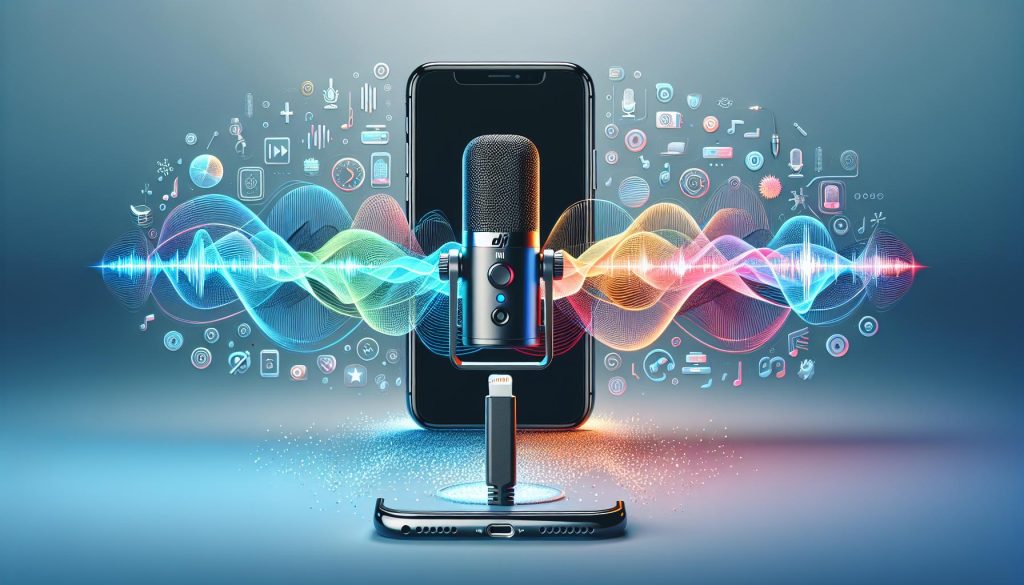
Have you ever struggled to capture clear audio during your video shoots, especially on your iPhone? The DJI Mic Mini is here to revolutionize your audio setup, allowing you to achieve professional-quality recordings with minimal hassle. This versatile microphone seamlessly connects to your iPhone, whether through Bluetooth or a mobile phone adapter, ensuring that you can focus on creativity without worrying about sound quality. In this guide, we’ll walk you through the best methods to set up the DJI Mic Mini with your iPhone, providing step-by-step instructions that cater to both beginners and seasoned users alike. Say goodbye to background noise and hello to crisp, clear audio-let’s dive in!
How DJI Mic Mini Integrates with iPhone
When it comes to enhancing the audio experience of your iPhone recordings, the DJI Mic Mini stands out as a versatile companion. This compact wireless microphone system provides seamless integration with iPhones, making it an ideal choice for content creators who want to ensure high-quality audio without the hassle of bulky equipment. Its user-friendly design and robust features cater to both casual users and seasoned professionals, allowing for crisp and clear sound capture.
To connect the DJI Mic Mini to an iPhone, begin by ensuring that both the microphone and your device are powered on. The next step involves utilizing the included TRS to TRRS adapter, which enables the mic to interface with the iPhone’s headphone jack or lightning port. Once connected, the iPhone should automatically recognize the microphone, allowing you to start recording right away. For optimal performance, always check the mic’s battery level and ensure the environment is conducive to capturing audio, minimizing background noise where possible.
Setting audio levels is a crucial part of the integration process. The DJI Mic Mini features a convenient gain control option that allows you to adjust sound levels directly on the transmitter. For users aiming for the best audio quality, it’s recommended to perform a quick test recording to find the perfect gain setting before diving into your main recording. This ensures that your audio is neither too soft nor distorted, capturing every detail with clarity.
Additionally, the Mic Mini’s compact design lends itself to mobile content creation. Whether you’re vlogging, conducting interviews, or filming events, its lightweight nature allows for easy transport and setup. With its reliable wireless transmission range, you can move freely without being tethered, providing more creative freedom for your video projects. By leveraging the DJI Mic Mini with your iPhone, you can significantly elevate the production quality of your audio recordings, making your content stand out in a crowded digital landscape.
Step-by-Step Setup for Beginners
To achieve outstanding audio quality with your DJI Mic Mini when using it with an iPhone, follow these straightforward steps for setup. This compact microphone system is designed to be user-friendly, making it accessible even for beginners who may be unfamiliar with audio recording equipment.
First, start by ensuring that both your DJI Mic Mini and your iPhone are charged and powered on. Connect the microphone to your iPhone using the provided TRS to TRRS adapter. This adapter allows you to interface the mic with the iPhone’s headphone jack (or lightning port if your model does not have a headphone jack). Once plugged in, your iPhone should automatically detect the microphone, signaling that it is ready for use. A quick check that the mic’s battery indicator is functioning will further confirm everything is operational.
Once connected, it’s a good practice to adjust the audio settings before recording. The DJI Mic Mini features a gain control option on its transmitter, which you can adjust to ensure optimal sound levels. It’s advisable to conduct a short test recording to find your ideal gain settings. This way, you’ll prevent audio that is too quiet or overly distorted, allowing you to capture clear and professional-sounding recordings.
When you’re ready to start your recording session, consider the environment. Background noise can significantly impact audio quality, so find a space that minimizes distractions. Since the DJI Mic Mini offers a reliable wireless connection, you won’t be restricted by cables, enabling you to move freely within the recording space. With this setup, you’re equipped to produce high-quality audio that enhances your projects, from vlogs to interviews, and showcases your content in the best light possible.
Essential Audio Settings for iPhone Users
To truly enhance the audio quality of your recordings using the DJI Mic Mini with an iPhone, understanding and optimizing audio settings is essential. This compact wireless microphone system not only offers portability but also powerful features that can elevate your sound to professional levels. An often-overlooked aspect of audio recording is getting the settings right before pressing record, which can be crucial for achieving clear, distortion-free sound.
Firstly, when your DJI Mic Mini is connected to your iPhone, access the settings within your recording app. Here, you should prioritize adjusting the gain levels on the mic’s transmitter. The gain control is a critical feature that allows you to increase or decrease the sensitivity of the microphone. A good starting point would be to experiment with different gain settings during a brief test recording. Ideally, your audio levels should peak around -12 dB to -6 dB, avoiding the red zone, which indicates distortion. This method not only ensures clarity but helps in capturing the depth and nuances of your voice or any sound being recorded.
In addition to gain settings, consider the following audio settings for optimum results:
- Input Source: Make sure the microphone is selected as the input source in your app, which prevents the iPhone’s built-in mic from capturing unwanted ambient noise.
- Audio Monitoring: If your recording app supports it, enable live audio monitoring so you can hear the audio as it’s being recorded. This gives you the chance to catch issues in real-time.
- Noise Reduction: Some applications offer noise reduction settings that can be turned on during recording. Employ this if you’re in a noisy environment to cut distractions.
Finally, background noise is another crucial factor that can undermine audio quality. Choose your recording location wisely; places with soft furnishings or carpets can help absorb excessive sound reflections. If possible, consider external microphones when dealing with more complex audio needs, and take advantage of the DJI Mic Mini’s wireless capabilities to position yourself where you sound best without being tethered by cables. By implementing these settings and practices, you can significantly improve the sound quality of your recordings, making your content more engaging and professional.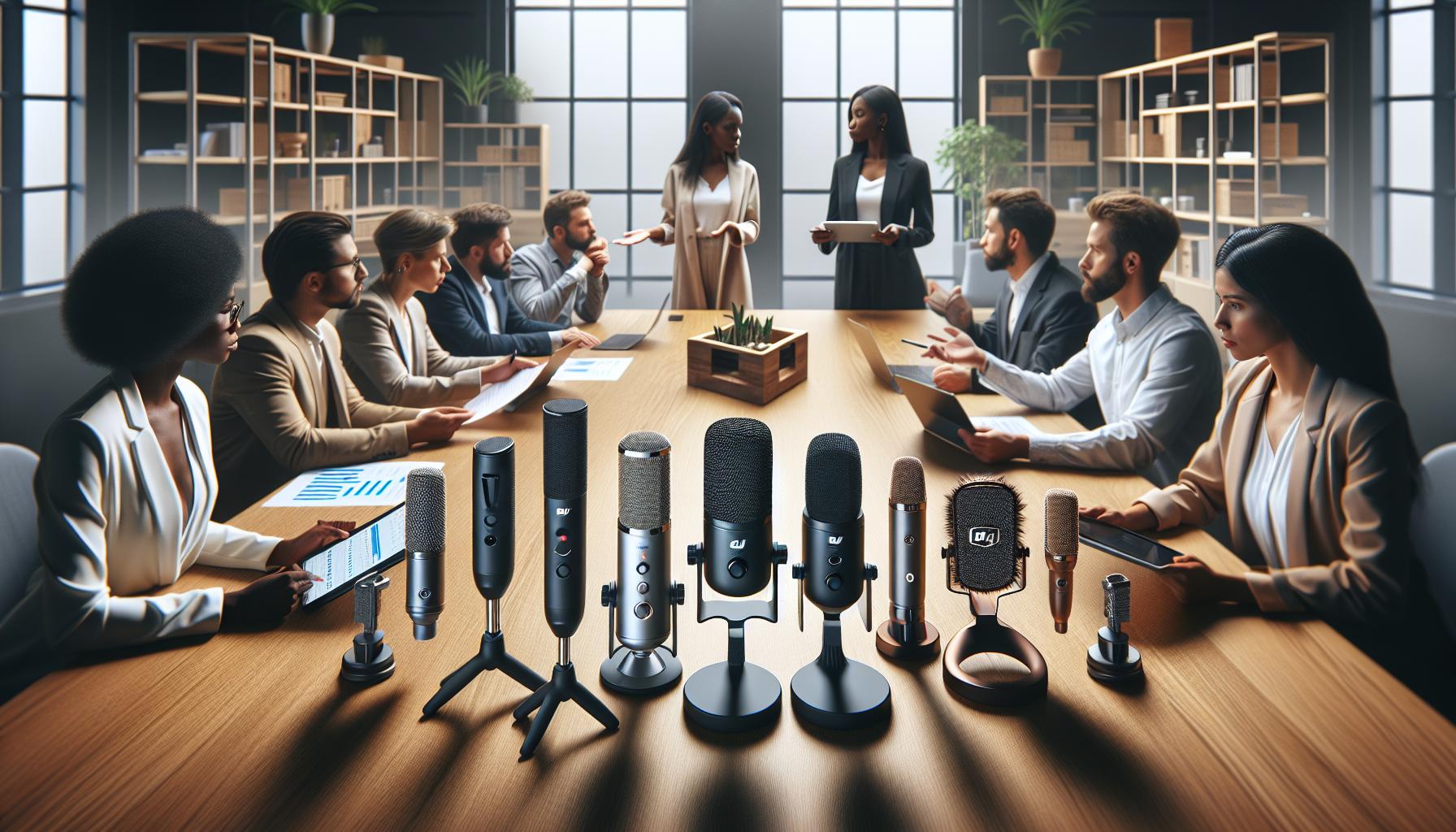
Comparing DJI Mic Mini Features with Competitors
When evaluating the DJI Mic Mini, it’s essential to understand how its features stack up against competitors in the wireless microphone market. The DJI Mic Mini stands out with its compact design, user-friendly setup, and seamless integration with devices like the iPhone. Unlike many other options that require cumbersome setups or additional equipment, the Mic Mini allows users to connect effortlessly, thanks to its Bluetooth capabilities and dedicated app support.
One of the most notable aspects of the DJI Mic Mini is its range and signal stability. Compared to other wireless microphones, such as the Rode Wireless GO or the Saramonic Blink 500, the Mic Mini provides a robust signal that maintains high audio quality even at extended distances. This is particularly advantageous for content creators who often film in dynamic environments where distance from the recording device may vary.
The audio quality of the DJI Mic Mini is also commendable, featuring a clear and crisp output that rivals higher-priced models. With features like automatic gain control and high-fidelity recording capabilities, the Mic Mini delivers professional-grade audio without the need for extensive manual adjustments. This is a significant advantage for beginners looking to produce quality content without getting bogged down by complex settings.
Furthermore, the DJI Mic Mini excels in battery life. Many competing models require frequent recharging or have limited operation time, while the Mic Mini boasts an impressive lifespan that can handle long recording sessions or multiple shoots in one day without interruption. This reliability makes it an excellent choice for vloggers and content creators who need consistent performance while on the go.
In summary, while there are several wireless microphone options available, the DJI Mic Mini’s combination of user-friendly features, superior audio quality, and robust battery life positions it as a leader among its competitors, making it an ideal microphone for iPhone users looking to elevate their audio recording experience.
Troubleshooting Common Setup Issues
Experiencing setup issues with the DJI Mic Mini can be a tricky roadblock for content creators eager to enhance their audio quality. The good news is many common problems have straightforward solutions. To ensure a smooth experience, it’s vital to follow a logical troubleshooting process when encountering difficulties during setup.
One of the most frequent issues is connectivity between the Mic Mini and the iPhone. Start by ensuring both devices are adequately charged since low battery levels can interfere with Bluetooth connections. If the devices fail to pair, try restarting both the microphone and the iPhone. Make sure that Bluetooth is enabled on your iPhone-navigate to Settings > Bluetooth and look for the DJI Mic Mini in the list of devices. If it doesn’t appear, resetting the microphone might help. To do this, press and hold the power button until you see the LED indicators flash, indicating a reset. You can then attempt the pairing process again.
Another common concern is audio quality. If the recorded audio is distorted or unclear, it could be due to poor microphone placement or environmental factors. Using a windscreen is essential when recording outdoors to minimize wind noise, and keeping the microphone 6-12 inches from the subject’s mouth helps ensure clearer audio signals. Moreover, check the audio input settings on your iPhone. Within the recording app you’re using, ensure that the appropriate audio source is selected, allowing the app to capture the sound from the Mic Mini rather than the phone’s built-in mic.
Occasionally, users may experience issues related to firmware compatibility, especially if updates have not been installed. Always ensure you’re operating the latest firmware for the Mic Mini. This can be done through the DJI app, where you can check for updates associated with the microphone. Keeping your equipment updated not only improves performance but also enhances compatibility with your iPhone.
To summarize, with a systematic approach to diagnosing connectivity issues, ensuring optimal audio quality, and keeping firmware up to date, you can easily troubleshoot common setup problems with the DJI Mic Mini. This proactive stance will provide you a seamless recording experience, empowering you to focus on creating outstanding content.
Advanced Audio Techniques for Professionals
Every professional content creator understands that pristine audio quality can significantly elevate the impact of their projects. When using the DJI Mic Mini with your iPhone, mastering advanced audio techniques can transform your recordings from good to outstanding. Here are some strategies to truly optimize your sound capture process.
One essential technique is to utilize directional audio capture. The DJI Mic Mini features a cardioid pickup pattern that focuses on sound from the front while minimizing noise from the sides and rear. Position the microphone at an optimal distance (6-12 inches) from the sound source to capture clear and intelligible audio. For interviews or dialogue-driven content, using an external windscreen can help limit wind interference and plosive sounds, ensuring your recordings are crisp.
Balancing audio levels during recording is another critical technique. Utilize the gain control feature on the Mic Mini, adjusting it based on the environment and distance from the sound source. A good practice is to perform a test recording to monitor levels. Aim for peaks at around -12dB to -6dB to avoid distortion while maintaining a dynamic range that captures subtle nuances in voice and sound.
Beyond recording, consider integrating your content workflow with post-production audio enhancement techniques. Use professional audio editing software, like Adobe Audition or GarageBand, to fine-tune recorded audio. You can apply equalization (EQ) to enhance clarity, compression to maintain consistent volume levels, and noise reduction to clean up any background sounds. These practices ensure your final output is polished and professional.
Lastly, the compatibility of DJI Mic Mini with various iPhone models opens avenues for versatile recording options. Whether you’re in a controlled studio setting or on location dealing with unpredictable acoustics, understanding how to adapt your recording technique to the surrounding environment and the tools at your disposal empowers you to deliver high-quality audio content consistently. Mastering these advanced techniques will undoubtedly enhance your recordings, making them more engaging and professional-grade.
Using Additional Accessories with DJI Mic Mini
Using the DJI Mic Mini with your iPhone can unlock a world of audio possibilities, especially when enhanced with the right additional accessories. Whether you’re a budding filmmaker, podcaster, or content creator, integrating accessory items can significantly improve your recording quality and versatility.
A common addition is an external windscreen, particularly useful for outdoor recordings. Windscreens reduce wind noise, which can be disruptive, especially during interviews or on-the-go shoots. When you place the DJI Mic Mini into a windscreen, you’ll capture cleaner audio without compromising your recording’s integrity. For users recording in varied environments, a shock mount can be beneficial, absorbing vibrations that may interfere with sound capturing. This is particularly important when moving around or if you’re in a bustling environment.
Consider also using audio cables with adapters tailored for your iPhone model. These allow you to connect the DJI Mic Mini directly to your iPhone, ensuring a stable connection for clear audio. Adapters can also enable compatibility with a wider range of devices, expanding your recording capabilities. Additionally, if you’re producing content that includes multiple audio sources, using a mixer can streamline the process. A portable audio mixer allows for diverse inputs and adjustments on the fly, giving you better control over the audio landscape of your project.
Finally, carrying a monitoring headphone paired with your setup permits real-time audio checks during recordings. This functionality ensures that any potential issues, such as unwanted background noise or clipping, can be addressed instantly, leading to a more polished final product. By leveraging these accessories alongside the DJI Mic Mini, you can significantly elevate your recording quality and professionalism in audio production.
Understanding Compatibility with iPhone Models
Integrating the DJI Mic Mini with your iPhone can lead to an impressive audio experience, provided that you understand the compatibility across different iPhone models. The DJI Mic Mini is designed to work seamlessly with many of the latest iPhone models, ensuring that creators can capture high-quality sound without the hassle of complex setups. However, knowing which accessories or adapters to use based on your specific iPhone model can make a significant difference in achieving optimal performance.
Most modern iPhones, such as the iPhone 7 and later, lack a traditional headphone jack, which means you will need to use the Lightning to 3.5 mm adapter for the best connectivity with the DJI Mic Mini. This adapter is crucial as it allows you to link the microphone directly to your device, ensuring stable audio capture. Additionally, users with iPhone models equipped with USB-C ports should use Lightning-compatible adapters to facilitate seamless connections. It’s always worthwhile to check Apple’s compatibility guidelines or consult your device’s manual for specific audio input configurations.
For those using older iPhone models, including the iPhone 6 and earlier, you can directly connect your DJI Mic Mini without needing an adapter. However, keep in mind that sound quality might not be as crisp due to hardware limitations inherent to these older devices. Testing the setup prior to a recording session is a great way to gauge sound quality and identify any necessary adjustments.
In summary, understanding the nuances of iPhone compatibility with the DJI Mic Mini requires a bit of forethought regarding the specific hardware and accessories required. Ensure you have the right adapters, and take a few moments to test your setup to guarantee the highest audio quality possible. By optimizing these connections, you will enhance your recording experience, enabling your creativity to shine through in every project.
Recording Quality: Tips and Best Practices
Capturing top-notch audio is vital for content creators, and when using the DJI Mic Mini with your iPhone, several best practices can significantly enhance your recording quality. To get the most out of this cutting-edge wireless microphone, consider the following tips that will ensure your audio stands out, no matter the content you’re producing.
First and foremost, placement is key. Position the microphone as close to the sound source as possible. For interviews or spoken content, attaching the transmitter directly to the speaker’s clothing-such as a lapel or collar-will effectively minimize background noise and capture clear, focused audio. If you’re recording a multi-person conversation, consider using additional microphones or a multi-channel setup to ensure everyone is captured distinctly.
Next, pay attention to your environment. Achieving the best audio quality means being aware of your surroundings. Select quieter locations or utilize soft surfaces (like carpets or curtains) to absorb sound and diminish echoes. If you must record in a noisy area, using the DJI Mic Mini’s windscreen when filming outdoors can help mitigate wind noise and prevent distractions.
Another aspect to consider is your settings on both the DJI Mic Mini and your iPhone. Make sure that the input levels are correctly set to avoid distortion. The DJI Mic Mini has adjustable gain settings that can help tailor the audio capture to your specific environment and source. Experiment with these settings during initial tests and adjust them based on your recording conditions.
Lastly, take advantage of post-production techniques to enhance your recorded audio. Using software to remove unwanted background noise, equalize sound levels, and add compression can significantly improve the clarity and overall quality of your recordings. If you’re not familiar with audio editing, numerous resources and tutorials are available online to guide you through the process.
By understanding these effective practices and refining your approach to audio recording with the DJI Mic Mini and your iPhone, you will not only enhance the quality of your content but also deliver a more engaging experience for your audience.
Practical Applications for Content Creators
With the rise of mobile content creation, the DJI Mic Mini has emerged as a game-changer for iPhone users, offering a compact solution to elevate audio quality across various applications. Whether you are a vlogger, podcaster, or influencer, the versatility of this microphone makes it a crucial tool for capturing clear and professional sound, regardless of your filming location.
For interviews, the DJI Mic Mini’s wireless capability allows for unobtrusive setups. Attach the transmitter discreetly to the interviewee’s clothing while your iPhone captures the audio. This setup not only promotes comfortable conversations but also ensures that the microphone is close to the speaker’s mouth, optimizing sound quality. Moreover, its extended battery life means you can record lengthy discussions without worrying about power drains, making it ideal for event coverage or longer podcasts.
In the realm of vlogging, capturing dynamic and high-quality audio is vital, as viewers are particularly sensitive to poor sound quality. The DJI Mic Mini’s lightweight design makes it easy to carry during travel, and its simple connectivity with the iPhone allows for spontaneous recording opportunities. Set it up in busy environments or while on the move; the noise-canceling features help mitigate crowd noise, enhancing your narrative and allowing the essence of your surroundings to shine through.
For live streaming, the microphone’s reliable wireless transmission ensures that your audio remains clear and uninterrupted, even as you move around. Pair the microphone with a mobile stabilizer for enhanced video quality, turning mundane streaming sessions into polished live interactions with your audience. This adaptability not only aids in delivering crisp audio but also enriches your engagements by maintaining a high standard of quality.
Lastly, let’s not overlook its effectiveness in educational content creation. If you’re recording tutorials or instructional videos, the DJI Mic Mini provides a robust solution for capturing clear explanations and discussions without cumbersome setups. The ability to easily connect and disconnect means educators can focus on teaching without the distraction of complicated audio equipment.
In summary, the DJI Mic Mini not only simplifies the process of capturing high-quality audio with an iPhone but also enhances the overall content creation experience across various platforms and formats. By embracing its features, content creators can ensure that their audio matches the professionalism of their visuals, leading to greater audience engagement and satisfaction.
Enhancing Your Audio with Post-Production Tips
To maximize the audio quality captured with your DJI Mic Mini, post-production techniques play a crucial role in refining and enhancing your recordings. Even the best microphone can benefit from careful editing and audio processing, and understanding how to utilize available tools can elevate your content significantly.
Start by importing your recorded audio into a digital audio workstation (DAW) or audio editing software. Popular options like Adobe Audition, Audacity, and GarageBand provide robust tools for editing. One of the first steps in post-production is to use equalization (EQ) to adjust frequency ranges. Typically, you’ll want to cut out unwanted low frequencies that may add muddiness. Enhance clarity in vocal recordings by boosting the mid to high frequencies-this helps your voice stand out, especially in noisy environments.
Next, consider utilizing compression to even out the dynamics of your audio. This process reduces the difference between the loudest and softest parts of the recording, creating a more polished sound. A good starting point is using a 3:1 ratio for compression settings, adjusting the threshold based on your specific voice levels.
Additionally, make use of noise reduction tools to remove any background hum or hiss that the microphone might have picked up during recording. Most audio editing software includes a noise reduction feature that can analyze a section of audio to create a noise profile, which you can then apply across the track to clean up unwanted sounds.
Lastly, adding a touch of reverb can contribute to a more natural audio ambiance. Be careful to keep it subtle-too much can make audio sound distant or unprofessional. Striking the right balance in the mixing stage will ensure that your listeners enjoy crystal-clear sound without distractions.
In summary, the post-production phase is where the real magic happens, transforming your raw recordings into engaging audio that complements your visual content effectively. By applying these techniques, you’ll enhance the clarity, warmth, and overall quality of your recordings, making your content more appealing to your audience.
User Experiences: Feedback and Reviews
Feedback from users who have integrated the DJI Mic Mini with their iPhones reveals a variety of engaging experiences that shine a light on its performance and usability. Many users praise its compact size and exceptional audio quality, particularly noting how it effectively captures clear, crisp sound in various environments. The device’s wireless capabilities make it an attractive option for content creators on the go, allowing for a level of mobility that traditional setups often fail to provide. Users report that the convenience of a lightweight microphone combined with the quality of recordings has significantly enhanced their video and podcast projects.
Moreover, the ease of setup has been highlighted as a game-changer for beginners. Users appreciate the intuitive guide that simplifies the connection process with their iPhones, often involving just a few taps in the settings menu. Many have shared their success stories on platforms like YouTube, showcasing how they were able to go from setup to high-quality recordings in a matter of minutes. This plug-and-play functionality is particularly appreciated by creators aiming to keep their workflow efficient. Furthermore, the accessory options allow for enhanced flexibility; users frequently discuss how adapters and additional windshields have further improved their recording experiences in challenging conditions.
However, while the majority of feedback is positive, some users have pinpointed areas for improvement. Complaints about battery life surfaced occasionally, especially during longer shooting sessions, underscoring the importance of ensuring the device is fully charged before a shoot. Additionally, a few experienced difficulty with connectivity drops in certain environments, prompting suggestions for future firmware updates that would stabilize the wireless performance. Despite these concerns, the overall reception leans heavily towards satisfaction, with users lauding the DJI Mic Mini as an essential tool for enhancing audio quality without complicating their setup.
For aspiring creators, reviews frequently emphasize the strong return on investment that the DJI Mic Mini offers, especially when compared to more expensive options. Its performance closely rivals pricier alternatives, affirming that it’s a worthy addition to any filmmaker or content creator’s toolkit. In essence, the DJI Mic Mini’s user experiences paint a vivid picture of a device that combines professional-quality audio with user-friendly features, making it a top pick for both novices and seasoned professionals alike.
Q&A
Q: How do I connect my DJI Mic Mini to my iPhone?
A: To connect your DJI Mic Mini to your iPhone, start by turning on both the transmitter and receiver. Use the provided TRS to TRRS adapter if needed, and plug the receiver into your iPhone’s lightning port. Ensure the microphone is paired with the receiver before testing audio levels.
Q: What settings should I adjust for optimal audio quality on iPhone?
A: For optimal audio quality, set your iPhone’s voice recorder or video camera app to a high-quality audio format, and adjust input levels to prevent clipping. Experiment with different distances between the mic and the sound source for clearer audio.
Q: What is the range of the DJI Mic Mini when used with an iPhone?
A: The DJI Mic Mini offers a wireless transmission range of up to 250 meters under ideal conditions. However, the actual range may vary depending on obstacles or interference, so test it in your specific environment before critical use.
Q: Can I use the DJI Mic Mini for live streaming on my iPhone?
A: Yes, you can use the DJI Mic Mini for live streaming on your iPhone. Simply connect the receiver to your iPhone, open your preferred streaming app, and select the microphone as your audio source to ensure high-quality sound for your audience.
Q: How do I troubleshoot audio issues with the DJI Mic Mini on my iPhone?
A: To troubleshoot audio issues, first check battery levels on both the transmitter and receiver. Ensure connections are secure, and verify that no obstructions are between the mic and receiver. Restart both devices if audio problems persist.
Q: Does the DJI Mic Mini work with all iPhone models?
A: The DJI Mic Mini is compatible with all iPhone models that have a lightning port. For models without a traditional headphone jack, use the lightning adapter for audio connections.
Q: How can I improve the recording quality with DJI Mic Mini on my iPhone?
A: To improve recording quality, use windshields for outdoor recording, maintain a consistent distance from the sound source, and utilize post-production software to enhance audio clarity. Regularly monitor levels during recording for the best results.
Q: Are there any accessories I should consider for better use of my DJI Mic Mini with an iPhone?
A: Consider using a windscreen for outdoor use, a good quality carrying case for protection, and additional cables (like TRS to TRRS) for versatile setups. These accessories enhance usability and portability for various recording environments.
In Summary
Now that you know how to set up your DJI Mic Mini with your iPhone for optimal audio quality, it’s time to take your content creation to the next level! With its ultralight design and impressive 48-hour battery life, this microphone is designed for creators like you who want to capture high-quality audio effortlessly. Don’t miss out on the chance to enhance your videos-grab your DJI Mic Mini today!
For further insights on maximizing your audio and video production, check out our guides on DJI gimbal setup and tips for shooting professional-grade videos with your smartphone. Have questions or experiences to share? Join our community in the comments below! Your next project awaits, so let’s start creating amazing content together.
\n
Setup Guide: How to use DJI Mic Mini with iPhone
Creators frequently search for how to use dji mic mini with iphone to achieve professional-level audio for their vlogs and social media content. The setup is incredibly straightforward. First, take the DJI Mic receiver and attach the included Lightning (or USB-C for iPhone 15 and newer) adapter to its base. Plug the receiver directly into the bottom port of your iPhone. Your iPhone will immediately recognize it as an external microphone. Finally, power on the transmitter (the clip-on mic), ensure the LED indicator turns solid green indicating a paired connection, and start recording.